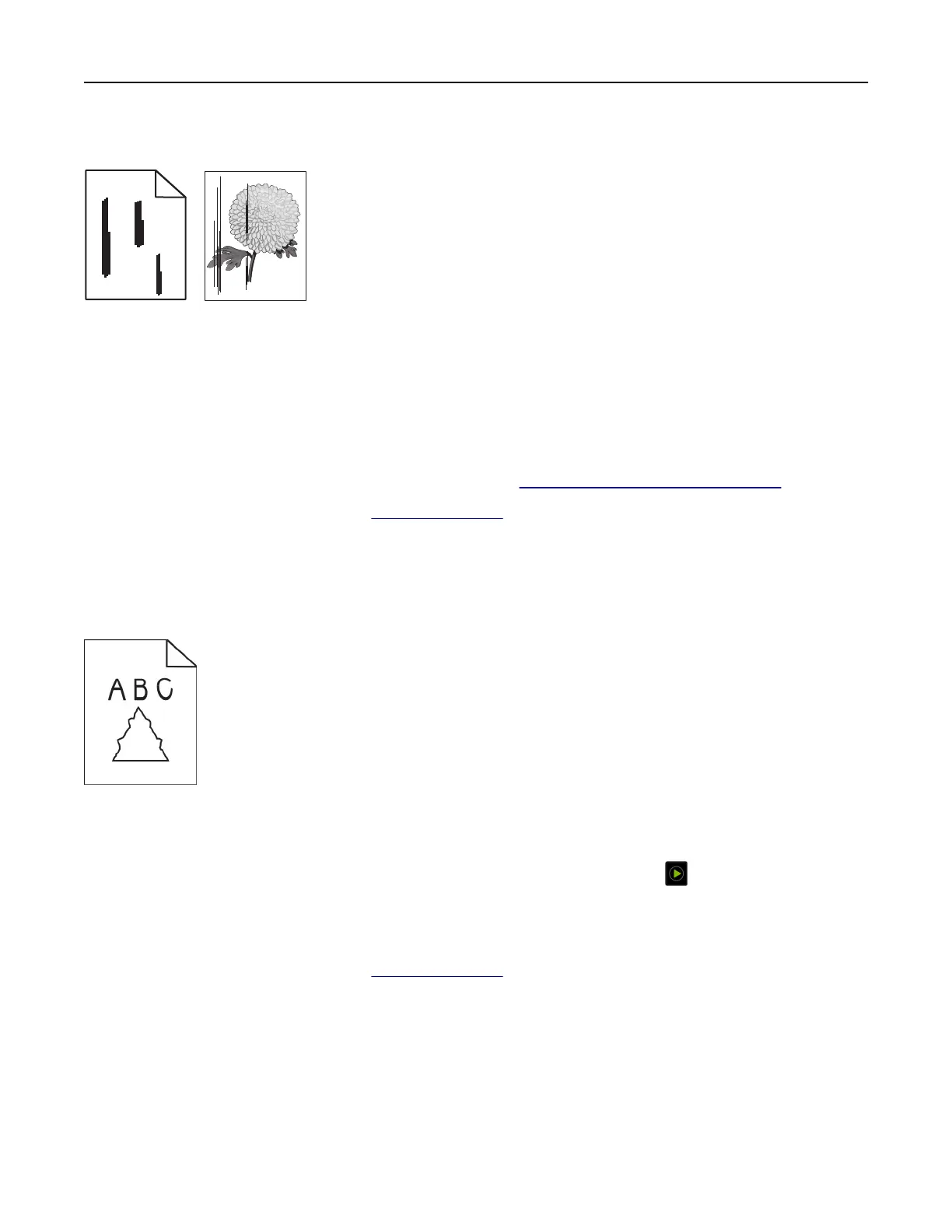
Vertical dark streaks when scanning from the ADF
ABCDE
ABCDE
ABCDE
Leading edge
Trailing edge
1 Raise the scanner cover, and then remove the glass cleaner tool.
2 Wipe the ADF glass beside the scanner glass.
3 Open door A1, and then clean the ADF glass.
4 Return the tool to its place.
5 Close the scanner cover.
Note: For more information on cleaning the scanner, see
“Cleaning the scanner” on page 434.
If the problem persists, then contact customer support.
Jagged image or text when scanning from the ADF
Jagged image or text when scanning from the ADF
1 Load 50 sheets of clean, plain paper into the ADF.
Note: The plain paper helps clean or remove dust and other coatings from the ADF feed rollers.
2 From the control panel, swipe right to the control center, and then select .
3 Load an original document into the ADF.
4 Scan the document.
If the problem persists, then contact
customer support.
Scan job was not successful
Troubleshoot a problem 532



 To Next Page