Warning—Potential Damage: Make sure that all printers receiving firmware updates are turned on during
the entire firmware update process. Turning o a printer during a firmware update can severely damage it.
If the printer is connected to the network when checking for updates, then downloading the firmware is not
required.
1 Open a web browser, and then type the printer IP address in the address field.
Notes:
• View the printer IP address on the printer home screen. The IP address appears as four sets of
numbers separated by periods, such as 123.123.123.123.
• If you are using a proxy server, then temporarily disable it to load the web page correctly.
2 Click Device.
3 Scroll down, and then click Update Firmware.
4 Depending on your printer model, click Check for updates or Check for updates now.
If a new update is available, then click I agree, start update.
The printer reboots automatically after the update.
Installing hardware options
Installing the optional 550‑sheet tray
CAUTION—SHOCK HAZARD: To avoid the risk of electrical shock, if you are accessing the controller
board or installing optional hardware or memory devices sometime after setting up the printer, then turn
the printer o, and unplug the power cord from the electrical outlet before continuing. If you have any
other devices attached to the printer, then turn them o as well, and unplug any cables going into the
printer.
Note: This task requires a flat‑head screwdriver.
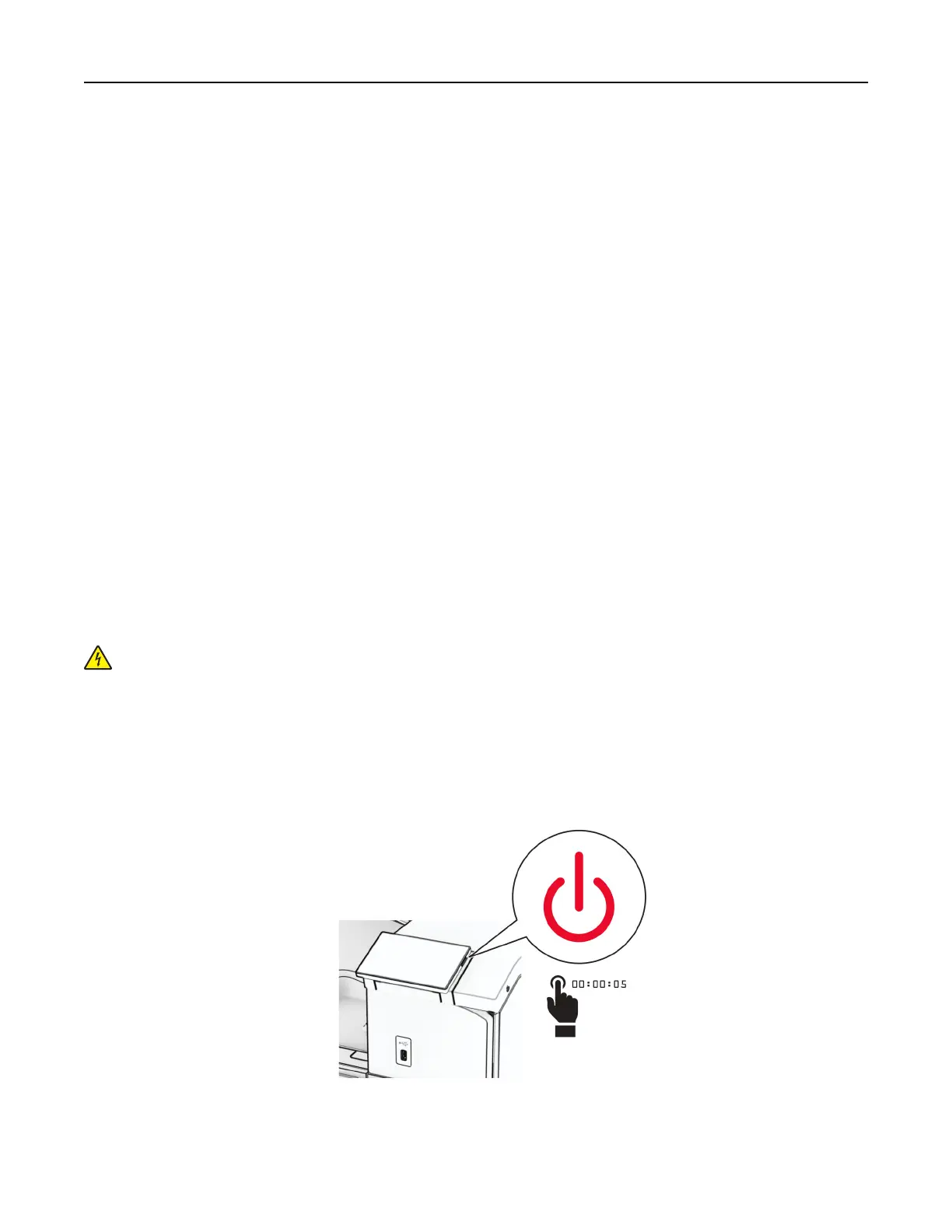
1 Turn
o
the printer.
Set up, install, and configure 98



 To Next Page