Pathway Technical Reference Manual
Proprietary 187 of 190
Finite ramp by temperature timeout.
Thermode temperature: ## (°C).
Error Code: 2002
The temperature ramp could not be completed
in the required time. PATHWAY automatically
switches to Safe Mode in order to prevent any
damage.
1. Check that the coolant temperature is
according to the requirement.
2. Run the system Self-Test to verify that
there is no fault in the PATHWAY system
or Thermodes.
If the problem persists, stop using the
PATHWAY system and contact Medoc service.
[ATS / CHEPS]Thermode was not
detected by PATHWAY.
The Thermode has been disabled.
1. Make sure that the Thermode is
properly connected to the Pathway
system.
2. Enable the Thermode through the
Hardware Settings, General menu.
3. Click Yes to try again.
Or
4. Click No to continue working.
The system could not detect one of the
enabled Thermodes, and therefore disabled it
in order to prevent any damage.
Follow the instructions in the message text.
Some of the safety parameters
(Temp Vs. Time) are violating the
PATHWAY safety limitations.
1. Click OK to continue working with
current non-approved safety
parameters.
2. Click Restore to restore safety
parameters to the PATHWAY
definition.
The PATHWAY system has detected that the
modified safety limitations do not comply with
safety regulations.
Select one of the presented options and
continue.
According to safety regulations, if the safety
parameters have been modified, performing
tests on human subjects is not permitted
without written approval!
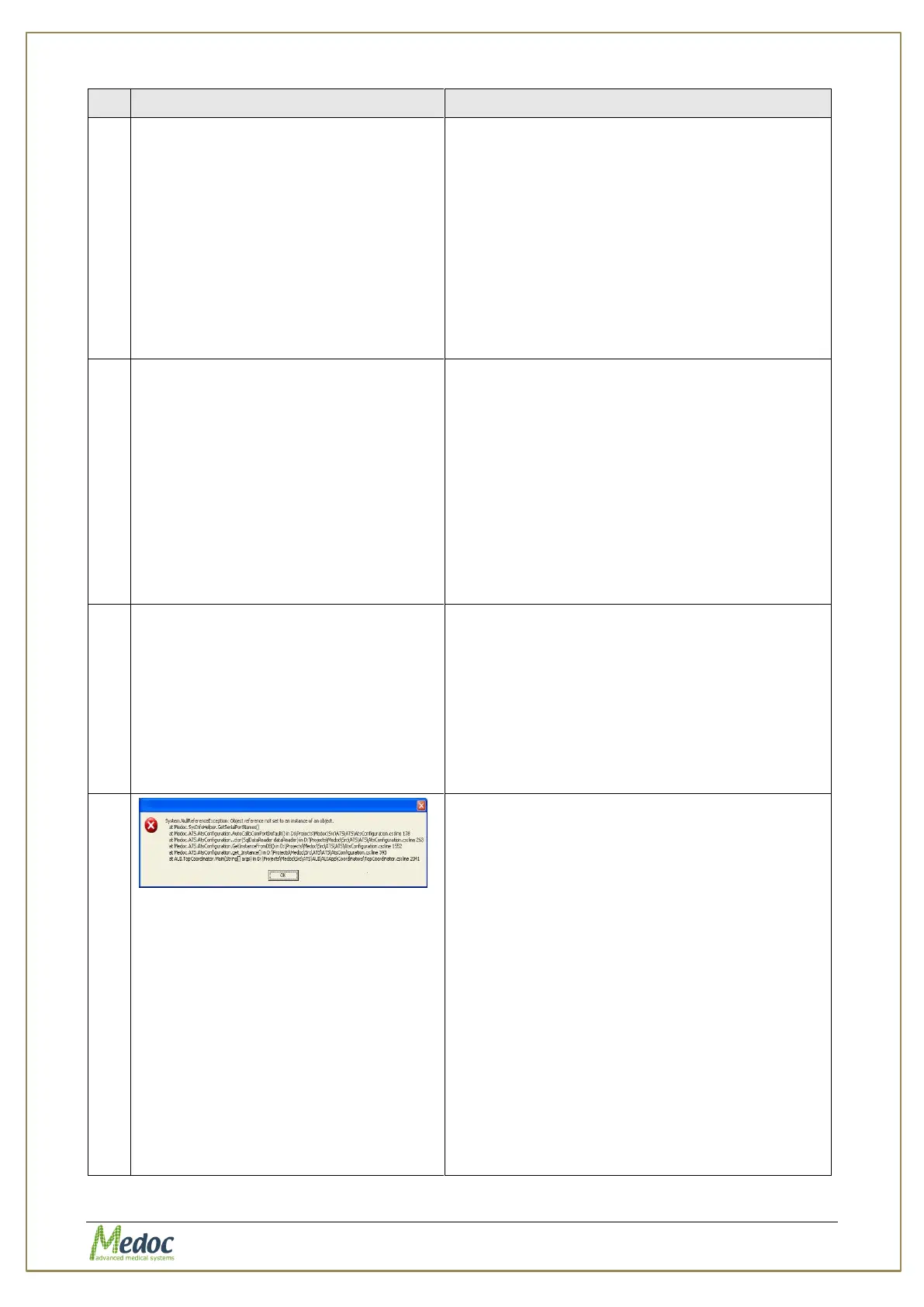
Error start with:
System. Null Reference Exception:
Object reference not set to an
instance of an object.
at Medoc. Syslnfo Helper. Get Serial
Port Names()
The computer doesn’t have a physical or
virtual serial COM port. Follow the instructions
below to add a virtual COM port to the
computer:
1. Insert the installation CD. Click ‘Cancel’ if
the installation starts automatically. Open
the folder: “Medoc Manufacturer Remote
Assistance Tools”, and copy the file: “Add
SERIAL COM to registry.reg” to your
desktop.
2. Double click the file to run the file
3. Restart the computer and connect
PATHWAY with the USB
4. Turn ON the system and wait for the
driver installation to complete
5. Start MEDOC Main Station.
If the problem persists, contact Medoc service.



 To Next Page