Browsing Your History and Records 11
134
11 Browsing Your History and Records
Glucose Details
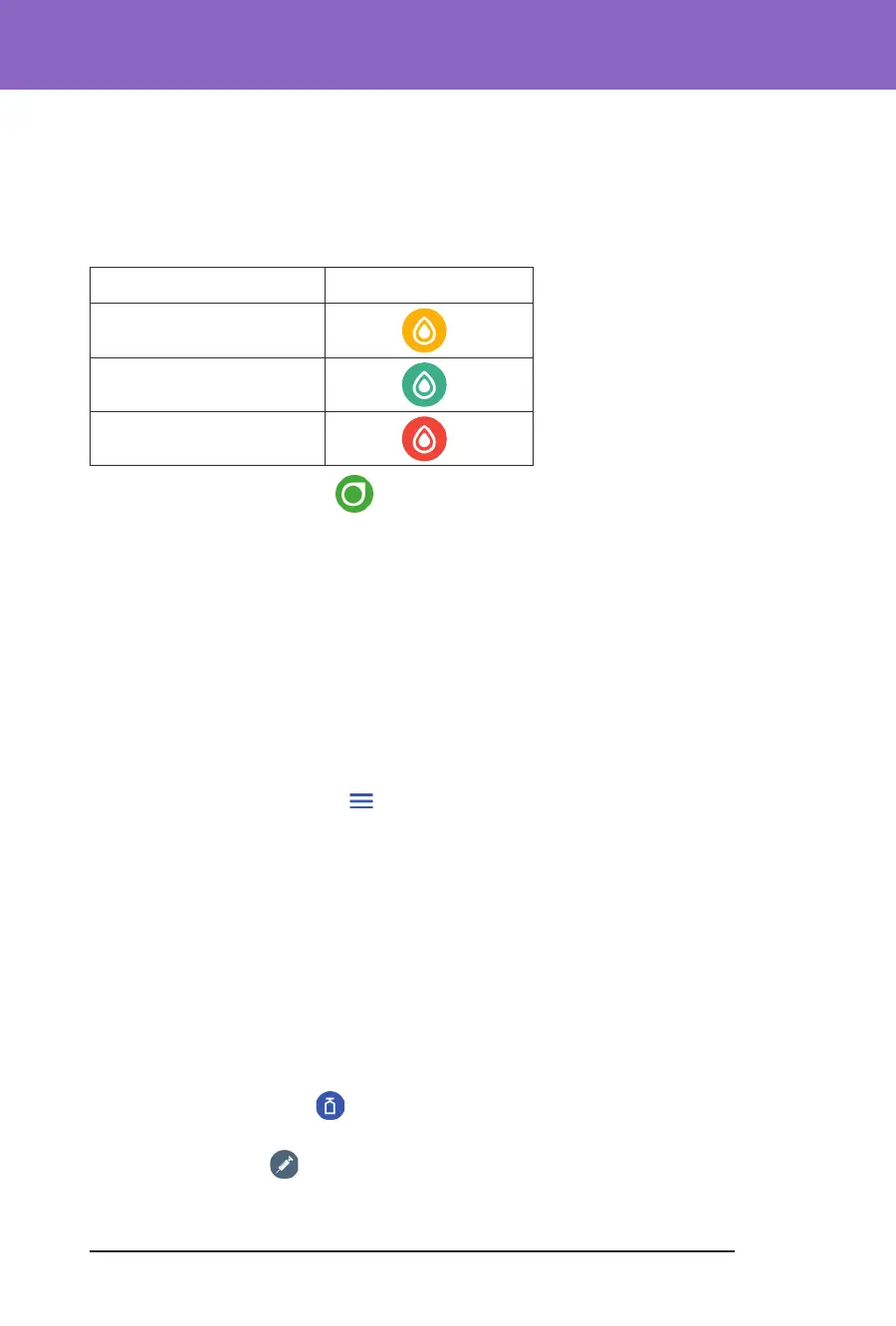
e icon displayed with a blood glucose reading indicates whether the glucose
was in range.
e blood glucose icons are:
BG entry
Above Glucose Goal Range
Within Glucose Goal Range
Below Glucose Goal Range
e Dexcom G6 icon is:
Glucose Goal Range
e goal of using the Omnipod 5 System is to keep your glucose within your
Glucose Goal Range. You dene this range by setting the upper and lower limits.
e Sensor Graph and the Enter BG screen use the Glucose Goal Range to
determine which glucose readings are within your goal and which are above or
below your goal.
Note: e Glucose Goal Range does not impact insulin delivery.
To set the upper and lower limit of your Glucose Goal Range:
1. Navigate to: Menu button ( ) > Settings > Glucose Goal Range.
2. Set the limits of the Glucose Goal Range:
a. Tap the Upper Limit eld and enter the desired value.
b. Tap the Lower Limit eld and enter the desired value.
3. Tap SAVE.
Bolus Details
e icon displayed with a bolus entry indicates whether the SmartBolus
Calculator was used:
• e insulin bottle icon ( ) indicates that the SmartBolus Calculator was
used.
• e syringe icon ( ) indicates that a manual bolus was delivered.



 To Next Page