91
Basal Programmes 66 Basal Programmes
6.3. Creating New Basal Programmes
To create a new Basal Programme:
1. Navigate to the Create Basal Programme screen:
Menu button (
) > Basal Programmes
2. Tap CREATE NEW.
Note: If you already have 12 Basal Programmes, CREATE NEW does not
appear. If necessary, you can delete an existing Basal Programme, See
“6.5.Deleting a Basal Programme” on page 92.
3. See “Create a Basal Programme” on page 61 to continue creating your new
Basal Programme.
4. If you have an active Pod and you want to use the new Basal Programme now,
tap START to start using the new Basal Programme. If you do not want to use
the new Basal Programme now, tap NOT NOW.
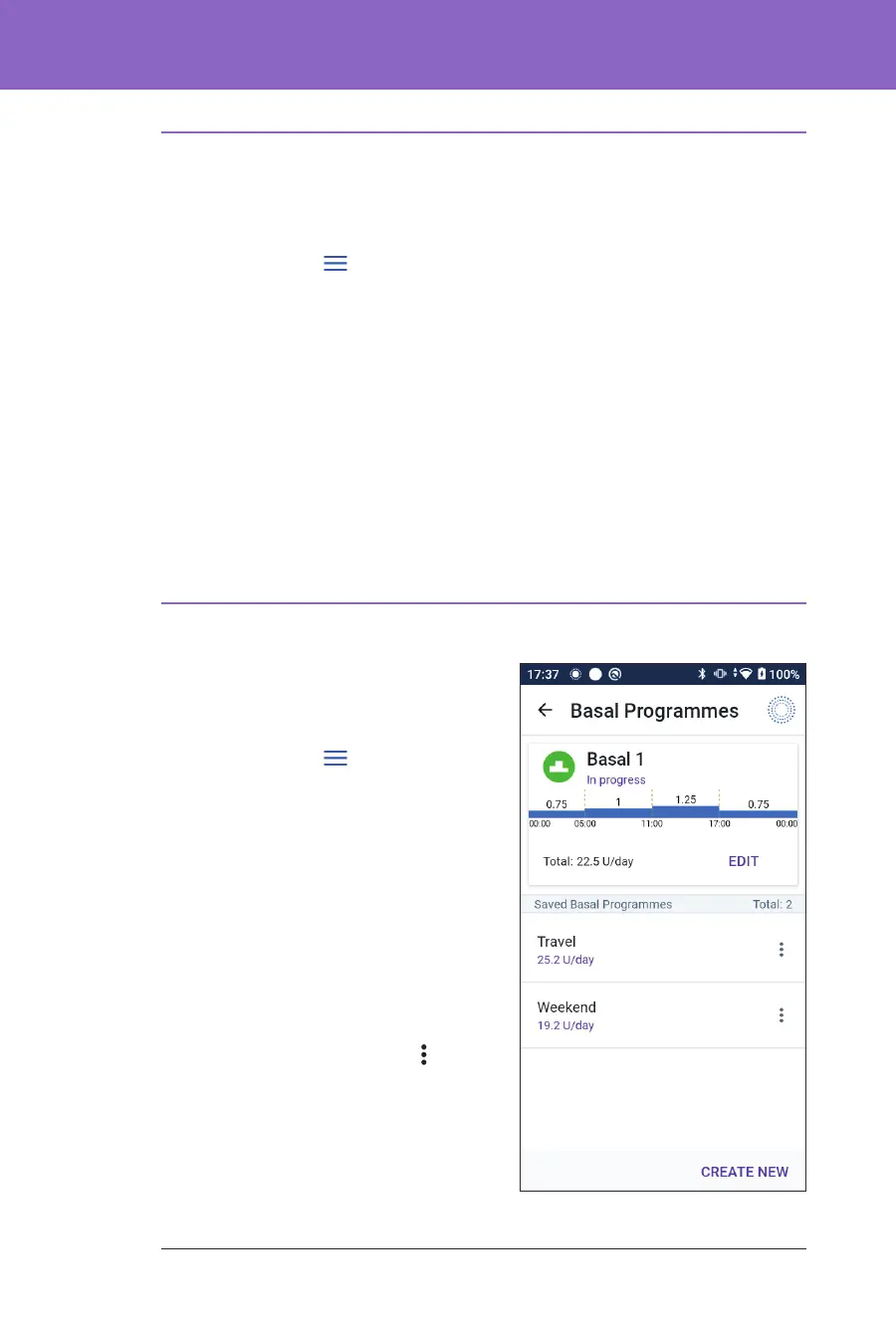
6.4. Editing a Basal Programme
To edit a Basal Programme:
1. Navigate to the list of Basal
Programmes:
Menu button (
) > Basal
Programmes
2. Select the Basal Programme you want
to edit. Scroll up or down as necessary
to locate the Basal Programme.
• To edit the Basal Programme
in progress, tap EDIT beneath
the graph of the programme
in progress. en tap PAUSE
INSULIN.
• To edit a saved Basal Programme,
tap the Options button (
) next
to the Basal Programme you
want to edit. en tap Edit.
3. To rename the Basal Programme,
tap the Programme Name eld and
enter the new name.
4. Tap DONE.



 To Next Page