39
Omnipod 5 System Overview 33 Omnipod 5 System Overview
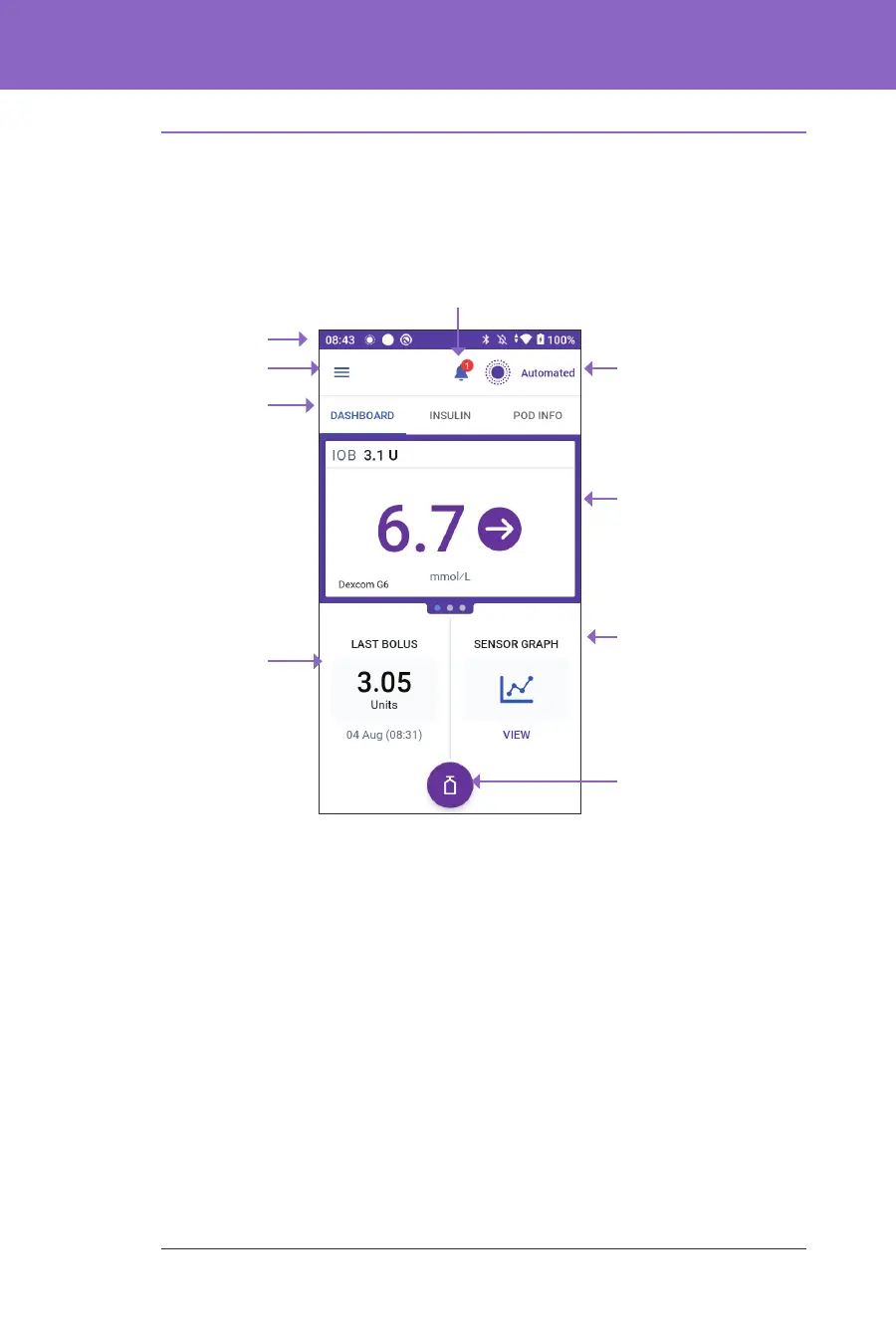
3.5. Home Screen
is section introduces you to what you may see on the Omnipod 5 App Home
screen. Dierent information will display depending on which system mode is
activated.
e Home screen tab view that you select determines what information displays
on the screen. To change the information displayed:
• Tap DASHBOARD, INSULIN or POD INFO.
• Swipe right or le in the middle portion of the screen (directly below the
Home screen tabs) to move between tab views.
• If an immediate bolus is in progress, a bolus progress bar and a button to
cancel the bolus are shown on the Home screen. e three tabs are not visible
if an immediate bolus is running. (See “17.6. Delivering an Immediate Bolus”
on page 219).
Current System Mode
Bolus button; disabled
(greyed out) when an
immediate or extended
bolus is in progress
Amount and
time of the last
bolus; shows
IOB when a bolus
is in progress
Tab Views
Menu button
Status bar
Alarms and Notications
Tab View Display;
information will vary
based on the selected
Tab View.
Sensor Graph



 To Next Page