Setting Up Your Omnipod5 Application 4
68
4 Setting Up Your Omnipod5 Application
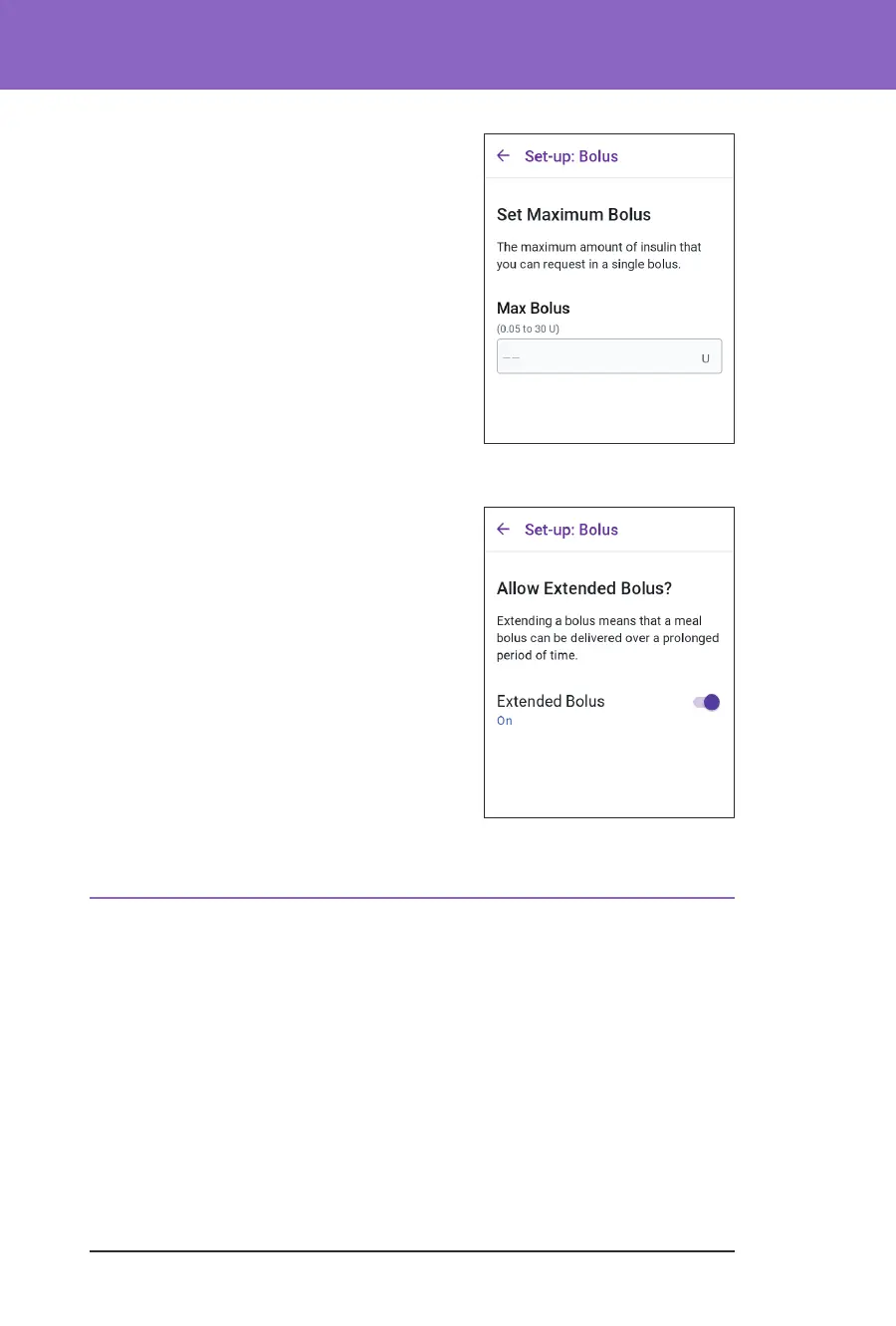
Maximum Bolus
e Omnipod 5 App will not let you request
a bolus above the Maximum Bolus setting.
You will see a message if the SmartBolus
Calculator calculates a bolus that is above this
amount.
1. Tap the Max Bolus eld and enter your
Maximum Bolus. Tap DONE to close the
number pad.
2. Tap NEXT.
Extended Bolus
Extending a bolus allows you to give a portion
of the bolus dose at the beginning of the meal
with the remainder of the bolus dose dripped
over a chosen period of time.
Note: Extended bolus is available in Manual
Mode only.
1. Toggle the Extended Bolus button to turn
the extended bolus feature ON or OFF.
2. Tap NEXT.
4.6. Your App Set-up is Complete
Congratulations! Omnipod 5 App set-up is complete.
When you are ready to activate your rst Pod, go to “5.1. Beginning the Pod
Activation Process” on page 72.
Aer successfully activating the Pod, you will be prompted to connect your Sensor
to the Omnipod 5 System. See “Chapter 20: Connecting Dexcom G6 to the Pod”
on page 255.



 To Next Page