Alarms, Action and Reminder Notications 13
146
13 Alarms, Action and Reminder Notications
For how to view the alarms and notications history, see page 146.
For
Dexcom G6 alarm information, see the Dexcom G6 CGM System Instructions
for Use.
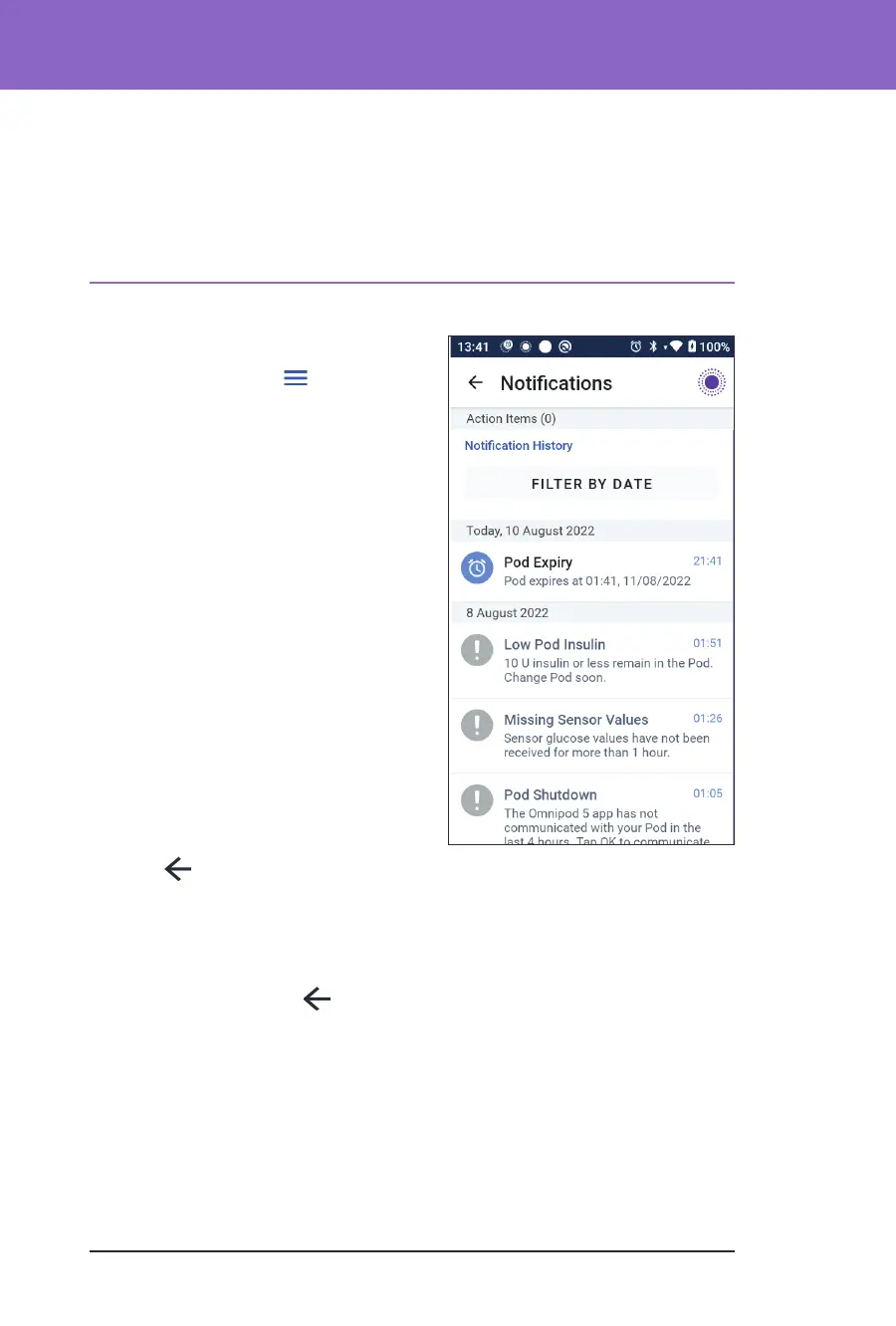
13.2. Alarms and Notications Screen
To review past alarms and notications:
1. Tap Menu button ( ) >
Notications.
Messages from today are displayed
rst, with the newest at the top of the
screen and the oldest at the bottom of
the screen.
2. To display a specic date range, tap
FILTER BY DATE.
a. Tap the starting date on the
calendar.
Note: Tap the “<” arrow to view
an earlier month.
b. Tap END at the top of the screen.
c. Tap the ending date for the date
range.
d. Tap OK.
3. When nished, tap the back arrow to
exit (
). Unread notications have
coloured icons described in “13.1.
Types of Alarms and Notications”
on page 145.
Note: When a notication has been displayed on this screen, and you have exited
by tapping the back arrow (
), the icon for those notications will be grey the
next time you view this screen.



 To Next Page