Delivering a Bolus 16
208
16 Delivering a Bolus
16.3. Tracking the Progress of a Bolus
During a bolus, the Home screen displays a
progress bar.
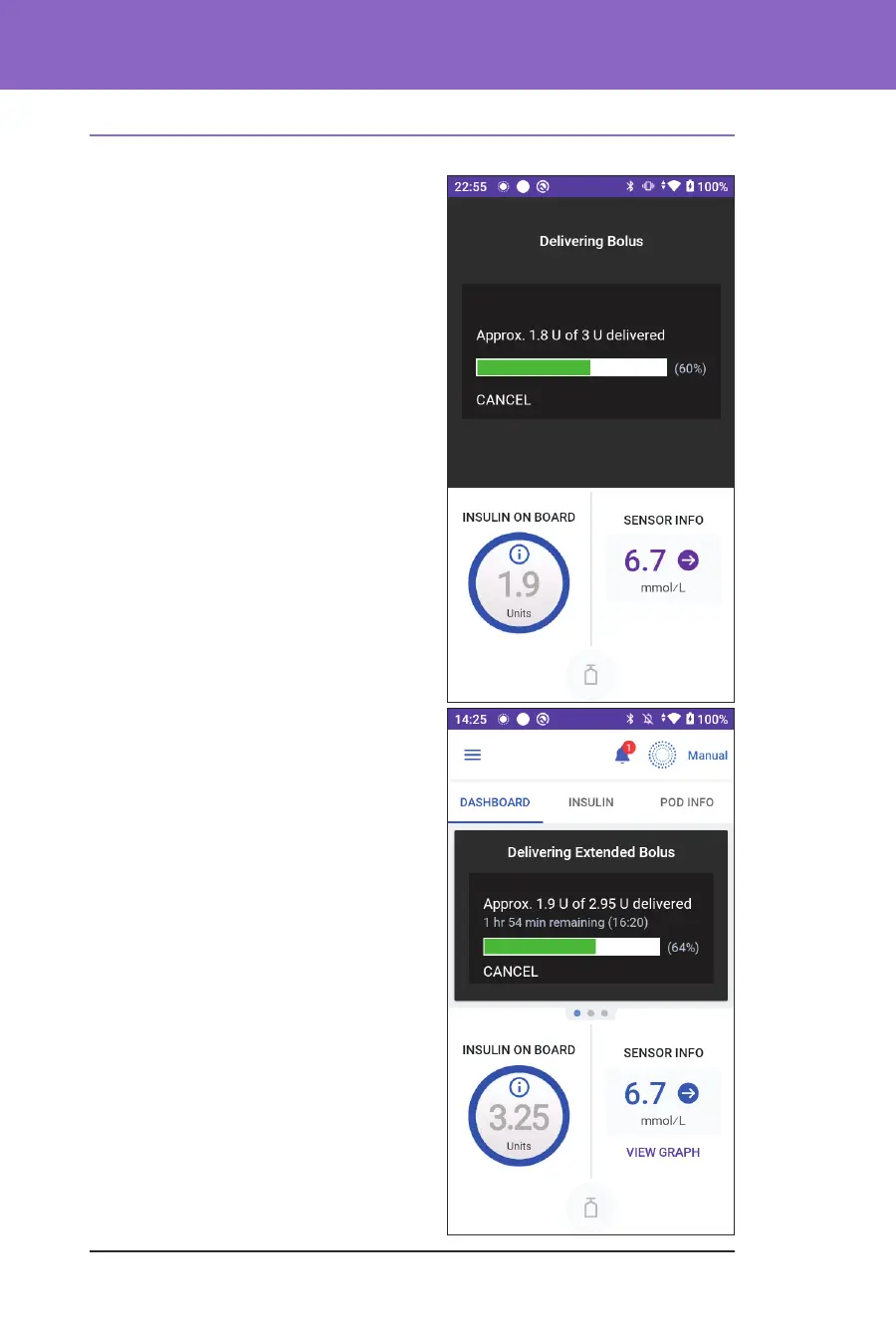
Immediate bolus progress
During an immediate bolus, the Home
screen displays a Delivering Bolus message
along with a progress bar and details.
An estimate of the IOB is displayed in the
lower le of the screen.
If IOB is unavailable, then the amount of the
last completed bolus is displayed in the lower
le of the screen.
Note: You cannot navigate within the
Omnipod 5 App during an immediate bolus.
Note: Look for the progress bar to conrm
the bolus delivery has started before
navigating away from the Omnipod 5 App.
To cancel a bolus, see “16.4. Cancelling
a Bolus in Progress” on page 209.
Extended bolus progress
During an extended bolus, the Home
screen's DASHBOARD tab displays a
Delivering Extended Bolus message along
with a progress bar and other details.
An estimate of the IOB is displayed in the
lower le of the screen.
If IOB is unavailable, then the amount of
the last completed bolus is displayed in the
lower le of the screen.
Note: You can still navigate within the
Omnipod 5 App during an extended bolus
but some functions will be unavailable until
the bolus is complete.
Unless you cancel the bolus, the Pod will
nish delivering a bolus whether or not it is
in range of the Controller. To cancel a bolus,
see “16.4. Cancelling a Bolus in Progress” in
the next section.



 To Next Page