173
Alarms, Action and Reminder Notications 1313 Alarms, Action and Reminder Notications
13.9. Silencing Unresolved Alarms
You can silence the Pod or Omnipod 5 App alarms by acknowledging the alarm
screen displayed on your Omnipod 5 App. If the alarm continues, follow the
directions in this section.
Pod Alarm
Caution: Permanently silencing a Pod alarm requires the Pod to be removed
from your body. Once removed and discarded, promptly activate a new Pod to
avoid going too long without insulin, which could lead to hyperglycaemia.
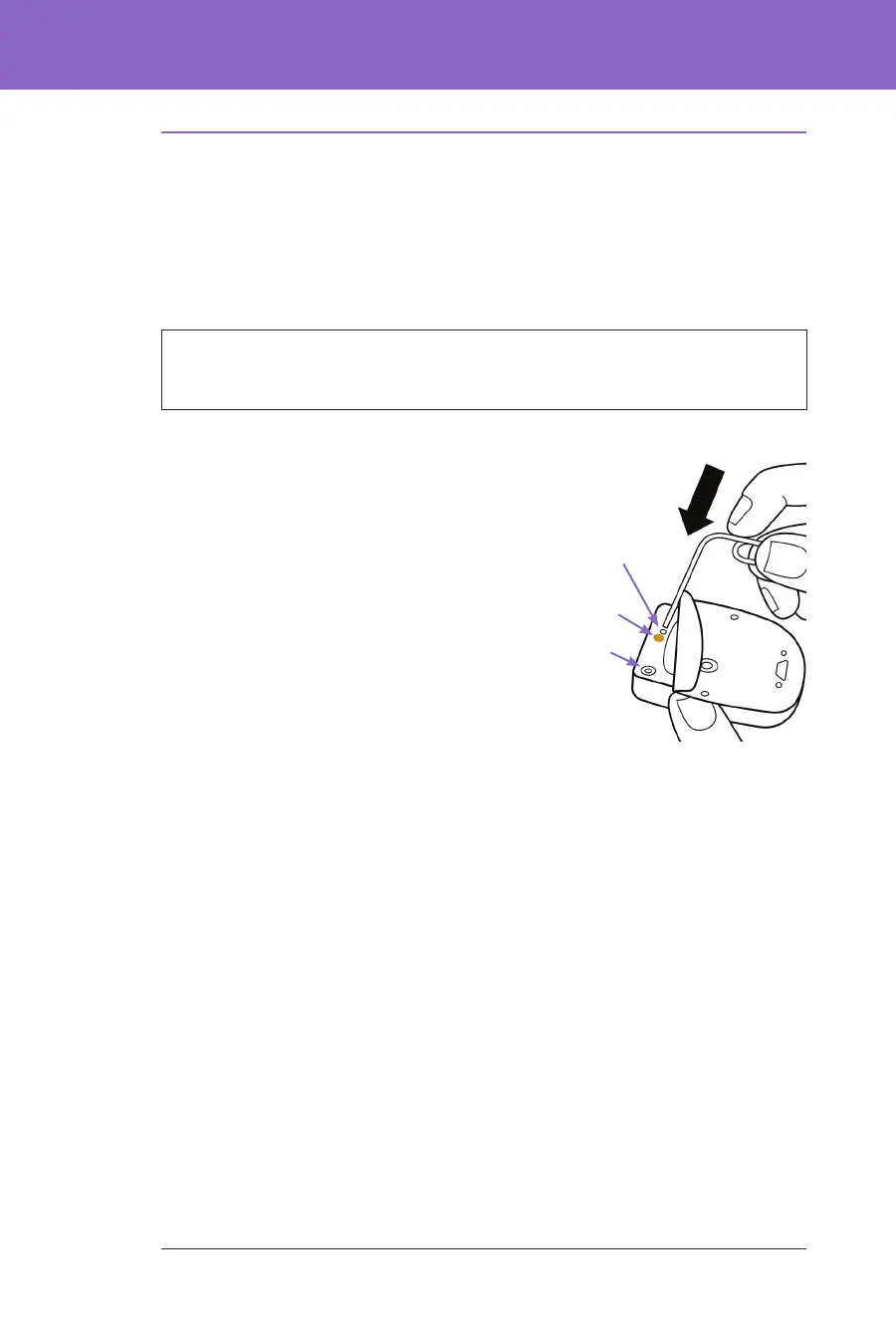
To permanently silence a Pod alarm:
1. If the Pod is on your body, remove it.
2. Peel back a little bit of the adhesive
pad from the bottom of the Pod at the
square end (see gure).
3. Locate the alarm Shutdown port to
the right of the gold circle. e alarm
Shutdown port can be felt with a
ngernail or paper clip as so plastic.
4. Firmly press a paper clip or similar
item straight down into the alarm
Shutdown port. You need to apply
enough force to break a thin layer of
plastic. If an alarm is sounding, the alarm will stop.
Controller Alarm
If a Controller alarm is not silenced when you acknowledge the alarm:
1. Press and hold the Power button, then tap Power o.
2. Press and hold the Power button to turn the Controller back on.
is action silences the Controller's alarm. Your history records and personal
settings are preserved. However, you may have to conrm the time zone.
Fill port
Gold circle
Alarm Shutdown
port
Press down rmly.



 To Next Page