Activating and Changing Your Pod 5
84
5 Activating and Changing Your Pod
Once the cannula is inserted, the Pod automatically lls the cannula with
insulin. e Pod then begins delivering the basal rate of insulin according to
the Basal Programme in progress.
e cannula can be inserted only once with each Pod.
6. Review the list of active reminders, then tap CLOSE.
Caution: ALWAYS check the alarm function when you change the Pod if
you suspect any issue with the Pod's sounds to ensure that you don't miss
important alarms during use (see “Check alarms” on page 151).
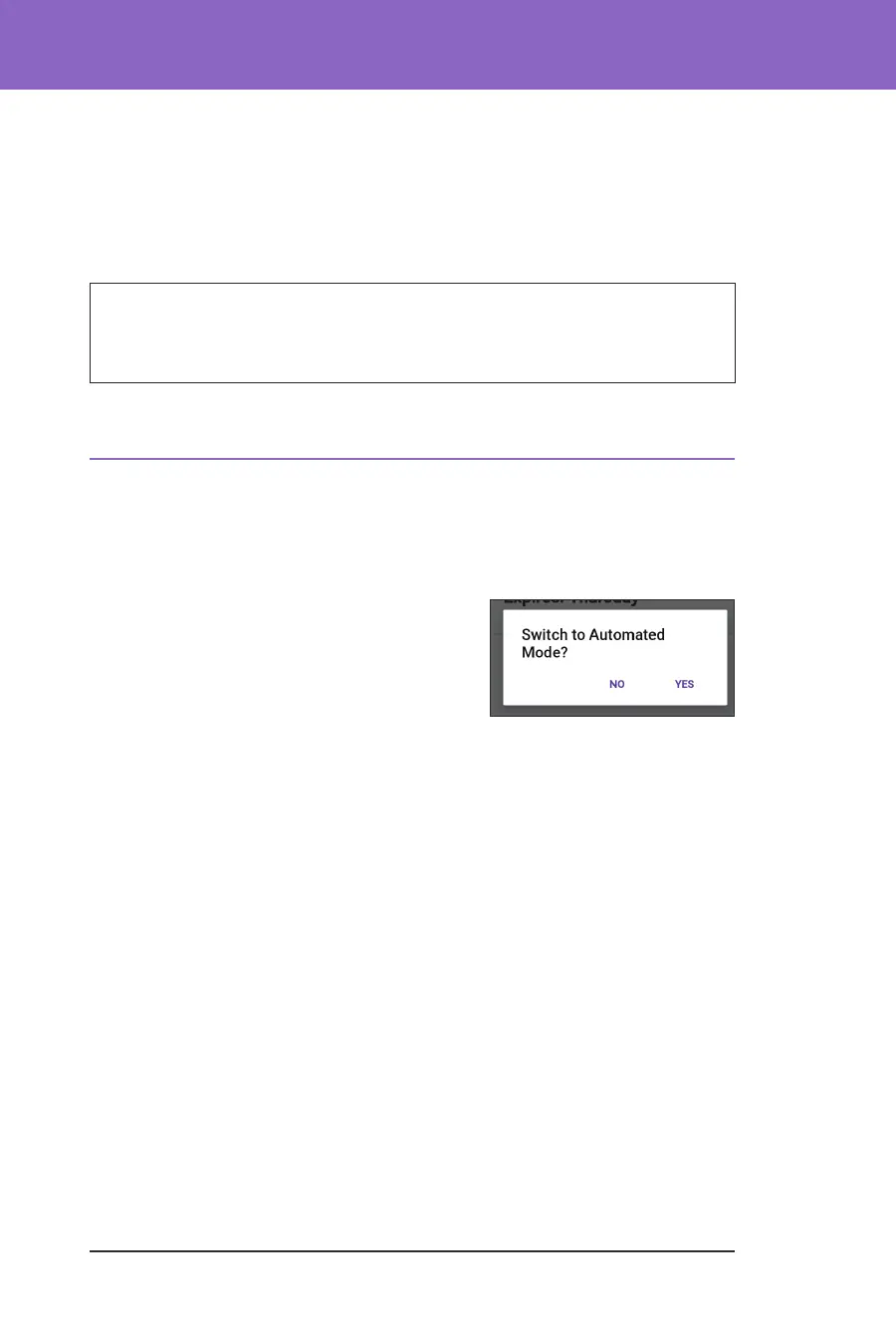
5.6. Switching to Automated Mode
An active Pod and Transmitter serial number (SN) are required to switch to
Automated Mode. If you have a Transmitter SN entered in the Omnipod 5 App,
you will be prompted to switch to Automated Mode aer activating your Pod.
To switch to Automated Mode:
¾ Tap YES
To continue in Manual Mode:
¾ Tap NO
You can switch from Manual Mode to
Automated Mode at a later time. See “22.1. Switching from Manual Mode to
Automated Mode” on page 274.
Note: Aer switching to Automated Mode, you may see Automated Mode:
Limited until sensor glucose values are available. See “21.5. About Automated
Mode: Limited” on page 269.



 To Next Page