99
Temporary Basal Rates and Presets 77 Temporary Basal Rates and Presets
7.3. Cancelling a Temp Basal or Temp Basal Preset
A temp basal stops automatically at the end of its time period and the last
scheduled Basal Programme starts.
To cancel a temp basal before the end of its time period:
1. Navigate to the Home screen's TEMP ON tab.
2. Tap CANCEL.
3. Tap YES to conrm cancellation. e Omnipod 5 App cancels the temp basal
and starts the last scheduled Basal Programme.
7.4. Creating a New Temp Basal Preset
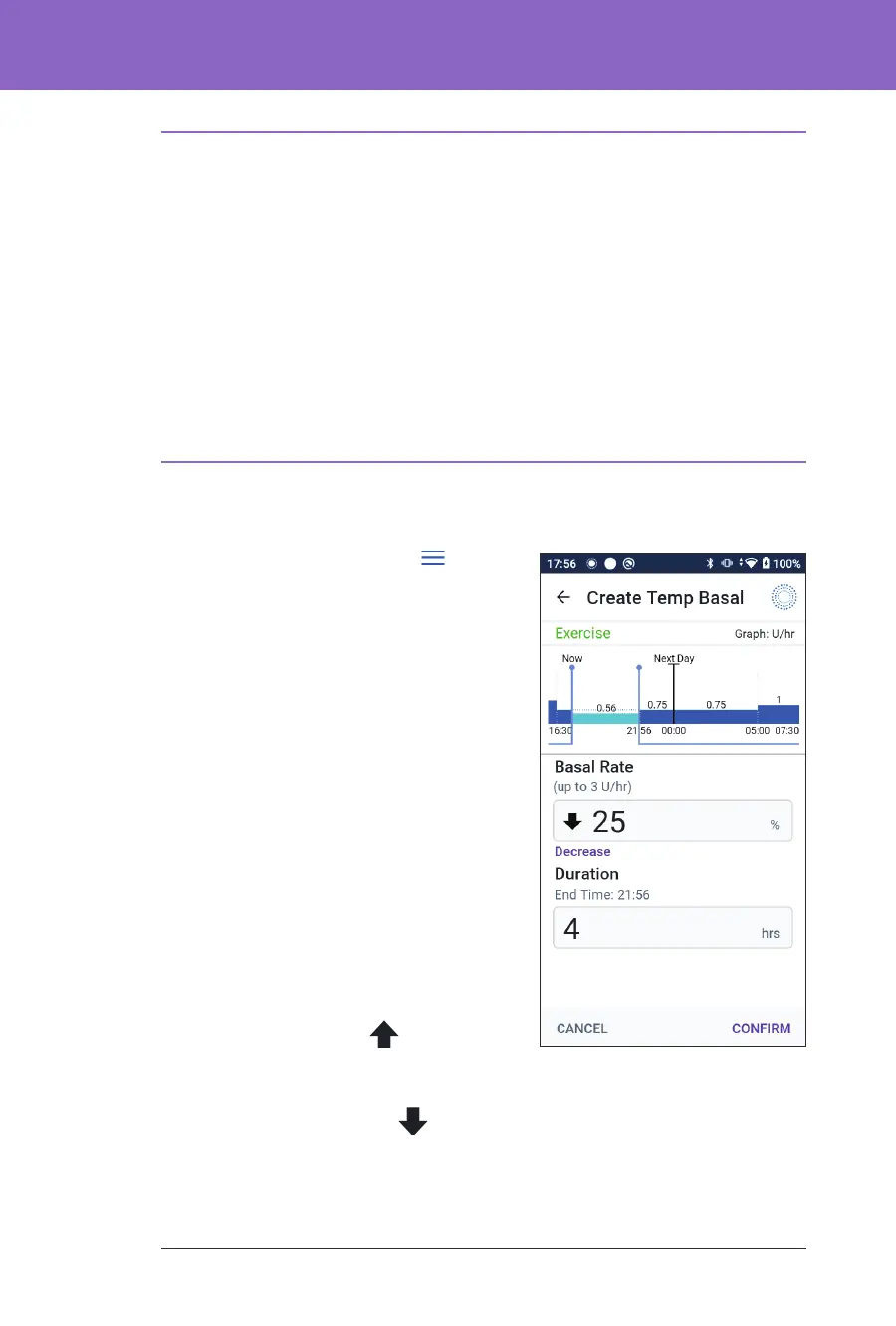
To create a new temp basal preset:
1. Navigate to: Menu button ( ) >
Temp Basal Presets.
2. Tap CREATE NEW.
Note: If you already have 12 temp
basal presets, CREATE NEW does not
appear. If necessary, you can delete an
existing preset.
3. Tap the Preset Name eld and enter a
descriptive name for your preset.
4. Tap DONE.
Note: e default name for the preset
is “Temp Basal” followed by a number.
5. Tap NEXT.
6. Tap the Basal Rate eld and scroll to the
desired value.
• If using a percentage (%), change:
An UP ARROW (
) indicates
increasing the basal rate above that
of the Basal Programme in progress.
A DOWN ARROW (
) indicates decreasing the basal rate below that
of the Basal Programme in progress.
• If using a at rate (U/hr), scroll the wheel to select the basal rate for the
entire temp basal period.



 To Next Page