Setting Up Your Omnipod5 Application 4
64
4 Setting Up Your Omnipod5 Application
4.5. Bolus Settings
Next, you will set the Bolus Settings that will be used to calculate a bolus in the
SmartBolus Calculator. You can adjust your bolus settings later, if your needs
change (see “17.8. Bolus Settings” on page 222 for more information).
1. Tap the arrow (>) on the Bolus screen to move to the Target Glucose &
Correct Above description screen.
2. Tap NEXT to move to the segment screen.
Target Glucose and Correct Above Values
Target Glucose and Correct Above values are used in both Automated and
Manual Mode.
• In Automated Mode, your insulin delivery will be adjusted automatically to
bring your glucose towards your Target Glucose value.
• In both Automated and Manual Mode, the SmartBolus Calculator aims to
bring your glucose to the Target Glucose value. e SmartBolus Calculator
delivers a correction bolus if the current glucose value is higher than the
Correct Above value.
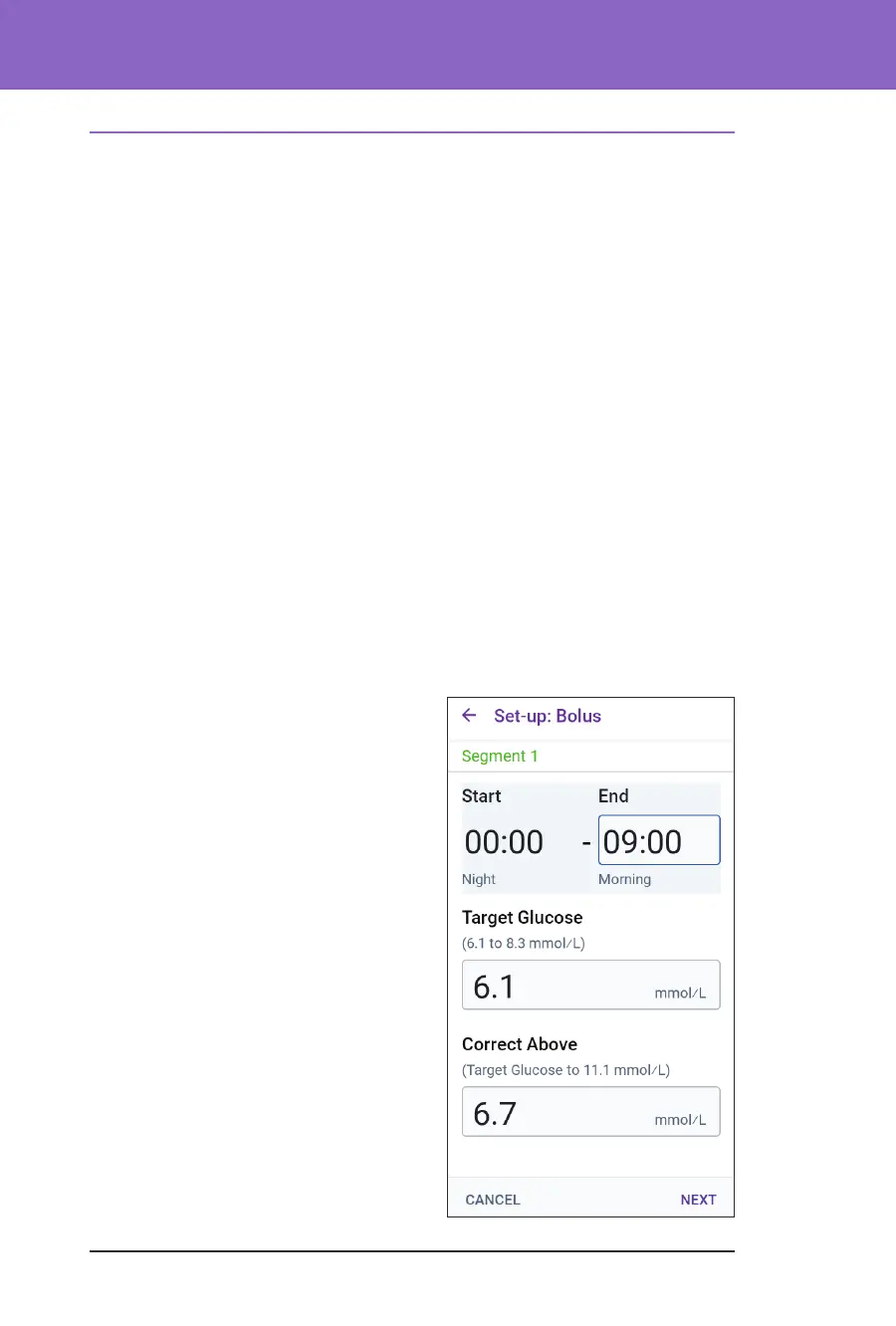
Dene the segments
You can establish up to eight dierent blood
glucose targets for dierent times of day.
To set Target Glucose and Correct Above
values for each segment:
1. Tap the End Time eld and specify an
end time for the segment.
2. Tap the Target Glucose eld and
specify the Target Glucose for that
segment.
3. Tap the Correct Above eld and
specify the Correct Above value for that
segment.
4. Review and tap NEXT.
5. Repeat the above steps as needed
until you have specied values for the
segment that ends at midnight.
6. Review the segments for the full
24-hour prole.
7. To change any of the entries:



 To Next Page