Omnipod 5 System Overview 3
44
3 Omnipod 5 System Overview
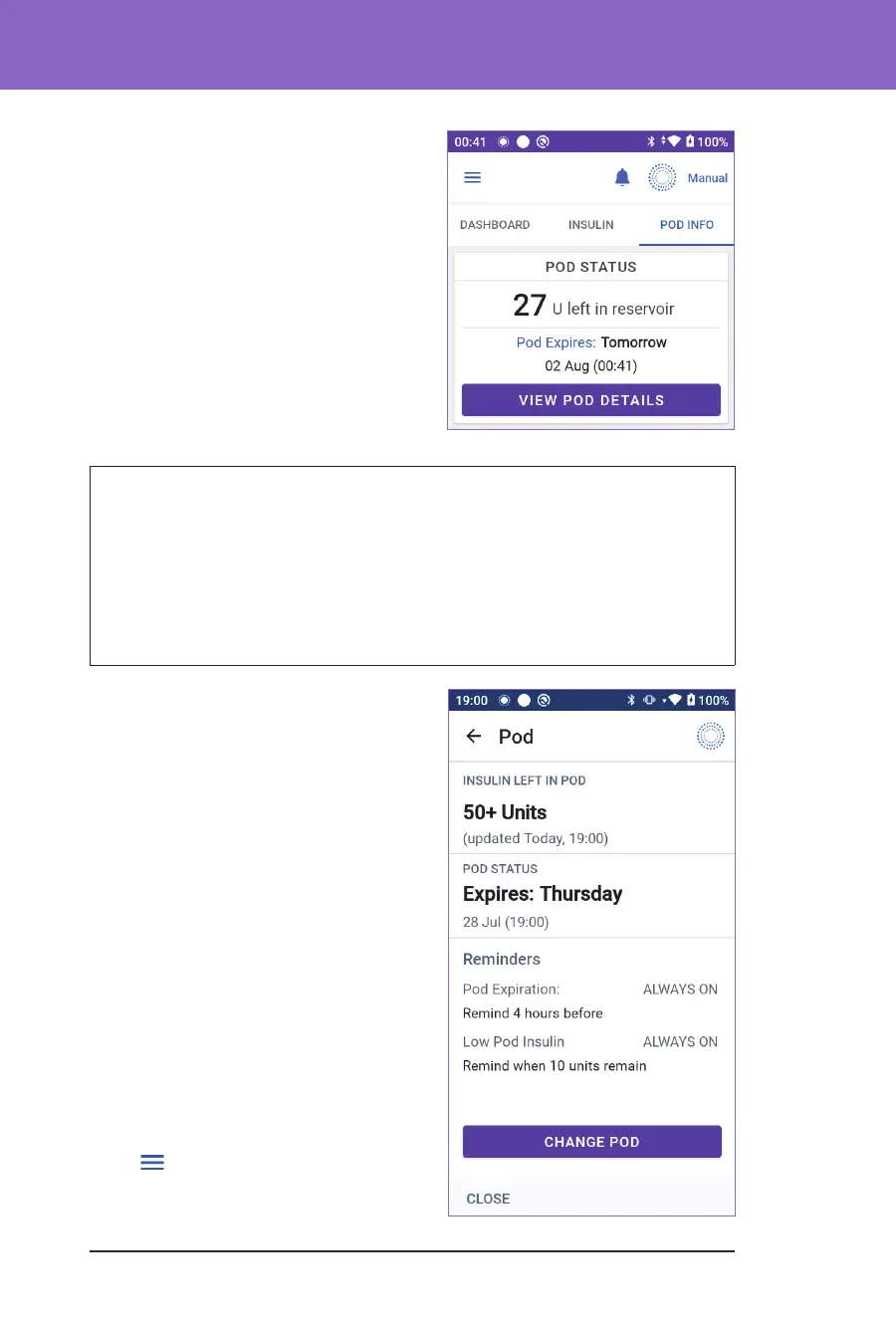
POD INFO Tab
e POD INFO tab shows whether there is
an active Pod, and, if so, how much insulin is
le in the Pod and when the Pod will expire.
If the Omnipod 5 App cannot
communicate with an active Pod, the POD
INFO tab shows “No Pod Communication”.
Tap MORE INFORMATION for details.
Caution: When there is no communication between the Pod and the
Controller, the Pod continues delivering insulin according to the settings
active on the Pod before losing communication. For example, automated
insulin delivery from the Pod will continue in Automated Mode. Restoring
communication is needed to see your system status, notications, and to send
new instructions to the Pod. To restore communication, try bringing the
Controller within 1.5 metres (5 feet) of the Pod. See “26.5. Pod Communication
Issues – “Try Again”” on page 323.
If there is no active Pod, the POD INFO tab
shows “No Active Pod.” To set up a new
Pod, see “Activating and Changing Your
Pod” on page 71.
If there is an active Pod, tap VIEW POD
DETAILS to bring up a screen that lets you
deactivate or change your Pod.
e VIEW POD DETAILS screen shows:
• Amount of insulin in the Pod.
• Time of the last communication
between the Omnipod 5 App and Pod.
• Date and time of the Pod's expiry.
• Reminders.
• A CHANGE POD button.
Tip: You can also access this screen by
tapping Menu button
(
) > Pod.



 To Next Page