326
26 Frequently Asked Questions and Troubleshooting
If you have a problem with your System, contact Customer Care at
1-800-591-3455. You may be asked to share device data.
To share device data:
1. Ensure a working Wi-Fi connection.
2. Go to: Menu button ( ) > About.
3. Tap Send les to Customer Care.
4. Enter the PIN provided by Customer Care.
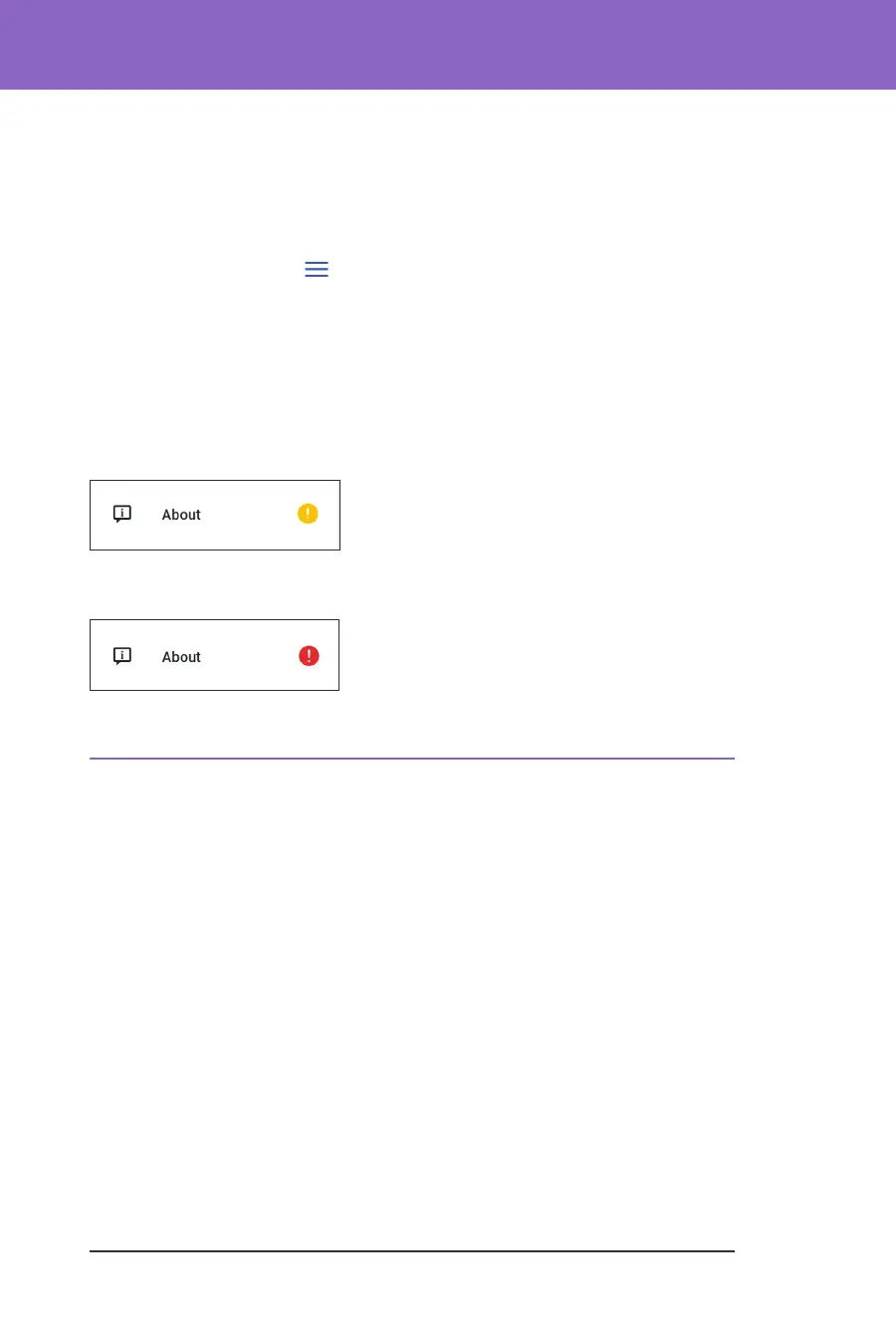
If you see an exclamation mark (!) icon, alert your Customer Care representative.
Navigate to the Home Screen to clear the (!) icon. If the icon persists, restart your
controller.
If this occurs: Data upload is pending.
If this occurs: Data upload is full.
26.8. Boot Mode
How to put your Controller into “Boot Mode”
1. To power o the Controller, press and hold the Power button on the lower
right side until the Power o and Restart options are visible.
2. Select Power o and let the screen go dark.
3. Hold down the Volume Down button and Power button together to power it
back on.
How to leave “Boot Mode”
e touch screen will not work while your Controller is in Boot Mode, but you
can use the Volume buttons and Power button to navigate.
1. Press the Volume Down button to navigate to the Reboot option.
2. Press the Power button to select Reboot.
3. e Controller will restart and work normally.



 To Next Page