R&S
®
ZVA / R&S
®
ZVB / R&S
®
ZVT System Overview
Screen Elements
Operating Manual 1145.1084.12 – 30 32
The active marker has a dot placed in front of the marker line.
A Δ sign placed in front of the marker line indicates that the marker is in Delta Mode.
Customizing the marker info field
To change the position, appearance or contents of the marker info field use one of the following methods:
Double-click the info field to open the Mkr Properties dialog with extended settings for all markers
of the active trace. Select the options in the Show Info panel to customize the information in the
info field (Active Trace Only, Stimulus Info Off).
Right-click the info field to open a context menu providing frequently used marker settings.
To change the position of the marker info field, select Movable Marker Info from the context menu.
Drag-and-drop the info field to any position in the active diagram area.
To change the format of the active marker, select Mkr Format.
To express the coordinates of the active marker relative to the reference marker, activate the
Delta Mode.
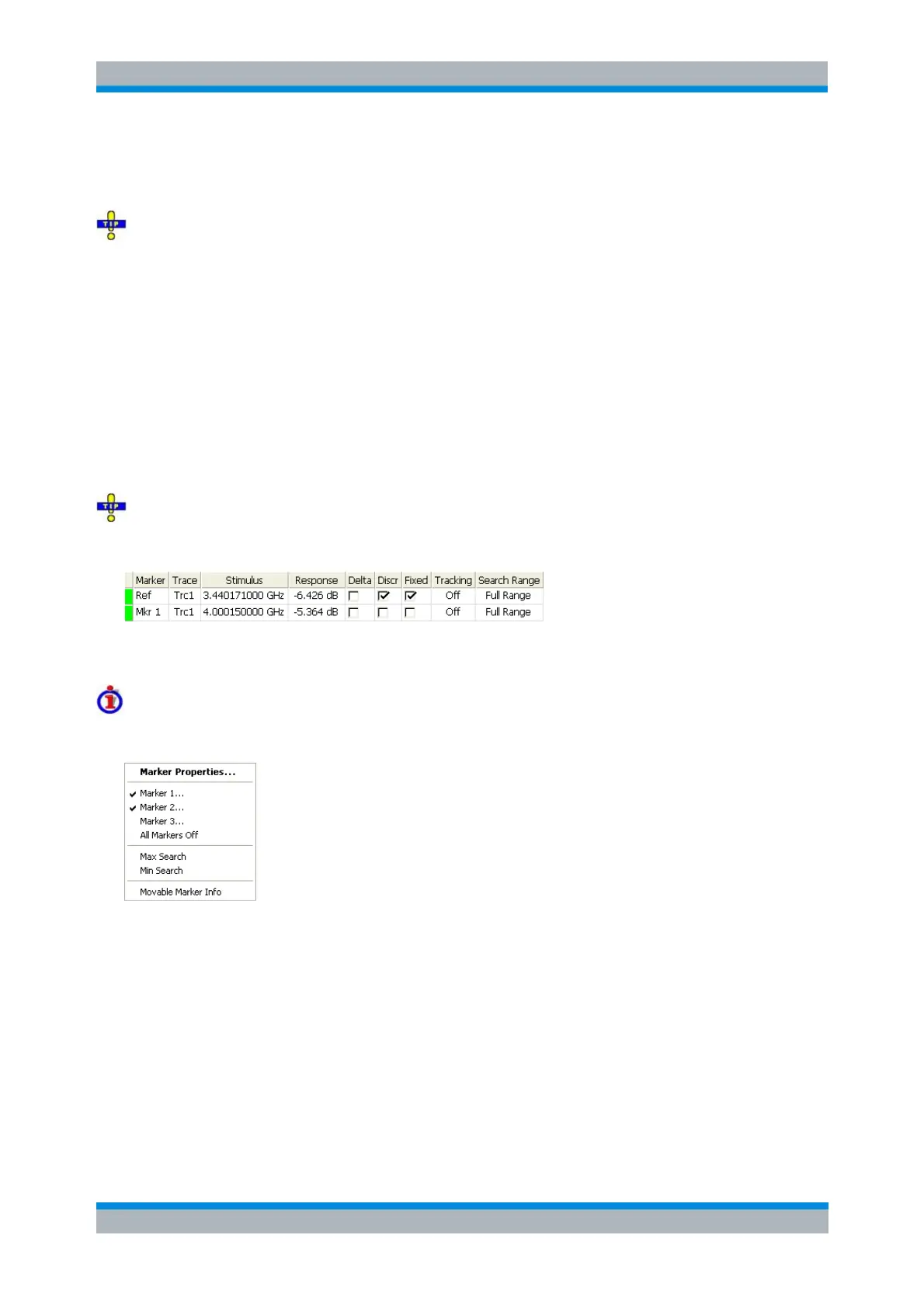
For more information: Show Info Table
In addition to the marker info field, the analyzer provides an info table with extended marker information.
The table is hidden by default. To display the table double-click the marker info field to open the Marker
Properties dialog.
Context menu of the marker info field
A right mouse click on the marker info field opens a context menu:
Movable Marker Info allows the marker info field to be placed to any position in the diagram area. The
remaining settings correspond to the most common commands in the Trace – Marker and Trace – Search
menus.
Channel Settings
The main properties of all channels assigned to the traces in the diagram area are displayed in the
channel list below the diagram.


 To Next Page