Chapter 11 DME Operations
522
DME Special Effect Operations
Character Trail settings
You can set the effect starting position, the degree of expansion, the slant angle
of the effect region, and trail direction, the degree to which the image
disappears, the trail type and amount of stardust, and other parameters.
To apply the Character Trail effect
With the Character Trail menu displayed, set the following parameters.
To make the tip of the swirl stardust
1
Press [Pixel], turning it on.
2
Set the following parameters.
Lighting Settings
You can specify the intensity and color of the light and the lighting pattern. The
following lighting patterns are available:
Plane: Illumination of the entire screen.
Bar: Bar illumination. You can specify the width and angle of the bar, and its
softness.
Preset: Lighting pattern suitable for nonlinear effects.
When Bar is selected, the following modes can be selected.
Normal: Emphasizes the bar highlight area.
Specular: An effect like light striking a surface with metallic reflections.
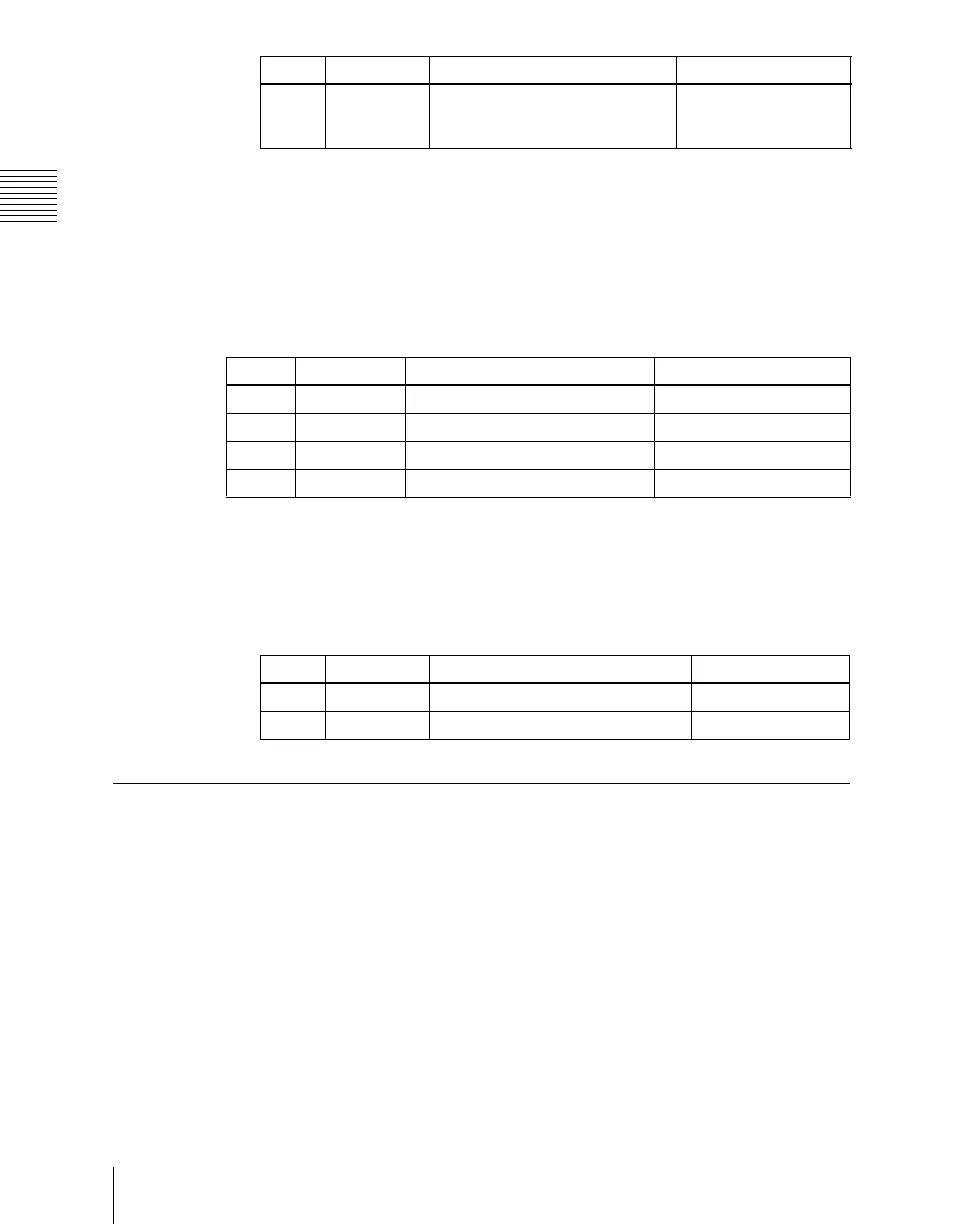
2 Random Degree to which pixel positions
become more randomized
further from the center
0.00 to 100.00
Knob Parameter Adjustment Setting values
Knob Parameter Adjustment Setting values
1 Transition Position where effect starts –8.000 to +8.000
2 Expand Degree of expansion 0.00 to 100.00
3 Trans Angle Angle of slanting in effect region –8.000 to +8.000
4 Trail Angle Direction of trail –100.00 to +100.00
Knob Parameter Adjustment Setting values
1 Density Degree to which image disappears 0.00 to 100.00
2 Random Trail type and amount of stardust 0.00 to 100.00





 To Next Page