175Key Setting Operations Using Menus
Chapter 4 Keys
Key Edge Pattern: Use a color mixing pattern for key edge.
You can change this pattern by pressing [Pattern Select] to open the
menu for edge color mix dedicated wipe pattern selection (Mix Pattern
Select menu), and make adjustments by pressing [Pattern Adjust] to
open the menu for pattern adjustment (Matte Adjust menu).
Mask Pattern: Use the main mask Box or Pattern.
You can also press [Pattern Select], and in the corresponding pattern
adjustment menu, change the pattern.
5
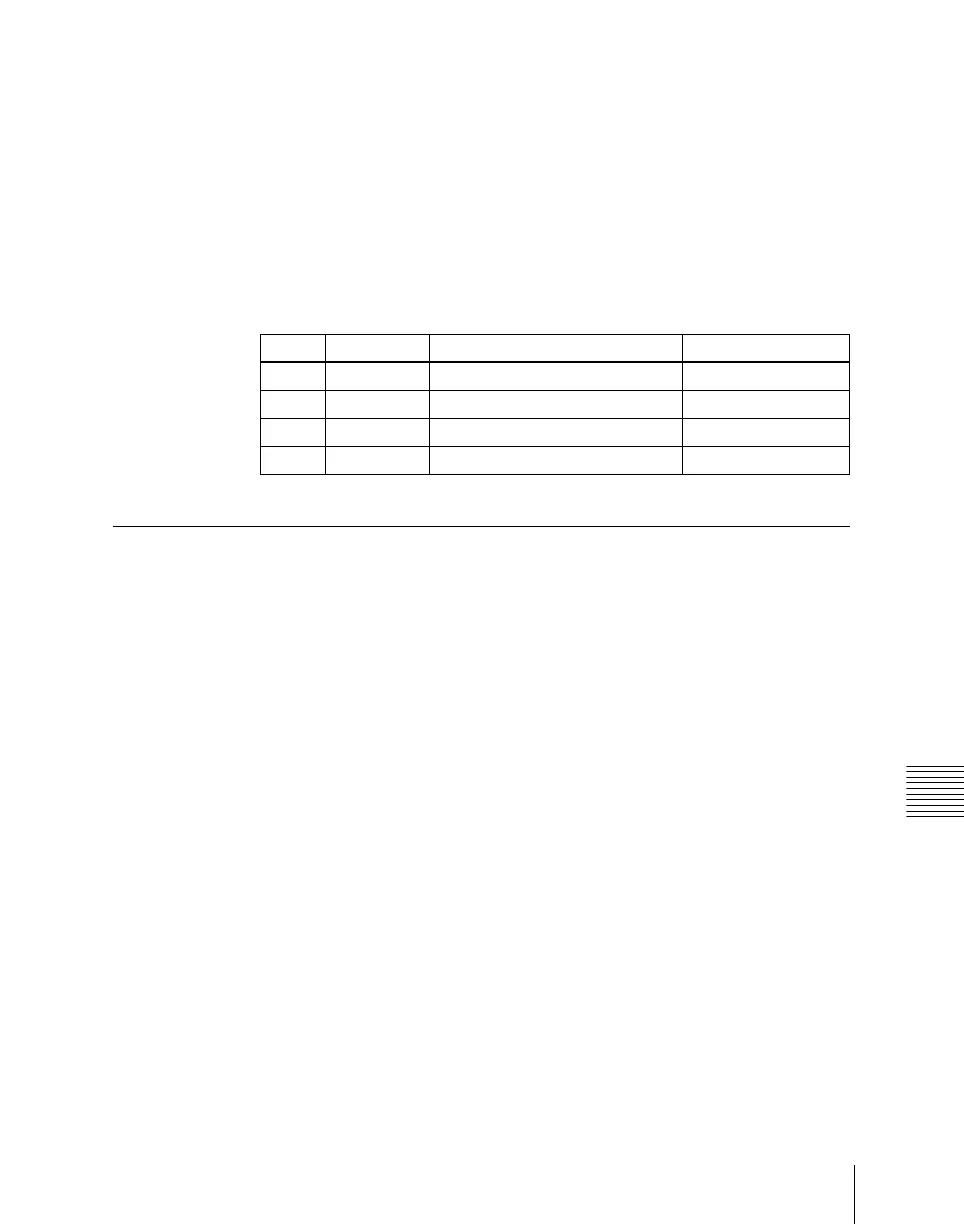
To adjust the color, press [Zabton Color] and adjust the following
parameters.
Masks
There are two masks, which can be used to mask off unneeded parts of a key
or background, or to remove defects, and these are known as the main mask and
subsidiary mask. You can either use the main mask and subsidiary mask
independently, or at the same time.
Using the main mask
For example, to use the main mask for key 1 on the M/E-1 bank, use the
following procedure.
1
In the M/E-1 >Key1 menu, select HF3 ‘Main Mask.’
The Main Mask menu appears.
2
In the <Mask Type> group, select the mask type.
Key Mask: Masks a part of a key.
Bkgd Mask: Masks a part of a background.
3
In the <Mask Source> group, select the mask source.
Box: signal from the dedicated box generator
Pattern: signal from the dedicated pattern generator
Knob Parameter Adjustment Setting values
1 Luminance Luminance 0.00 to 100.00
2 Saturation Saturation 0.00 to 100.00
3 Hue Hue 359.99 to 0.00
4 Density Density 0.00 to 100.00







 To Next Page