F6000 Family of Power System Simulators User Guide
72A-1589 Rev. C 02/01 B-7
D
DD
D
R
RR
R
A
AA
A
F
FF
F
T
TT
T
3
33
3
/
//
/
5
55
5
/
//
/0
00
0
1
11
1
11. Open ProTesT and click Setup on the menu bar.
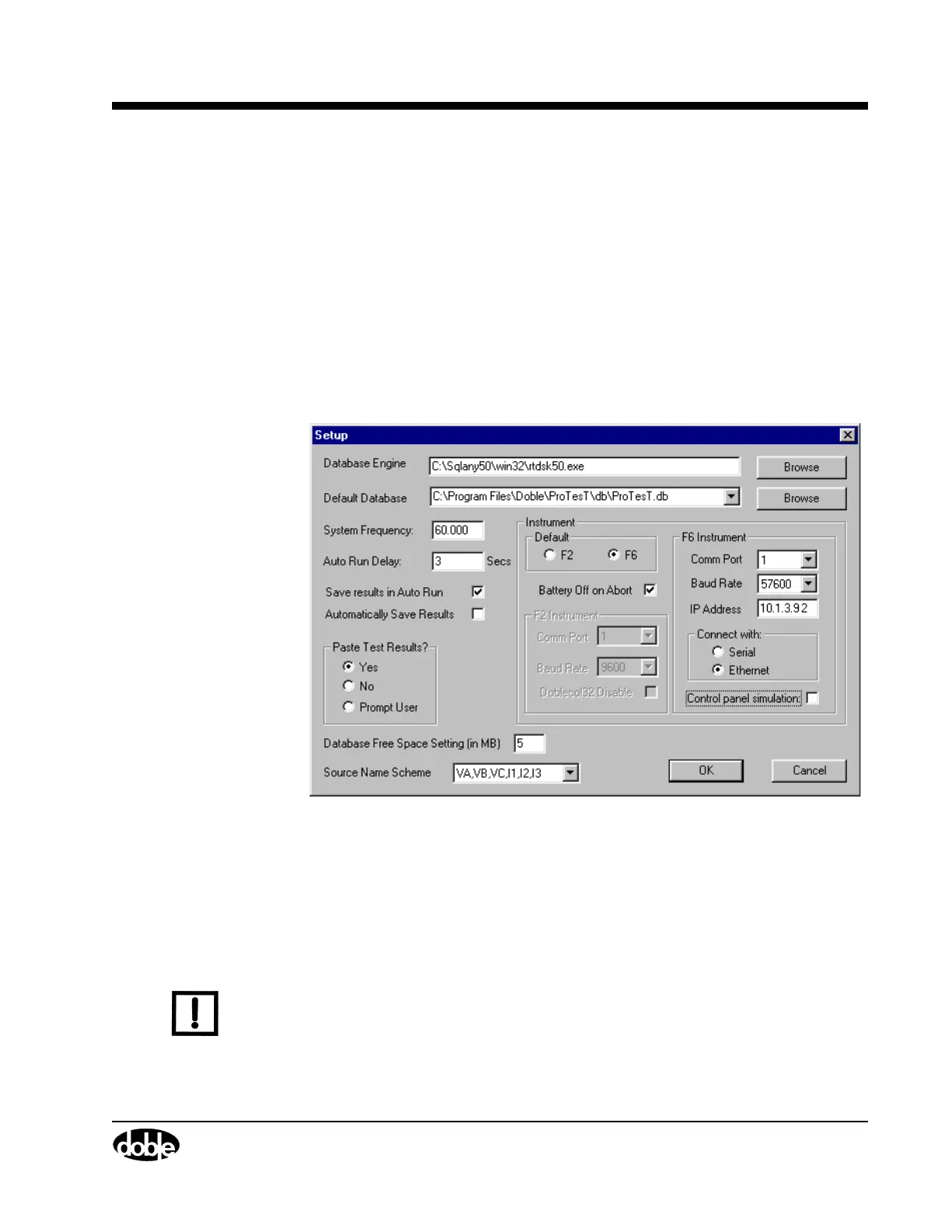
The Setup dialog box appears (Figure B.7).
12. In the Instrument Default box, select F6.
13. In the F6 Instrument box, enter the IP Address of the instrument in the
IP Address field.
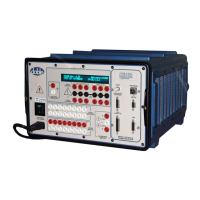
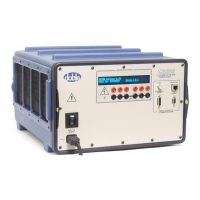
The instrument IP address appears in the Vacuum Fluorescent Display
(VFD) of the instrument front panel after boot-up.
14. In the Connect with box, select Ethernet.
Figure B.7 shows the Setup dialog box with these changes entered.
Figure B.7 Setup Display Configured for Ethernet Communications
15. Click OK to apply the new settings.
16. Click Tools | Control Panel in the top menu bar of ProTesT.
The Control Panel opens and provides manual control of the
instrument.
N
OTE
If the control PC is subsequently connected to any kind of local-area or
wide-area network, return to the Network TCP/IP Properties display
and select Obtain IP address automatically.


 To Next Page