2 • Description
Doc. 065051-03 1/08 11
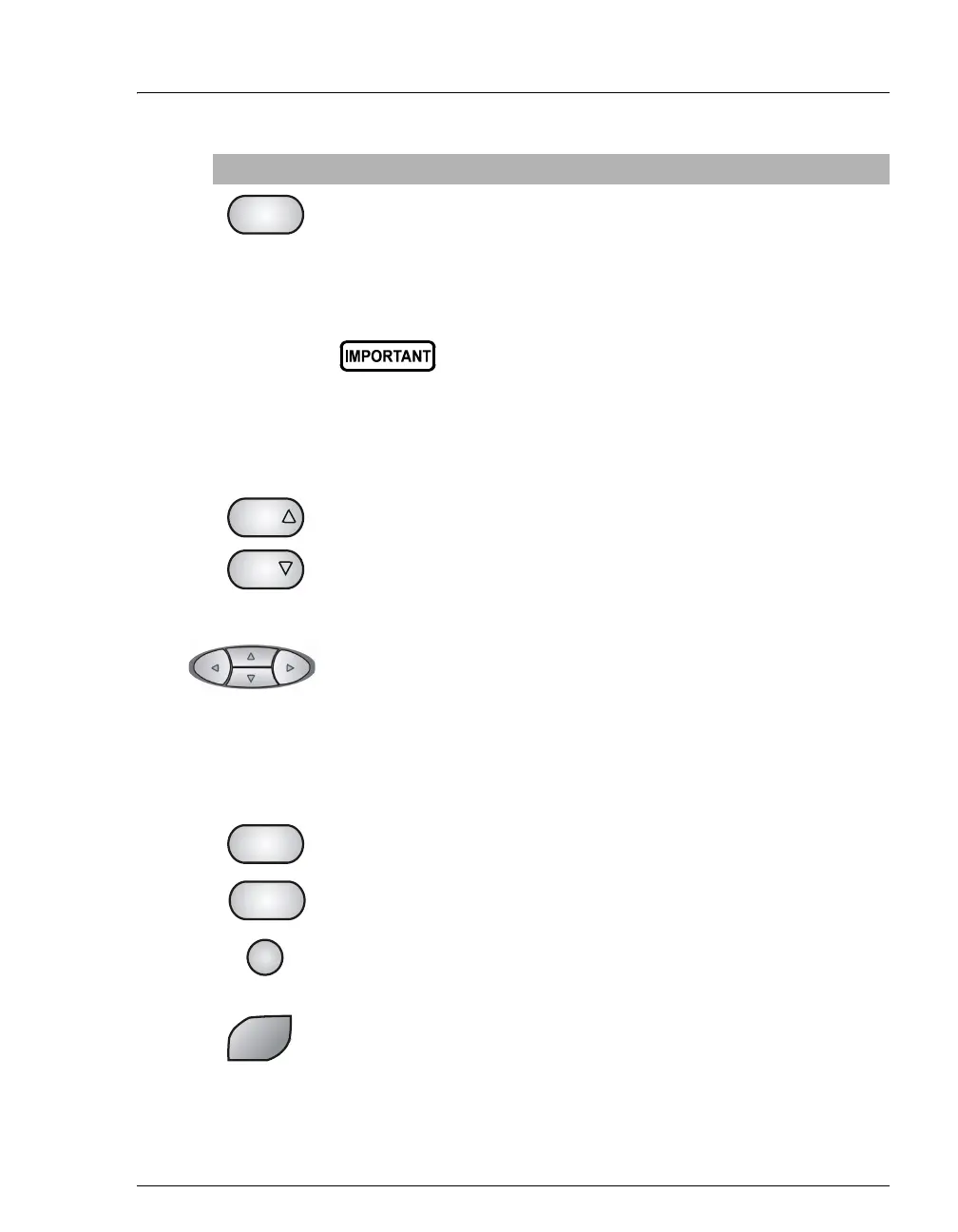
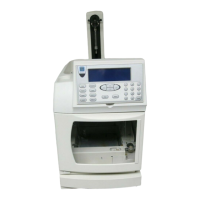
If you press the Door button when a sequence (or front panel
schedule) is running, a message screen indicates whether it is currently
safe to open the door. If it is, the screen displays for how much longer it
is safe to open the door. Opening the door without first pressing this
button, or when the message indicates it is not safe, ends the currently
running sequence (or schedule).
The autosampler door must remain closed during
operation. If the door is opened during operation,
the sampling arm stops immediately. If a sequence
(or schedule) is running, it is ended. If you want to
open the door during a sequence (or schedule),
first press the Door button, and then follow the on-
screen instructions.
The Select buttons scroll through predetermined options in entry
fields. To confirm the selected value, press Enter or move out of the
field by pressing a cursor arrow button. In fields that have
predetermined numeric choices, Select Δ increases the value by one
unit and Select ∇ decreases the value by one. Holding down a Select
button increases (or decreases) the value continuously.
The arrow buttons move the cursor in the direction of the arrow to the
next entry field (if one exists). At the end of a line, the left arrow wraps
the cursor around to the next entry field on the line above; the right
arrow wraps the cursor to the next entry field on the line below. The up
and down arrows do not wrap around.
After entering a new value in an entry field, pressing an arrow button
saves and/or executes the change.
Displays a help screen specific to the current entry field.
Displays a list of the available screens.
The numeric buttons enter the selected number into the current entry
field. On a menu, pressing a numeric button opens the corresponding
screen.
Saves and/or executes changes made in entry fields. If a menu screen is
displayed, pressing Enter opens the highlighted screen.
Button Function
Door
Select
Select
Help
Menu
1
Enter


 To Next Page