AS Autosampler Operator’s Manual
52 Doc. 065051-03 1/08
3.2.1 Connecting to Chromeleon or Chromeleon Xpress
1. Start the Chromeleon Server, if it is not already running:
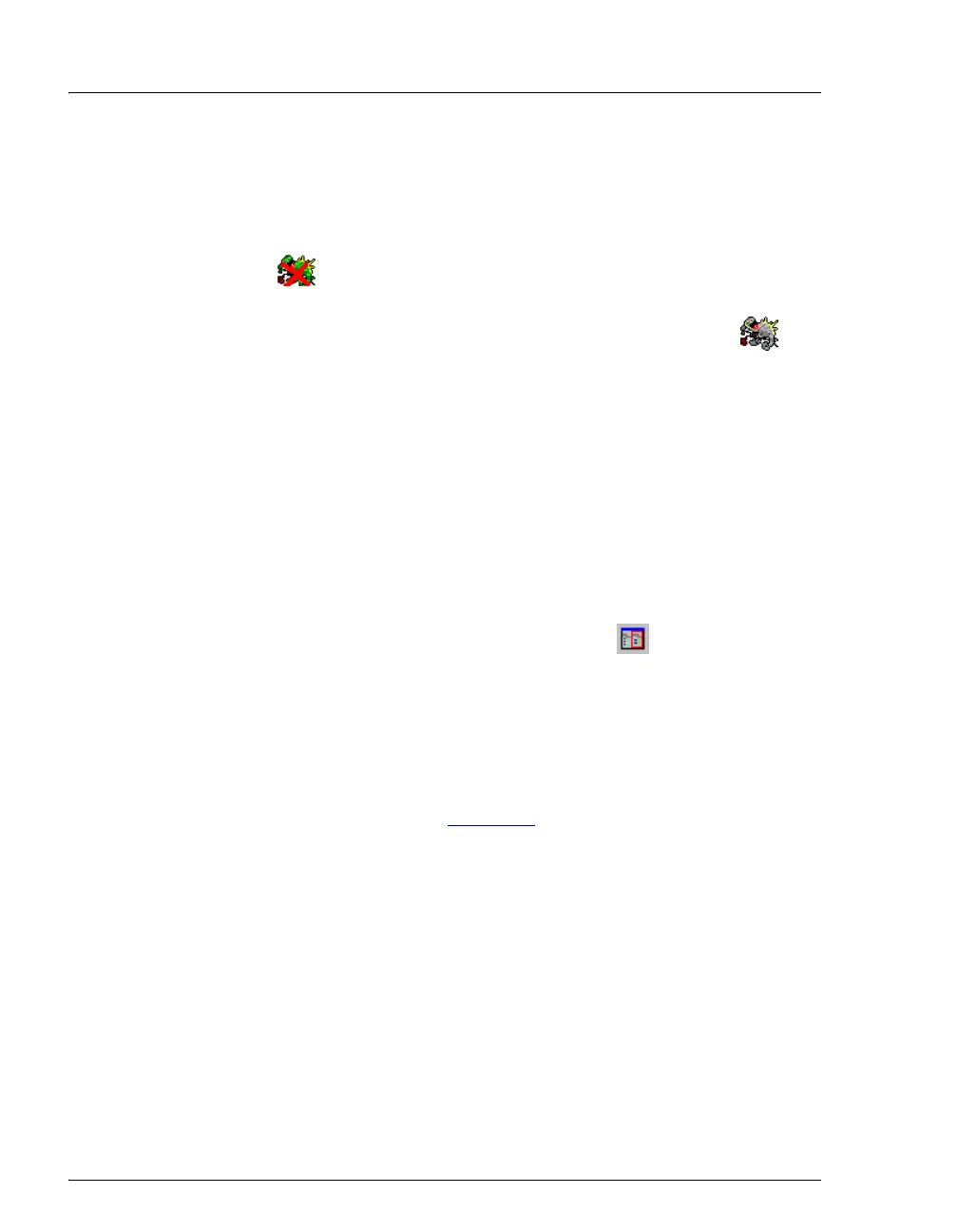
• If the Chromeleon Server icon on the taskbar is crossed out in red
, the Server is not running. Start the Server by right-clicking
the icon and selecting Start Server. When the server is running
(and data acquisition is not occurring), the icon is gray
.
• If the Server Monitor icon is not on the taskbar, click Start on the
taskbar and select All Programs (or Programs, depending on the
operating system) > Chromeleon > Server Monitor. Click Start
to start the server.
2. Start the Chromeleon or Chromeleon Xpress client:
a. Click Start on the Windows taskbar and select All Programs (or
Programs) > Chromeleon > Chromeleon to start the
Chromeleon client.
b. If Chromeleon is installed, select View > Default Panel Tabset
or click the corresponding toolbar button to display the panel
tabset.
NOTE If Chromeleon Xpress is installed, starting the
client automatically displays the panel tabset.
c. To display the AS Control panel, select the Autosampler tab on
the panel tabset (see Figure 3-6
).


 To Next Page