2 • Description
Doc. 065051-03 1/08 13
To access other AS screens:
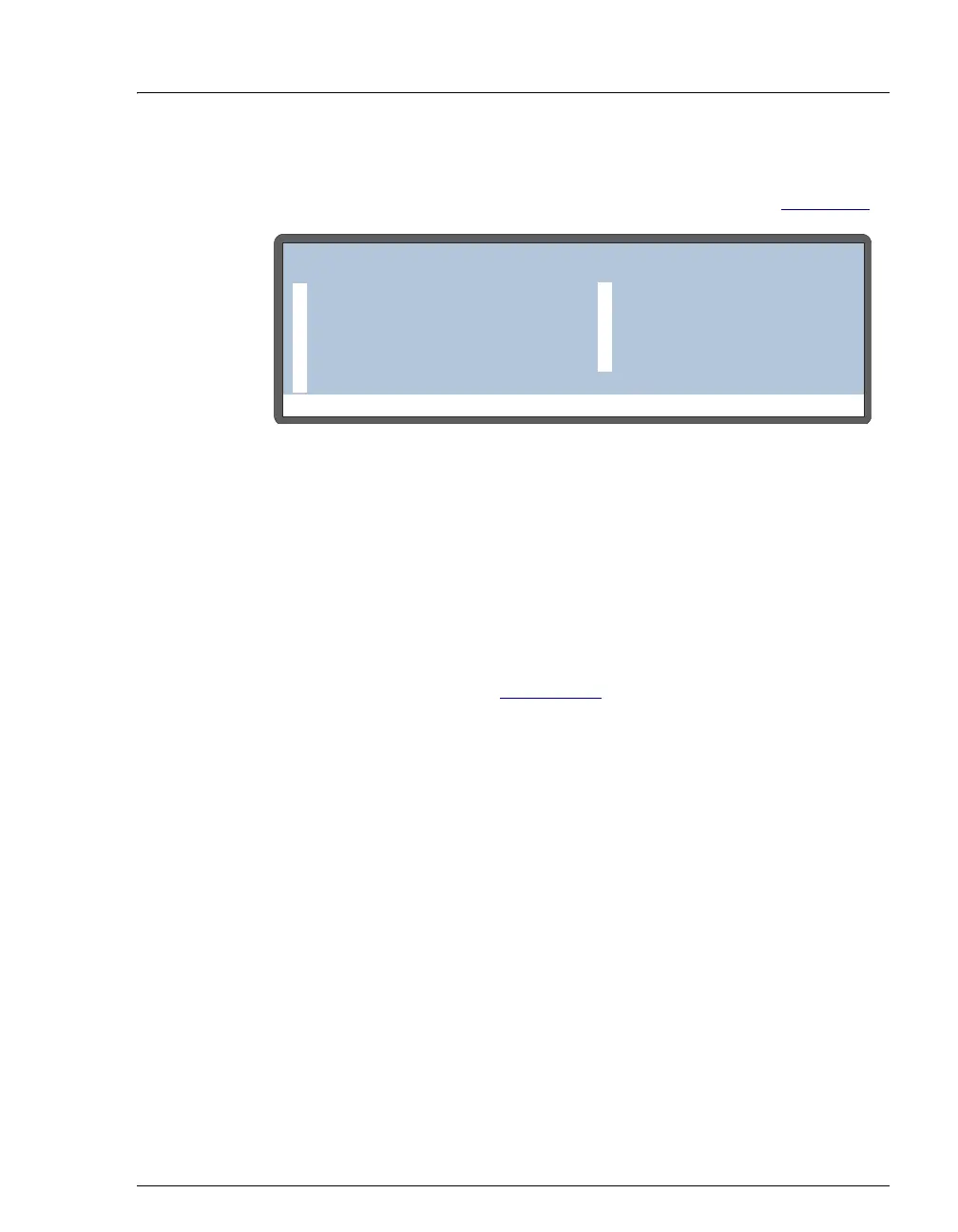
Press the Menu button. The MENU of SCREENS appears (see Figure 2-4).
To select a screen on the menu, use one of the following methods:
• Press the keypad numeric button corresponding to the screen’s
number on the menu.
• Move the cursor to highlight the screen number and press Enter.
To display a brief description of each screen:
Press the Help button. See Appendix C for details about each screen.
To edit a field on the screen:
1. Press a cursor arrow button to position the cursor in the field to be
edited. Fields that are in reverse video (blue letters on white
background) can be edited. Other fields display information only.
2. If the field accepts numeric values, press the desired numeric buttons
to enter the value.
If the field has predetermined options, press the
Select Δ or Select ∇
button to choose the desired option.
3. To confirm the selected value, press
Enter or move the cursor out of
the field by pressing an arrow button.
Figure 2-4. Menu of Screens
Help Prompt
MENU of SCREENS
MAIN STATUS
FLUSH/PRIME
DETAIL STATUS
TIME FUNCTION IN
METHOD MENU
DIAGNOSTIC MENU
SCHEDULE
MODULE SETUP MENU
TIME FUNCTION OUT
5
1
6
2
7
3
8
4
9


 To Next Page