Remote RMX-3200 Version 5.2x Configuration Guide
Getting Started: Accessing the CLI Using a Local Connection
2-2
Accessing the CLI Using a Local Connection
With Kentrox Kickstart
To access the CLI using a local connection (using Kickstart):
1. If you haven’t already done so, install Kentrox Redirect software on your laptop or
PC. When the installation is complete, Kentrox Redirect and Kentrox Kickstart
icons appear on your desktop.
2. Use a standard CAT5 Ethernet cable (such as Kentrox part number CAB182-10)
to connect the PC or laptop to an Ethernet port on Remote RMX-3200.
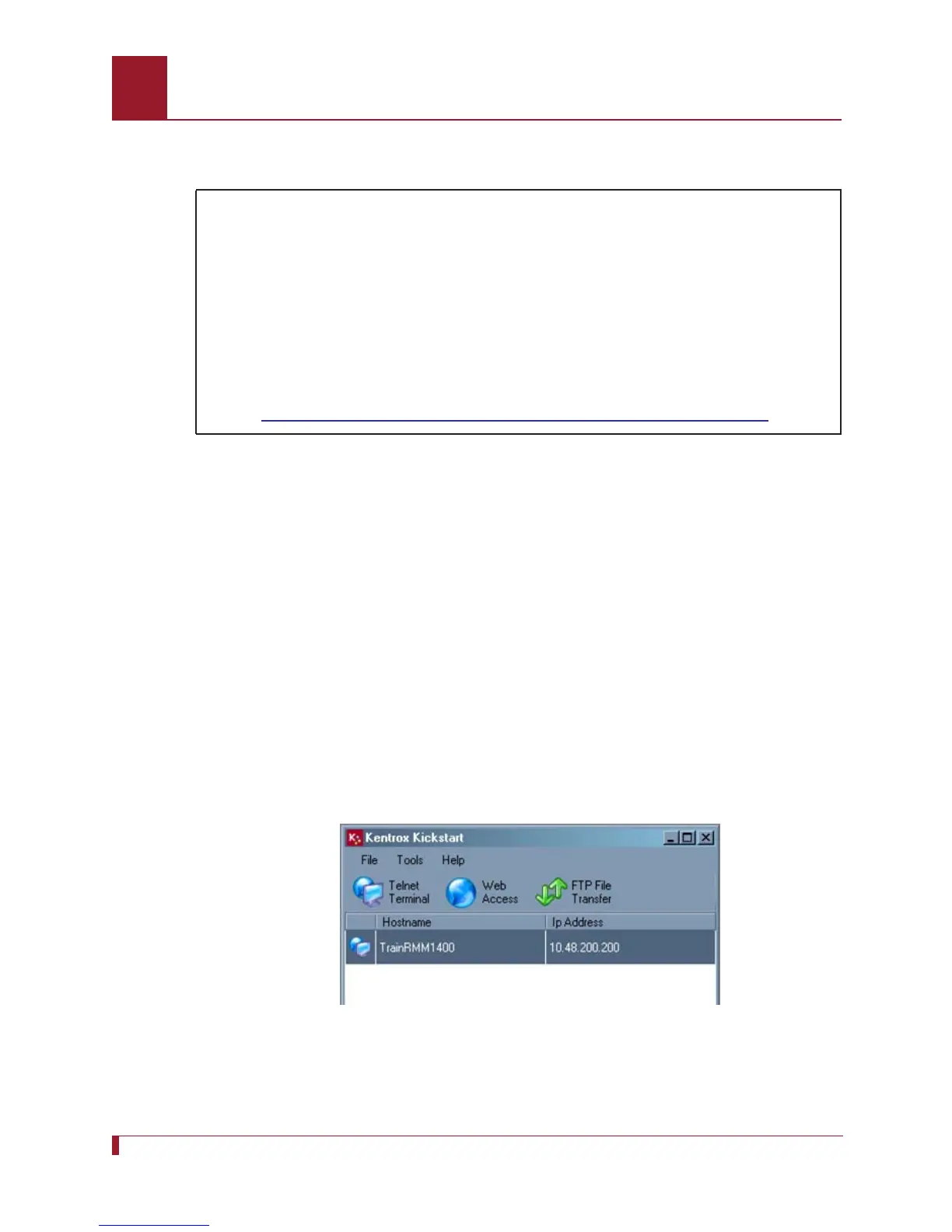
3. Launch Kentrox Kickstart. Kickstart discovers the Remote RMX-3200 device, as
shown below (RMM-1400 shown - Remote RMX-3200 is similar).
Note: If the Remote RMX-3200 device is not discovered within one minute,
select Help > About in Kentrox Kickstart, then click the Network
Troubleshooting Guide link for instructions.
4. Click Telnet Terminal (or select Tools > Telnet Terminal). A Telnet window
opens, displaying the Remote RMX-3200 login prompt.
In this scenario, you will:
Connect and log into Remote RMX-3200 locally through the console port
(optional) Access help information
Note: When a new Remote RMX-3200 is booted for the first time, it does not have
a configured IP address. As a result, the initial configuration for Remote
RMX-3200 must be performed onsite using the console port. For
information about configuring an IP address for remote logins, refer to
Setting Up the Initial Remote RMX-3200 Configuration on page 2-5.


 To Next Page