186
Cha
ter 7
Calculation
Anal
sis
and Out
ut of Ins
ection Results
7.3.4 Saving Total Judgments
After saving a Judgment formula, set total judgments as necessary. Only the formulas that have already been
created can be selected. Be sure to save the total judgments following the steps below after setting the Judgment
formula. Save the total judgments while the Judgment tab is open.
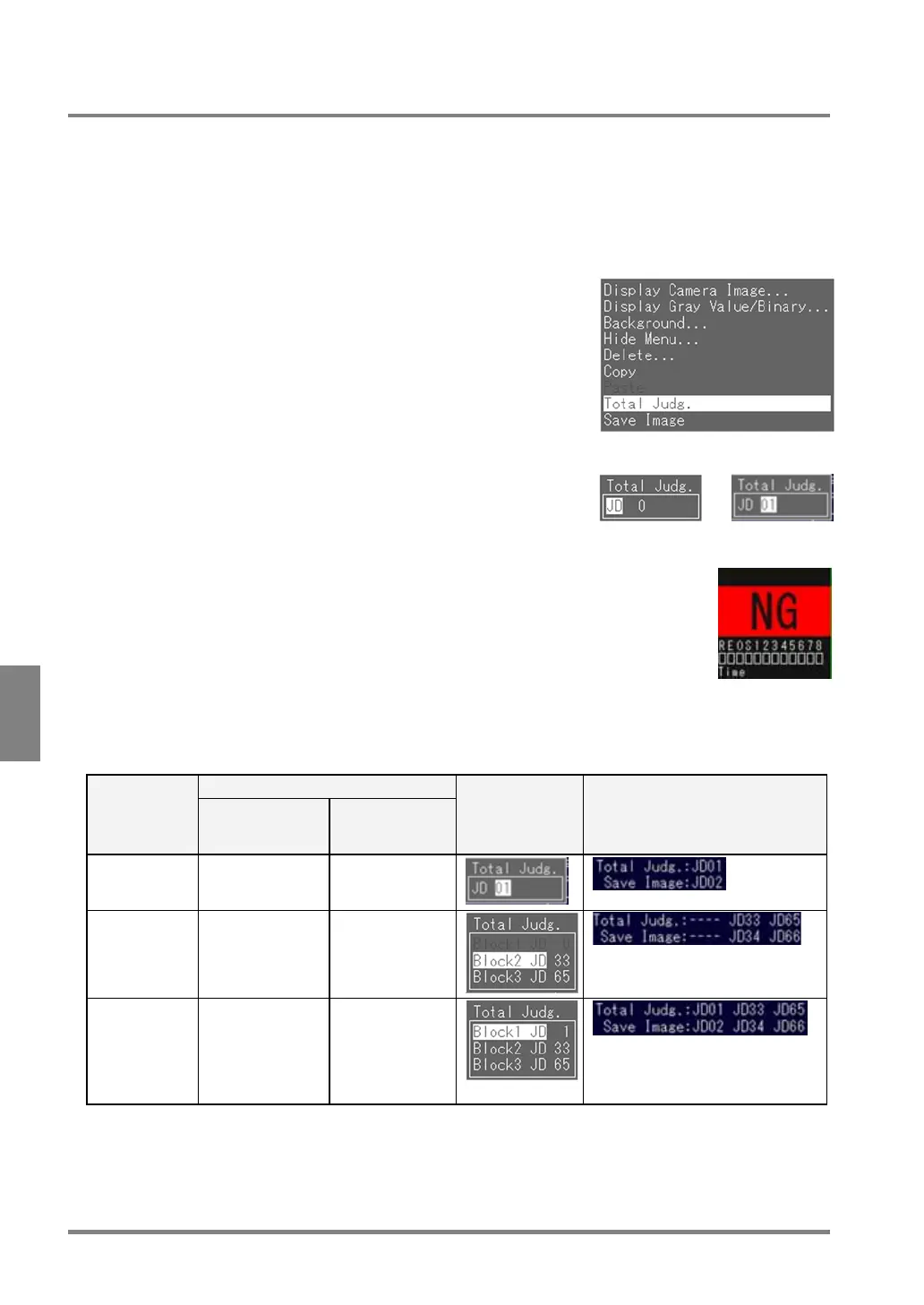
1. Press the B key while a Judgment number is highlighted.
The subwindow is displayed.
2. Choose "Total Judg".
The subwindow is displayed.
3. Highlight "JD".
The cursor moves to the number on the right of “JD”.
→
4. Specify the number of Judgment No. to save as Total Judgment formula and press the ENTER key.
Now you finished saving the Total Judgment formula. Check the judgment result
of the saved program formula displayed in the Total Judgment area.
Total Judgment in Automatic Switch or User-Defined Mode
The setting conditions differ upon the mode. This is because the Judgment No. to be executed is also different
depending on the mode.
Condition Execution
mode
The number of
Judgment that can
be set
Details
Setting screen Example of display on the
Judgment screen
Execution All One One for the
following range:
JD01 - JD96
Automatic
Switch
Two One for each of
the following
ranges:
JD33 - JD64,
JD65 - JD96
Setting values for blocks 3 and 2
(from the right column)
User-Defined Three One for each of
the following
rages:
JD01 - JD32
JD33 - JD64
JD65 - JD96
Setting values for blocks 3, 2 and 1
(from the right column)
“---“: Unset
If you switch the execution modes, the saved data of Total Judgment are erased. In this case, you must save the
same data as the erased data again.



 To Next Page