73
Settin
Checkers
Cha
ter 6
6.2.2 Selecting a Checker Number and a Checker Type
The PV310 allows you to create up to 99 checkers (Checkers 1 to 99) for each product type. Select the number
that you desired to save the checker as.
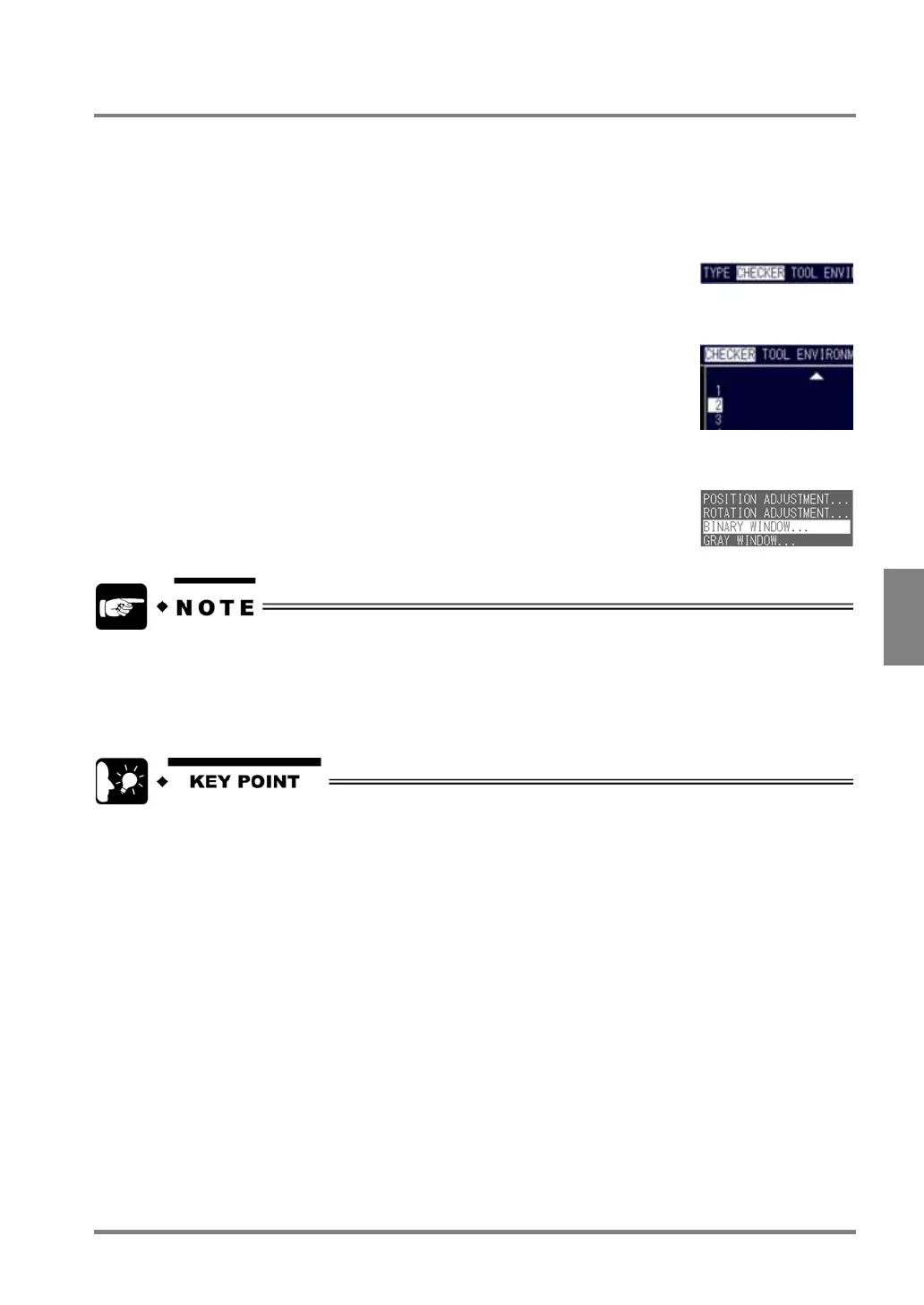
1. Highlight "CHECKER" in the menu bar.
A list of selected checker types is displayed. If a checker name is shown next to the checker number, the
checker has been assigned to the checker number.
2. Choose a checker number.
Available checkers are displayed.
3. Choose the desired checker.
The setting window of the checker that you selected is displayed.
• Storage capacity of a product type memory is approximately 4MB. If you are about to run out of available
storage capacity before the number of saved checkers reaches 99, you cannot set any more checkers.
• The type of a checker that has already been created cannot be changed (e.g. changing the Smart
Matching checker, to which No.1 is assigned, to Contour Matching checker”). If you want to change the
type of the created checker, delete the checker and reselect a new checker.
If you perform inspection using the checkers for the position/rotation adjustment or Area Size Adjustment
function, assign the lower numbers to the checkers for position/rotation adjustments or with Area Size
Adjustment function. The numbers of position/rotation-adjustment-referred checkers must be lower than the
numbers of the position/rotation-adjustment-referring checkers or the referring checkers with the Area Size
Adjustment function.



 To Next Page