196
Cha
ter 7
Calculation
Anal
sis
and Out
ut of Ins
ection Results
7.5.5 Changing the Number of Rows and Columns
With this feature, you can specify the number of rows and columns in the Data Monitor table to be displayed. The
number of data to be displayed in the Data Monitor table differs depending on the specified number of rows and
columns.
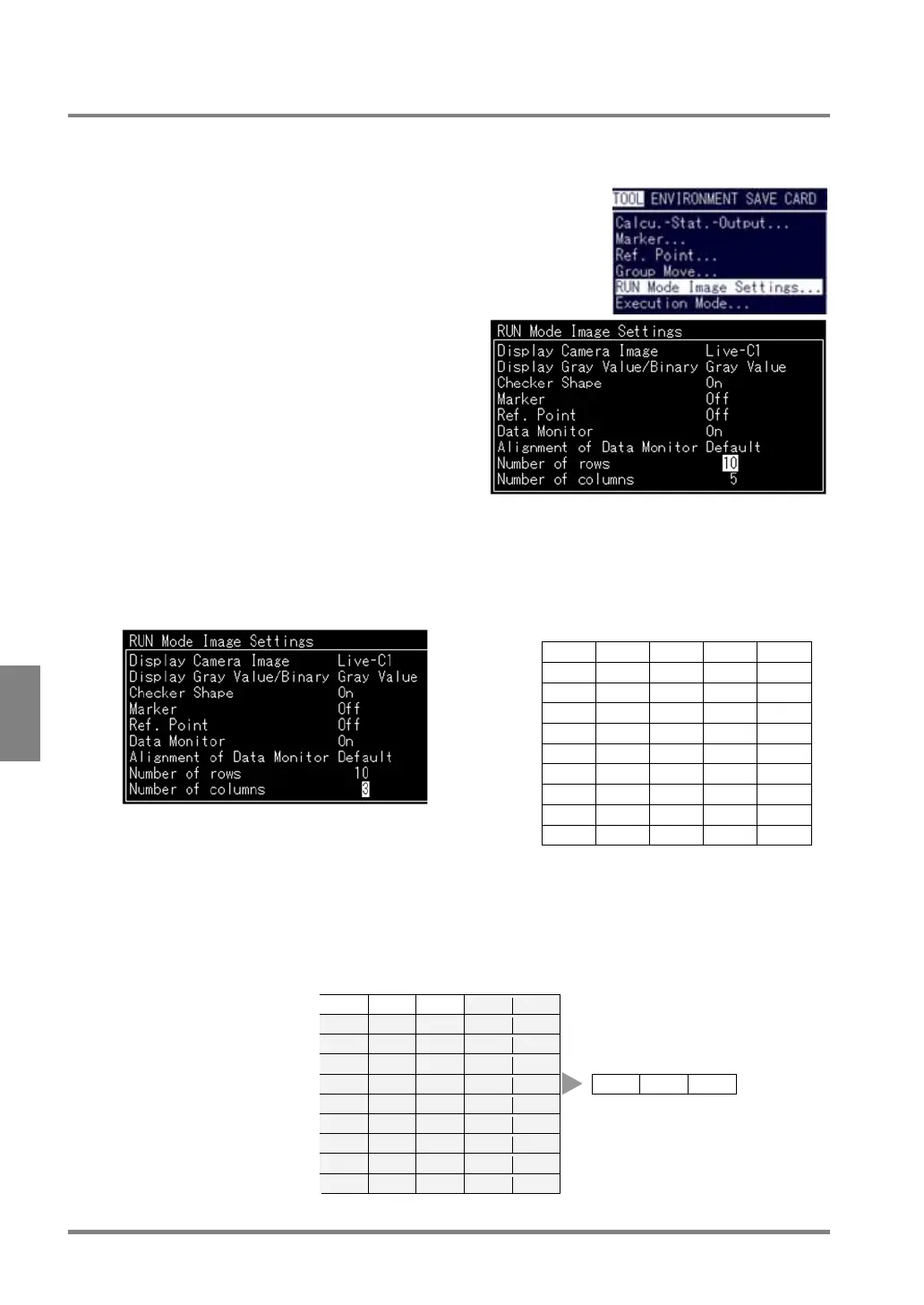
1. Select “TOOL” >”RUN Mode Image Settings”
from the menu bar.
The subwindow is displayed.
2. Highlight “Number of Rows” and specify the
number of rows within the range between 1 and
10.
The specified number of rows is added below the left
upper cell. For example if you choose “1”, only the
top (first) row is displayed.
3. Select “Number of Columns” and specify the number of columns within the range between 1 and 5.
The specified number of columns is added. If you choose “3”, only three columns from the left are
displayed.
The specified number of columns is
displayed.
→
The desired
number of
rows is
displayed.
↓
Example Data Monitor table:
If the number of rows = 1 and the number of columns = 3,
Three columns are
displayed.
↓
The other
columns are
not displayed
↓
Actual display
↓
One row is displayed. Æ TYPE CA01
CA02
CA03
QS00
TYPE CA01
The other rows are not
displayed. Æ



 To Next Page