202
Cha
ter 8
TOOL
8.2.2 Copying an Existing Marker
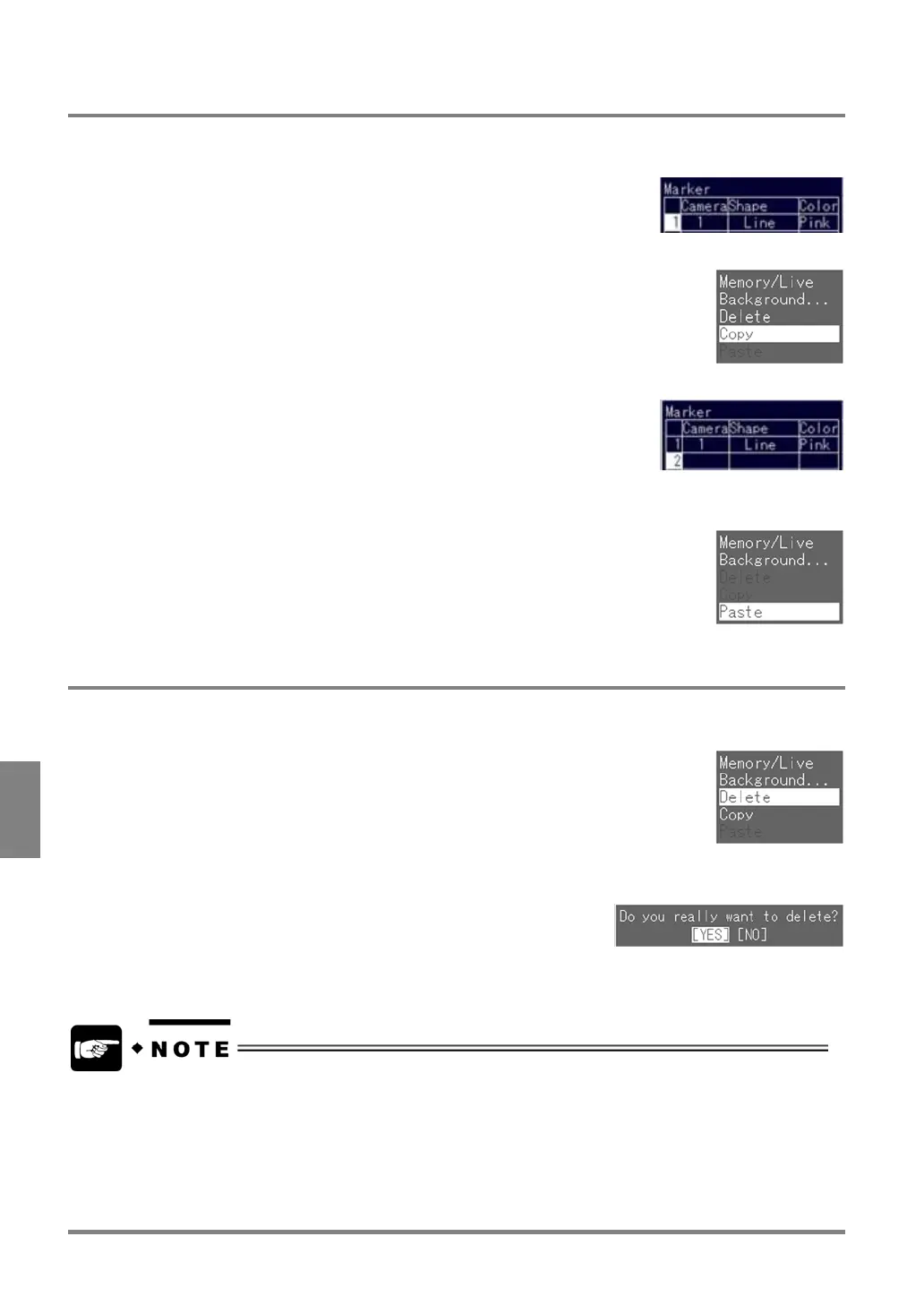
1. Highlight the number of the marker you want to copy and press the B key.
The subwindow is displayed.
2. Choose "Copy".
3. Highlight the number of the marker you want to copy to and press the B key.
4. Select "Paste".
Now you finished copying the marker.
8.2.3 Deleting a Marker
1. Highlight the marker number you want to delete and press the B key.
The subwindow is displayed.
2. Choose "Delete".
When the following dialog message is displayed, choose "YES" to continue:
Now you finished deleting the marker.
• You cannot refer the coordinates of the image to a Numeric Calculation formula, etc. Use the "reference
point" function to refer the coordinates.
• No markers are displayed in SETUP mode. To decide whether or not to display a marker in RUN mode,
select "ENVIRONMENT" > "RUN Mode Image Settings" from the menu bar.



 To Next Page