R&S
®
ZVA / R&S
®
ZVB / R&S
®
ZVT GUI Reference
Channel Menu
Operating Manual 1145.1084.12 – 30 490
The examples for One Path Two Port calibration below are also valid for Full n-Port calibration.
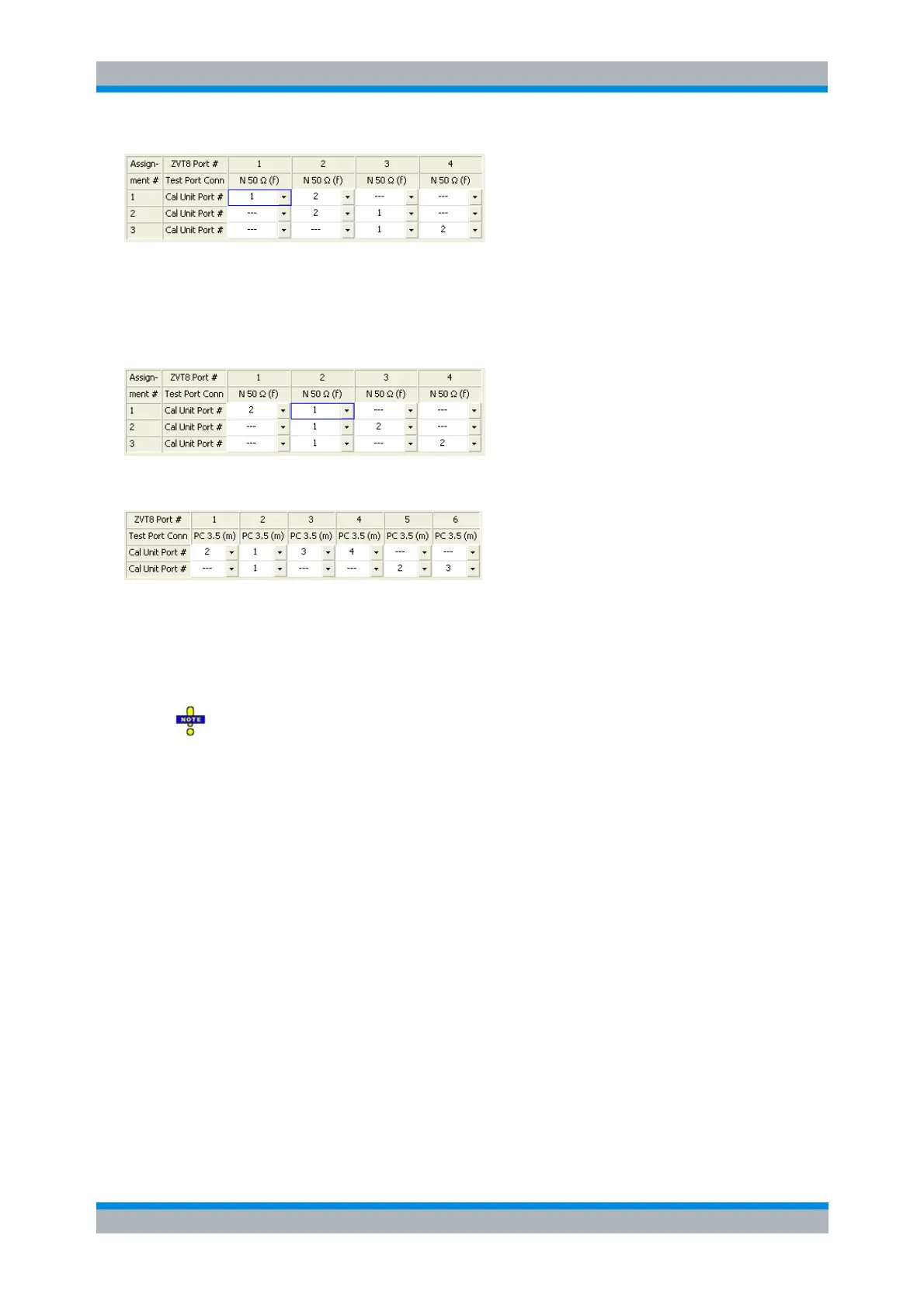
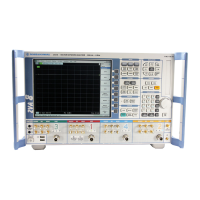
Example 3: One Path Two Port calibration
The following example shows a valid port assignment for a One Path Two Port calibration of four analyzer
ports using a two-port calibration unit. Port 2 is the node port.
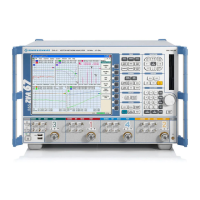
The same for six calibrated analyzer ports and a four-port calibration unit.
[SENSe<Ch>:]CORRection:COLLect:AUTO:ASSignment<Asg>:DEFine
[SENSe<Ch>:]CORRection:COLLect:AUTO:ASSignment<Asg>:ACQuire
[SENSe<Ch>:]CORRection:COLLect:AUTO:ASSignment<Asg>:DELete:ALL
[SENSe<Ch>:]CORRection:COLLect:AUTO:CONFigure
[SENSe<Ch>:]CORRection:COLLect:AUTO:SAVE
The port assignments are reset every time the Calibration Unit dialog is closed. Do not
attempt to switch on the display and open the cal unit dialogs from a remote script, otherwise
you will lose your settings.
Characterize Cal Unit
The Calibration Unit is delivered with factory characterization data which ensure an accurate calibration for
all standard applications. For specific modifications of the test setup, e.g. the connection of additional
adapters to a calibration unit, a modified set of characterization data (suitable for the cal unit with
adapters) may be desirable. The analyzer provides a Characterization Wizard for performing a guided
characterization of (modified) R&S calibration units. The acquired characterization data is stored to a
characterization file, so that it can be used for automatic calibration whenever needed.
A cal unit characterization can be performed in a frequency sweep. The network analyzer must be
properly calibrated for the test setup, with the reference plane at the input ports of the (modified) cal unit to
be characterized. The procedure involves the following steps:
1. Perform a calibration of your network analyzer, using the test setup and calibration type you wish
to perform with your (modified) calibration unit (see description of the Characterization Wizard).
2. Connect the modified calibration unit to the reference plane (see Connection and Installation).
3. Click Channel – Calibration – Characterize Cal Unit to access the Characterize Cal Unit dialog


 To Next Page