Vision Operator’s Manual (v12.0 MD) Position/Crop Functions • Ops 13–7
Aspect Ratio
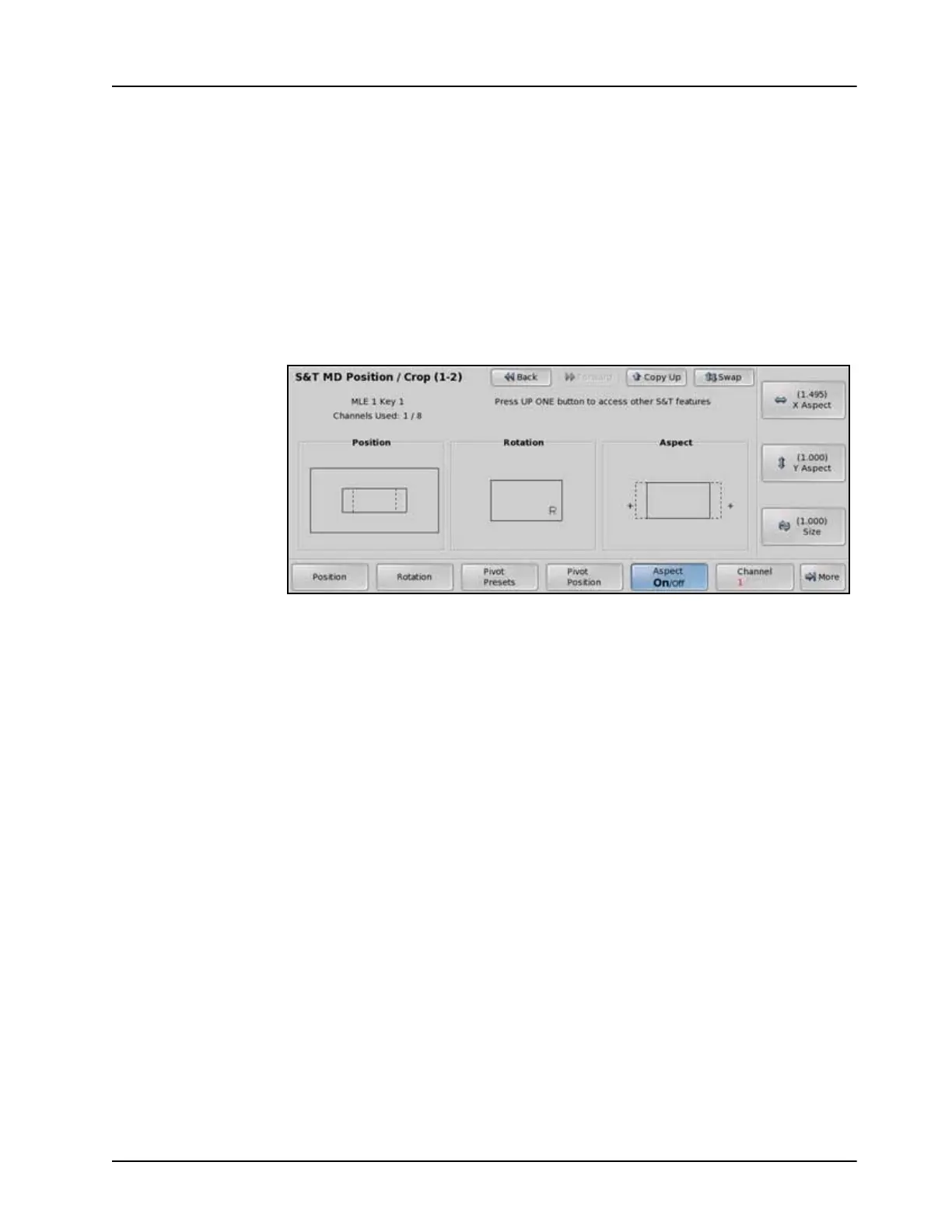
The Aspect feature allows you to squeeze or stretch a channel horizontally and/or vertically. You
can adjust the size of the channel by using the knobs or with the positioner. As you adjust the size
of the channel, the Aspect and the Position boxes on the menu dynamically change to show the
effect. The Aspect box displays the original edge of the source channel and the new aspected
channel (dotted line).
Use the following procedure to adjust the aspect ratio and size of a channel:
1. Press the SEL button on the Keyers Module for the Keyer that you want to adjust the
aspect ratio of the channel for. The S&T MD Position/Crop Menu 1-2 is displayed.
The key must already be flying.
2. Press Aspect on the S&T MD Position/Crop Menu 1-2.
Aspect — S&T MD Position/Crop Menu 1-2
3. Toggle Aspect on the S&T MD Position/Crop Menu 1-2 to On to enable this feature.
4. Adjust the Aspect size of the channel as follows:
•Use the X Aspect knob on the S&T MD Position/Crop Menu 1-2 to squeeze or
stretch the channel horizontally.
•Use the Y Aspect knob on the S&T MD Position/Crop Menu 1-2 to squeeze or
stretch the channel vertically.
•Use the Size knob on the S&T MD Position/Crop Menu 1-2 to squeeze or stretch
the channel in both directions at the same time. The Size function is independent of
the X Aspect and Y Aspect values. For example, if you set the X Aspect to
2.000, the Y Aspect to 1.000, and the Size value to 2.000, the width of the
channel (X Aspect) is quadrupled and the height (Y Aspect) is doubled.
This completes the procedure for adjusting the aspect ratio and size of a channel.



 To Next Page