Ops 13–8 • Position/Crop Functions Vision Operator’s Manual (v12.0 MD)
Cropping
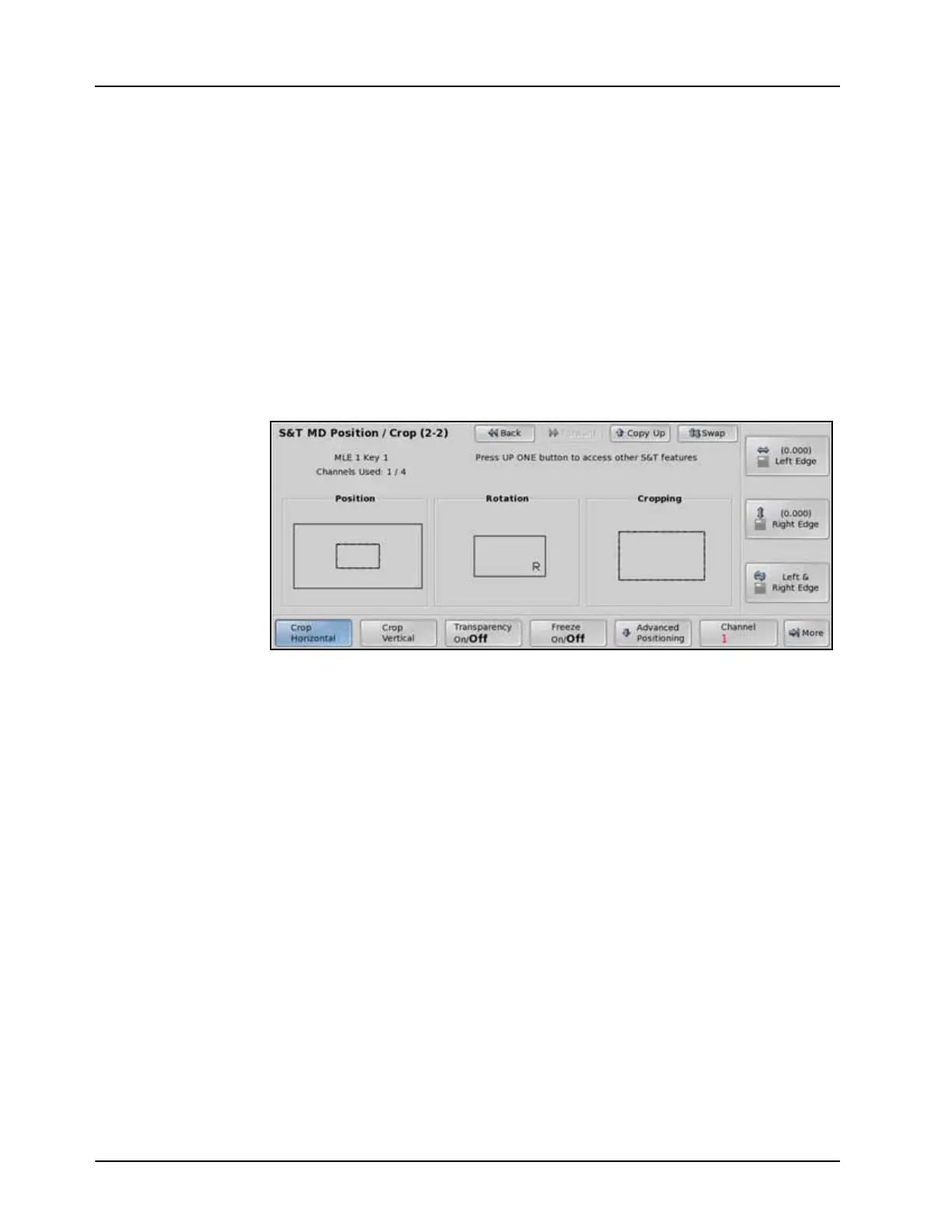
Cropping a channel allows you to bring the sides of a channel in, reducing the viewable area, but
not changing the actual size of the channel. The menus display a graphic box labelled Cropping
that shows how the original channel is being cropped. Cropping values range from 0.000 to
1.000, from no cropping to full cropping respectively. Full cropping results in none of the
channel being displayed on the screen.
Use the following procedure to adjust the cropping of a channel:
1. Press the SEL button on the Keyers Module for the Keyer that you want to adjust the
cropping of the channel for. The S&T MD Position/Crop Menu 1-2 is displayed. The
key must already be flying.
2. Press More.
3. Adjust the horizontal cropping of the channel as follows:
• Press Crop Horizontal on the S&T MD Position/Crop Menu 2-2.
Crop Horizontal — S&T MD Position/Crop Menu 2-2
•Use the Left Edge knob on the S&T MD Position/Crop Menu 2-2, or the
positioner, to adjust the amount of cropping on the left side of the channel.
•Use the Right Edge knob on the S&T MD Position/Crop Menu 2-2, or the
positioner, to adjust the amount of cropping on the right side of the channel.
•Use the Left & Right Edge knob on the S&T MD Position/Crop Menu 2-2, or
the positioner, to adjust the amount of cropping on both the left and right sides of
the channel at the same time.
4. Adjust the vertical cropping of the channel as follows:
• Press Crop Vertical on the S&T MD Position/Crop Menu 2-2.
•Use the Top Edge knob on the S&T MD Position/Crop Menu 2-2, or the
positioner, to adjust the amount of cropping on the top of the channel.
•Use the Btm Edge knob on the S&T MD Position/Crop Menu 2-2, or move the
positioner, to adjust the amount of cropping on the bottom of the channel.
•Use the Top & Btm Edge knob on the S&T MD Position/Crop Menu 2-2, or the
positioner, to adjust the amount of cropping on both the top and bottom of the
channel at the same time.
This completes the procedure for adjusting the cropping of a channel.



 To Next Page