Ops 14–6 • Picture Frame Borders Vision Operator’s Manual (v12.0 MD)
Border Color
The Color feature allows you to change the colors used in the border. This feature can be applied
to the active border or all the borders, depending on how the Auto Defaults feature is configured.
The colors of the border can be selected in the RGB or HSL color space.
Use the following procedure to adjust the color of the border:
1. Ensure the Auto Defaults feature is toggled to Off before you change the colors. If you
do not, the colors switch back to the default values if you change the Border Style.
Note — Ensure that Auto Defaults on the S&T MD Border Menu is toggled to Off before you
change the colors. If you do not, the colors switch back to the default values if you change the
Border Style.
2. Press the SEL button on the Keyers Module for the Keyer that you want to adjust the
border appearance of the channel for. The S&T MD Position/Crop Menu 1-2 is
displayed. The key must already be flying.
3. Press the DVE quick navigation button to display the S&T MD Main Menu 1-2.
4. Press Border on the S&T MD Main Menu 1-2.
5. Press Color on the S&T MD Border Menu.
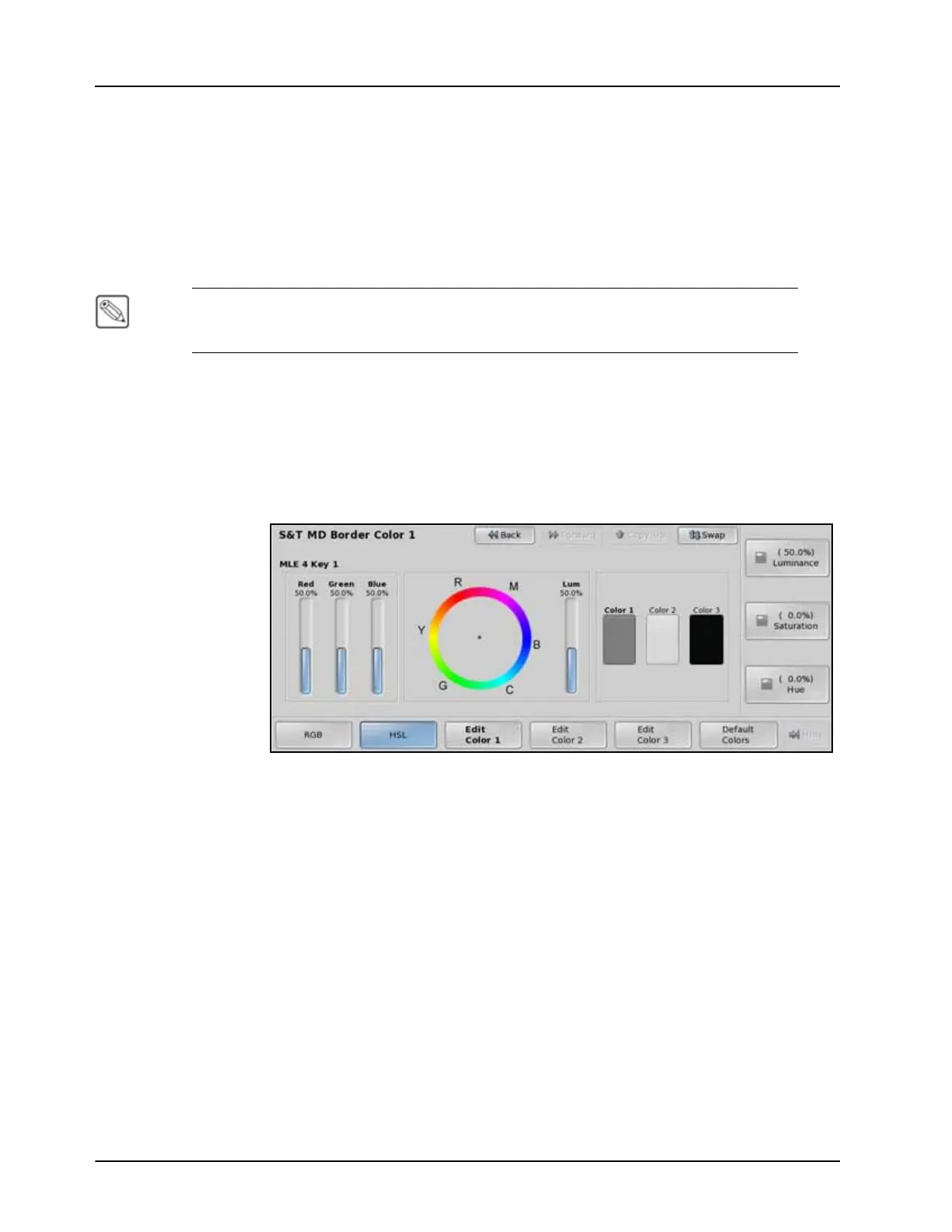
HSL Color Mode — S&T MD Border Color Menu
6. Press Edit Color X to display the color information for that color, where X is the
number of the color you want to edit. A border can have between one and three colors,
depending on the border.
7. Select the color mode you want to work in as follows:
• RGB — Select this option to use the RGB (Red, Green, Blue) color mode. The bar
graph on the left side of the menu displays the level of each color. Proceed to Step
(8.) to edit colors in this color mode.
• HSL — Select this option to use the HSL (Hue, Saturation, Luminance) color
mode. The bar graph on the left side of the menu displays the level of each color.
Proceed to Step (9.) to edit colors in this color mode.
8. Adjust colors using the RGB color mode as follows:
•Use the Red knob on the S&T MD Border Color Menu to adjust the amount of
red that is being mixed (0.0% has no intensity, and 100.0% has full intensity).
•Use the Green knob on the S&T MD Border Color Menu to adjust the amount of
green that is being mixed (0.0% has no intensity, and 100.0% has full intensity).



 To Next Page