Vision Operator’s Manual (v12.0 MD) Squeeze & Tease Sequences and Wipes • Ops 15–7
Editing a Sequence
Once your sequence has been created and saved, you can edit the sequence either by overwriting
an existing keyframe, or applying a change to multiple keyframes at once.
Overwriting a Keyframe
If you want to overwrite a single keyframe that has already been created, you must select the
keyframe, modify it as required, and then overwrite it. The selected keyframe is overwritten with
the current channel selections.
Use the following procedure to overwrite a single keyframe:
1. Load the sequence you want to overwrite the keyframe for.
2. Press the DVE quick navigation button to display the S&T MD Main Menu 1-2.
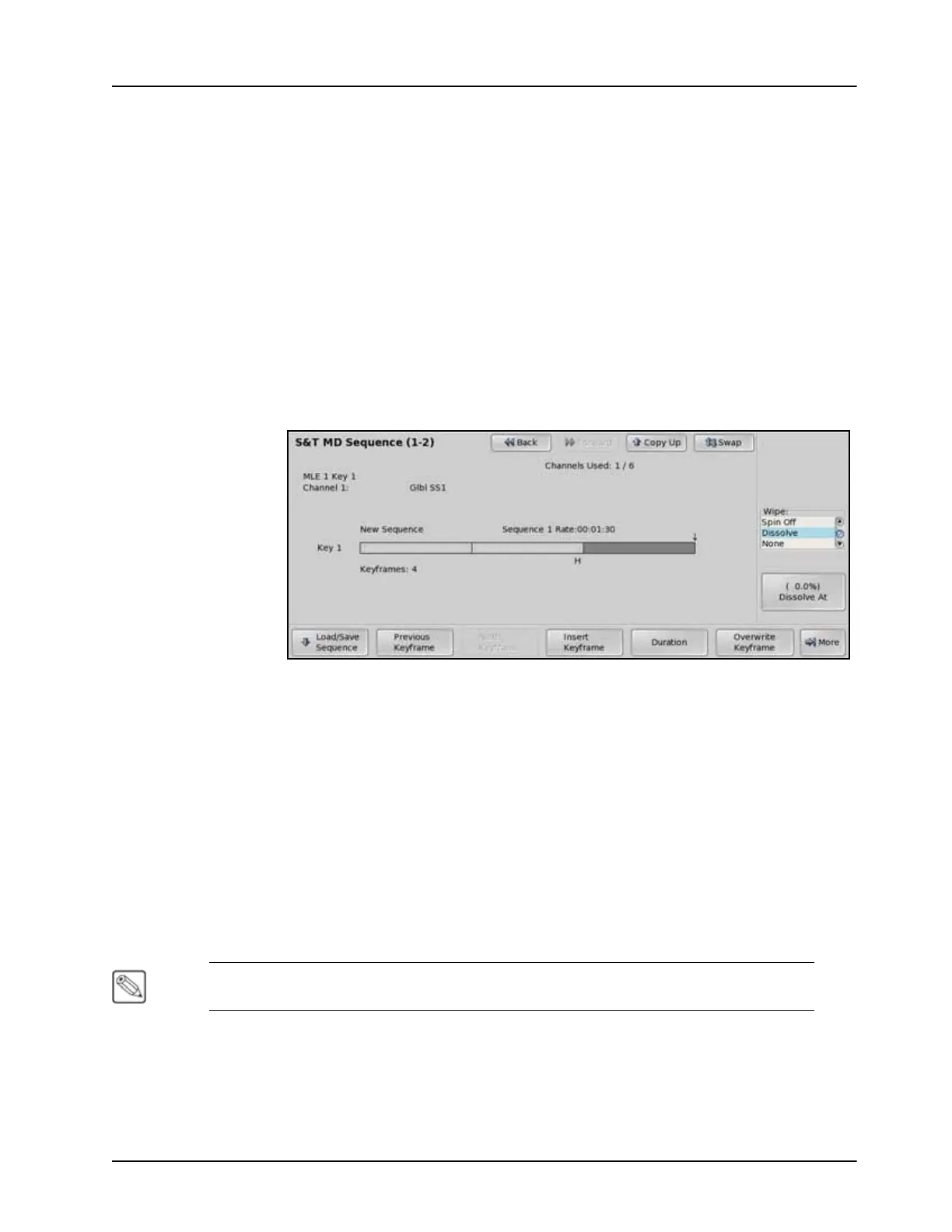
3. Press Sequence on the S&T MD Main Menu 1-2.
S&T MD Sequence Menu 1-2
4. Select and modify the keyframe as desired.
5. Press Overwrite Keyframe on the S&T MD Sequence Menu 1-2 to apply the
changes to the selected keyframe.
6. Save your sequence.
This completes the procedure for overwriting a single keyframe.
Modifying Multiple Keyframes
The Modify Keyframes feature allows you to apply a modification to one or multiple keyframes
in the sequence. Once selected, you can either modify all of the keyframes by the same value,
relative to their current position, or to the exact same, or absolute, position.
Note — You cannot modify lighting parameters across multiple keyframes. To adjust the
lighting parameters of a sequence, you must Overwrite each keyframe individually.
Use the following procedure to modify multiple keyframes:
1. Load the sequence you want to modify.
2. Press the DVE quick navigation button to display the S&T MD Main Menu 1-2.
3. Press Sequence on the S&T MD Main Menu 1-2.



 To Next Page