Vision Operator’s Manual (v12.0 MD) Position/Crop Functions • Ops 13–9
Transparency
The Transparency function allows you to adjust the transparency of the channel from completely
opaque or completely transparent. As you adjust the level of transparency, the graphic in the
menu changes to represent the current percentage of transparency.
Note — Transparency is only available on Preset Pattern Keys, and cannot be used with Auto
Select, Self, or Chroma Keys.
Use the following procedure to adjust the transparency of a channel:
1. Press the SEL button on the Keyers Module for the Keyer that you want to adjust the
transparency of the channel for. The S&T MD Position/Crop Menu 1-2 is displayed.
The key must already be flying.
2. Press More.
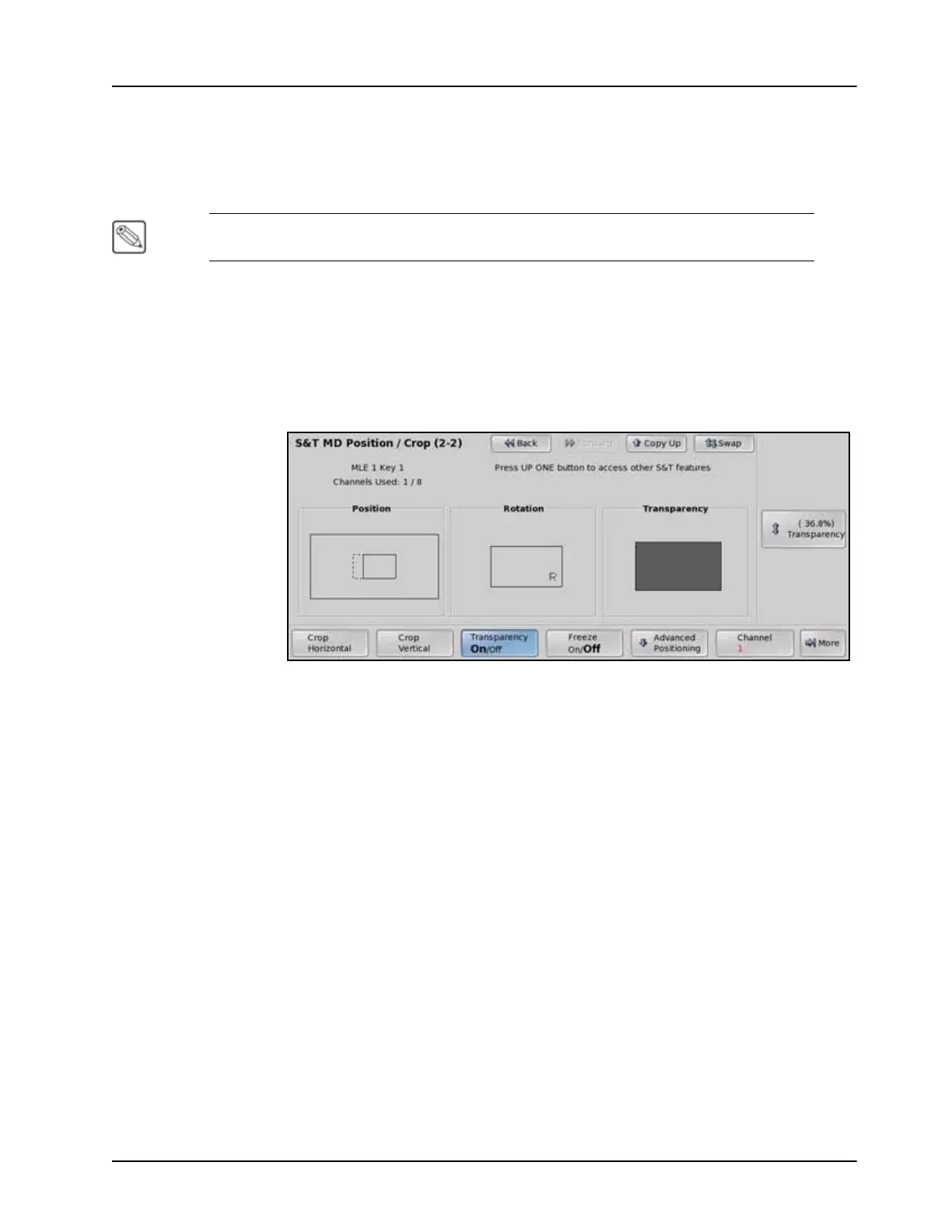
3. Press Transparency on the S&T MD Position/Crop Menu 2-2.
Transparency — S&T MD Position/Crop Menu 2-2
4. Toggle Transparency on the S&T MD Position/Crop Menu 2-2 to On to enable this
feature.
5. Use the Transparency knob to adjust the transparency level of the channel. The values
range as follows:
• 0.0% — The channel is completely opaque and the graphic in the Transparency
Area is filled black. At this value, there is no difference between the original
channel and the channel with the Transparency effect applied to it.
• 100% — The channel is completely transparent and the graphic in the
Transparency Area is empty. At this value, the channel is not visible on the screen.
This completes the procedure for adjusting the transparency of a channel.



 To Next Page