47
Software
C
C
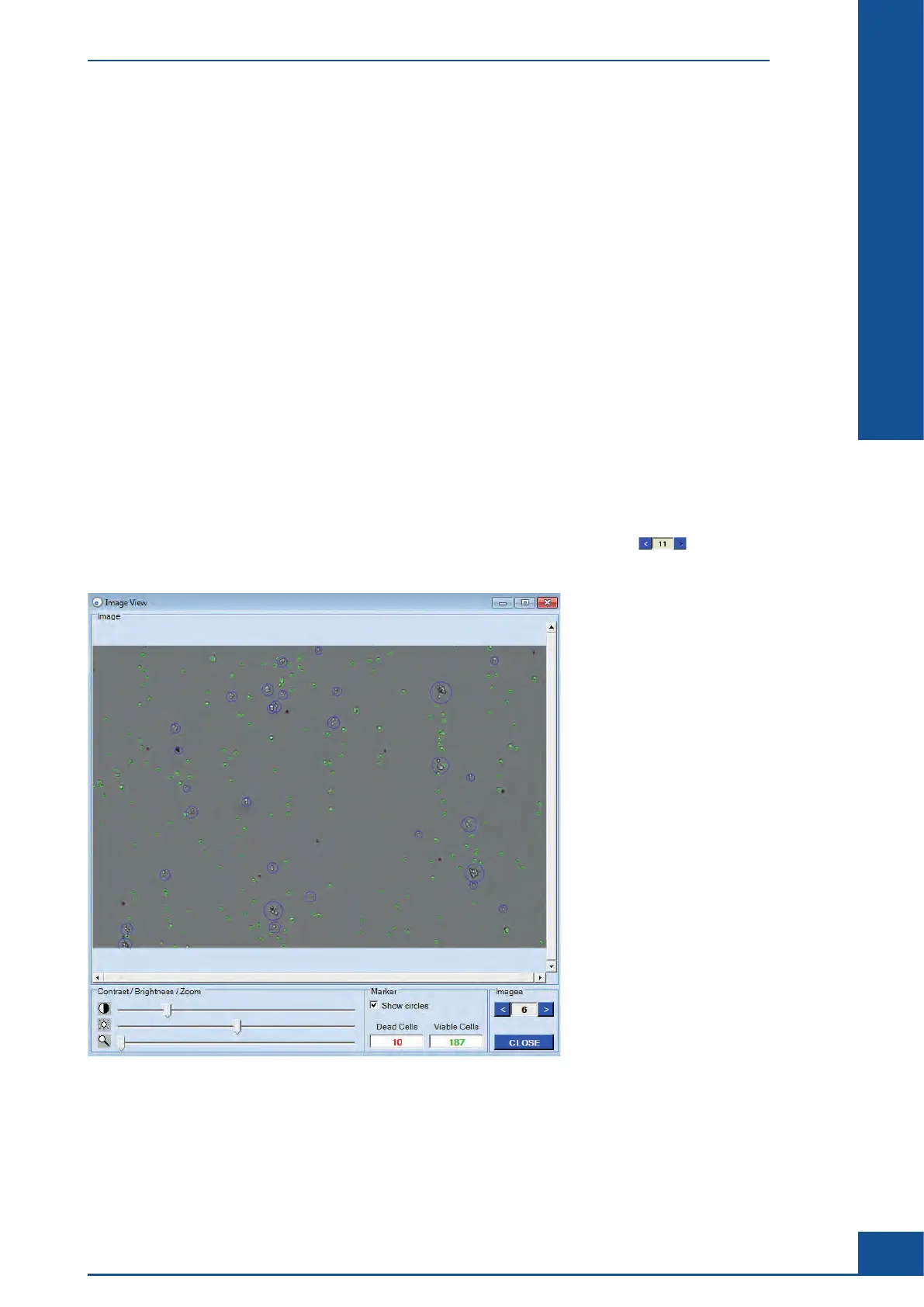
4.3.2. Viewing an Image Using the Image View Dialog Box
It is possible to see which cells were marked viable or dead by the analysis Software via the Image View dialog
box. The user can thus get a sense of how cell shapes and clusters have been evaluated by the Software. The Cedex
HiRes Software offers various options for optimizing measurement results by adjusting the Operator used for
the image analysis. Thus, the image analysis Operator can be adjusted for unusual cell culture images or for
specific internal counting strategies. For more information about adjusting the image analysis, see “Adjustment
of the Image Analysis using the Live Operator”.
The Image View offers the following information and options:
c
Viable Cells: Number of viable cells.
c
Dead Cells: Number of dead cells.
c Show Circles Checkbox: Turns on/off the marking of cells recognized as living or dead. Viable cells are
marked with a green circle and dead cells are marked with a red circle. The circle diameter corresponds to
the cell diameter. Objects are marked with a blue circle.
c
Zoom: Image enlargement.
c
Brightness and contrast settings.
c
Navigating a dialog box when the image is enlarged (scroll bars appear at the bottom and right edge of the
image when the image is zoomed in).
c Scrolling through all of the images for a particular measurement using the arrows in the lower
right-hand corner.
Figure 14: Viewing a cell image using the Image View dialog box
Results Displayed in the Measurement Dialog Box
Image Area



 To Next Page