11
Startup
A
A
1 Turning on the Cedex HiRes Analyzer, Control Unit,
and Software
1
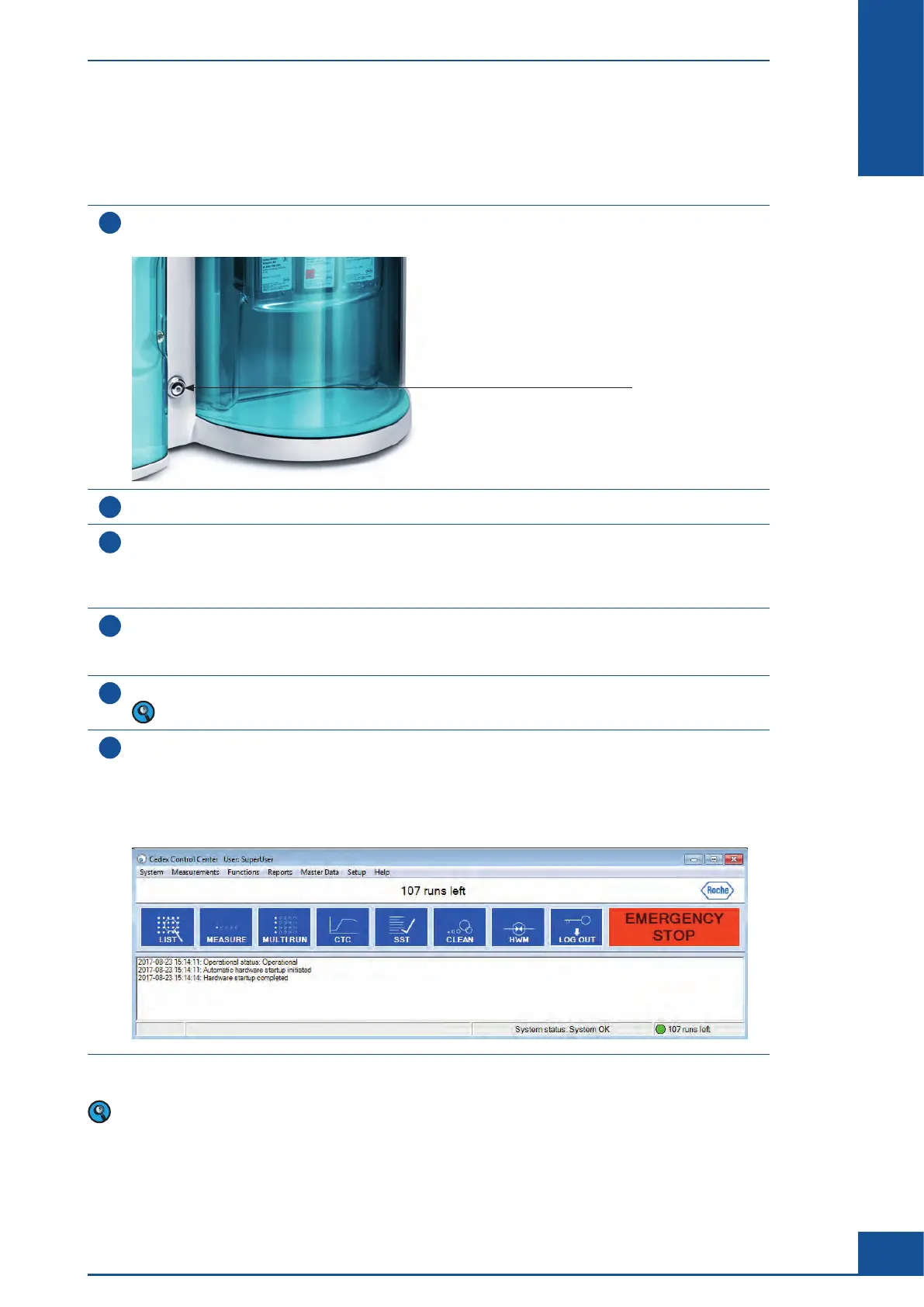
Press the ON/OFF switch on the Cedex HiRes Analyzer.
The switch lights up with a blue light indicating that the Cedex HiRes Analyzer is on:
ON/OFF Switch
2
Turn on the Control Unit (PC) and the monitor.
3
The Windows operating system starts, and a prompt for a username and password appears on the
Control Unit.
Log in as Win-Admin, password Win-Admin unless a different Windows operating system account has
been set up.
4
Check that the Cedex Server Software has already automatically started; it may appear as a minimized
dialog box in the task bar at the bottom of the screen.
If it has not started, double-click on the Cedex Server icon on the desktop to start the server.
5
Double-click the Cedex Client icon on the desktop to start the Cedex HiRes Software.
The Cedex Server must be started before the Cedex Client can be started.
6
The Log In dialog box of the Cedex HiRes Analyzer program opens.
Enter the username and password in the respective fields. Factory installed default user is Superuser
(password spass).
Click on the OK button to log in or press <Return>.
The Cedex Control Center opens.
n
The first time a Cedex HiRes Analyzer is set up or when the Cedex HiRes Analyzer is moved to a new location,
a focus adjustment must be performed. See Automatic Adjustment and Alignment Verification in the Cedex
HiRes Analyzer Operator’s Guide.
Turning on the Cedex HiRes Analyzer, Control Unit, and Software



 To Next Page