48
Cedex HiRes Analyzer Software Version 2.4 - Training Guide
C
C
2.2.3 Reprocess the Measurement Using the New Cell Type
Measurements cannot be reprocessed while the Cedex HiRes Analyzer is processing a sample.
To reprocess existing data sets using the new Cell Type (e.g., New Cell Type):
1
Click on the LIST button in the Cedex Control Center to open the Measurement List dialog box.
2
Select the row of the measurement to be reprocessed and click on the REPROCESS button in the
bottom right-hand corner.
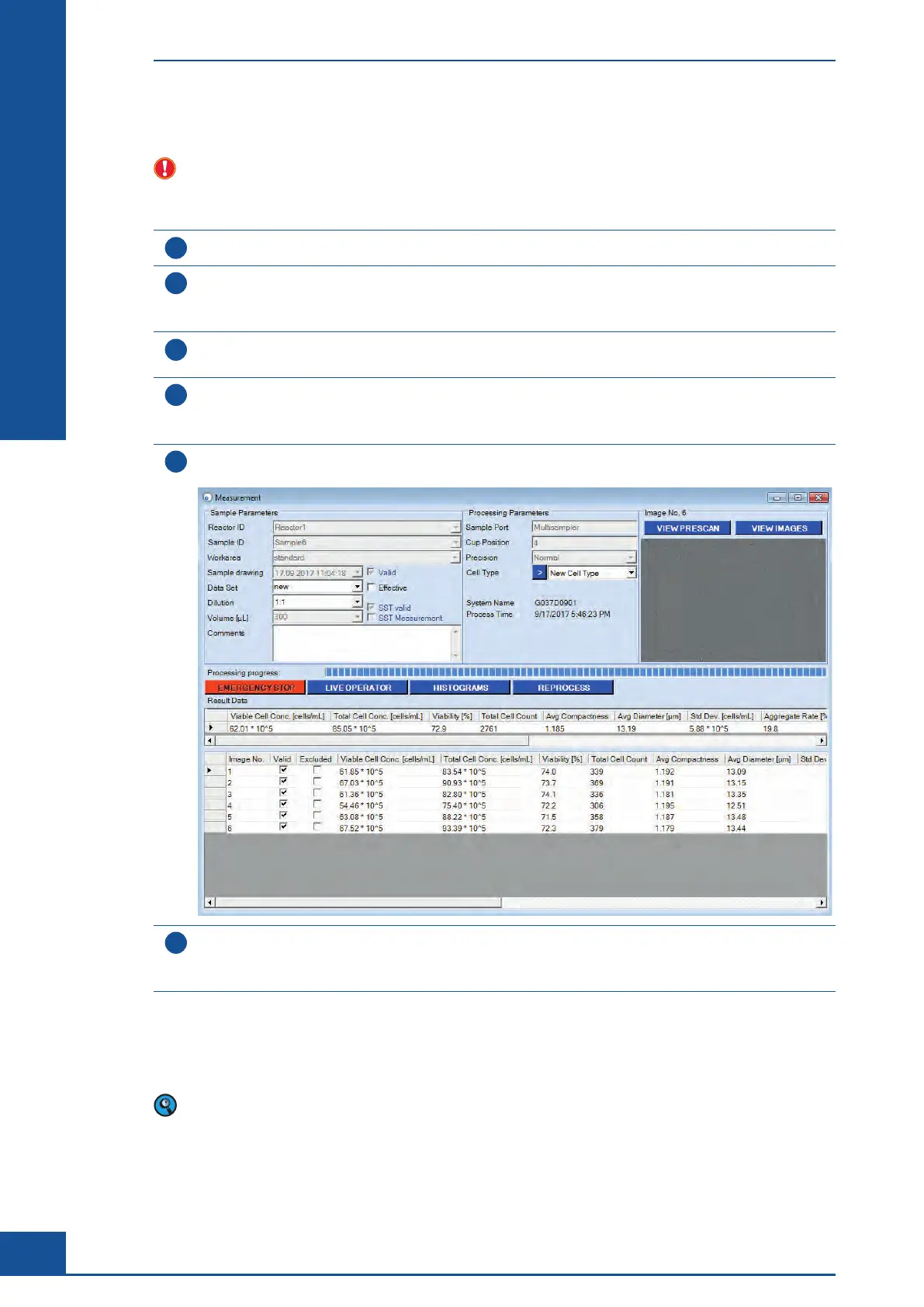
The Measurement dialog box opens, containing all the result data for that measurement.
3
Enter a new name for the data set in the Data Set field of the Sample Parameters area
(e.g., reprocess 1, as shown in the screenshot below).
4
Select the new Cell Type to be used for the image analysis (e.g., New Cell Type) in the Processing Parameters
area.
You can also change the dilution factor in the appropriate field of the Sample Parameters area.
5
Click on the REPROCESS button in the center of the Measurement dialog box to start reprocessing the
measurement based on the newly selected Cell Type.
6
When the reprocessing is finished, a dialog box will open asking whether you want the new data set to be
the effective data set.
Click on YES if this is the case (see Effective Data Sets on the following page).
n
The new data set is available in the Measurement List dialog box once the evaluation is complete. All changes can
be retraced by viewing previously created data sets via the Measurement List dialog box.
Reprocessing creates additional data sets. Original data is not overwritten.
Analyzing Unusual Cells
Example of Cells Not Recognized by the Cell Type Std. Size



 To Next Page