101
Software
C
C
10.7.2. Database Restore
Once a database backup has been created, it is possible to restore the backup to the Cedex SW 2.4.
Before restoring a backup, be sure to create a backup of the current database, as the restore function will
overwrite all existing data. Note that failure to back up the current database could result in partial or
complete loss of data during restoring.
Ensure that the database being restored originates from the same system (i.e., the same Analyzer serial
number). Attempting to restore a backup from a different Analyzer will result in non-functional software,
which will require re-installation by a Roche representative.
To restore a backup of the Cedex Software 2.4 database:
1
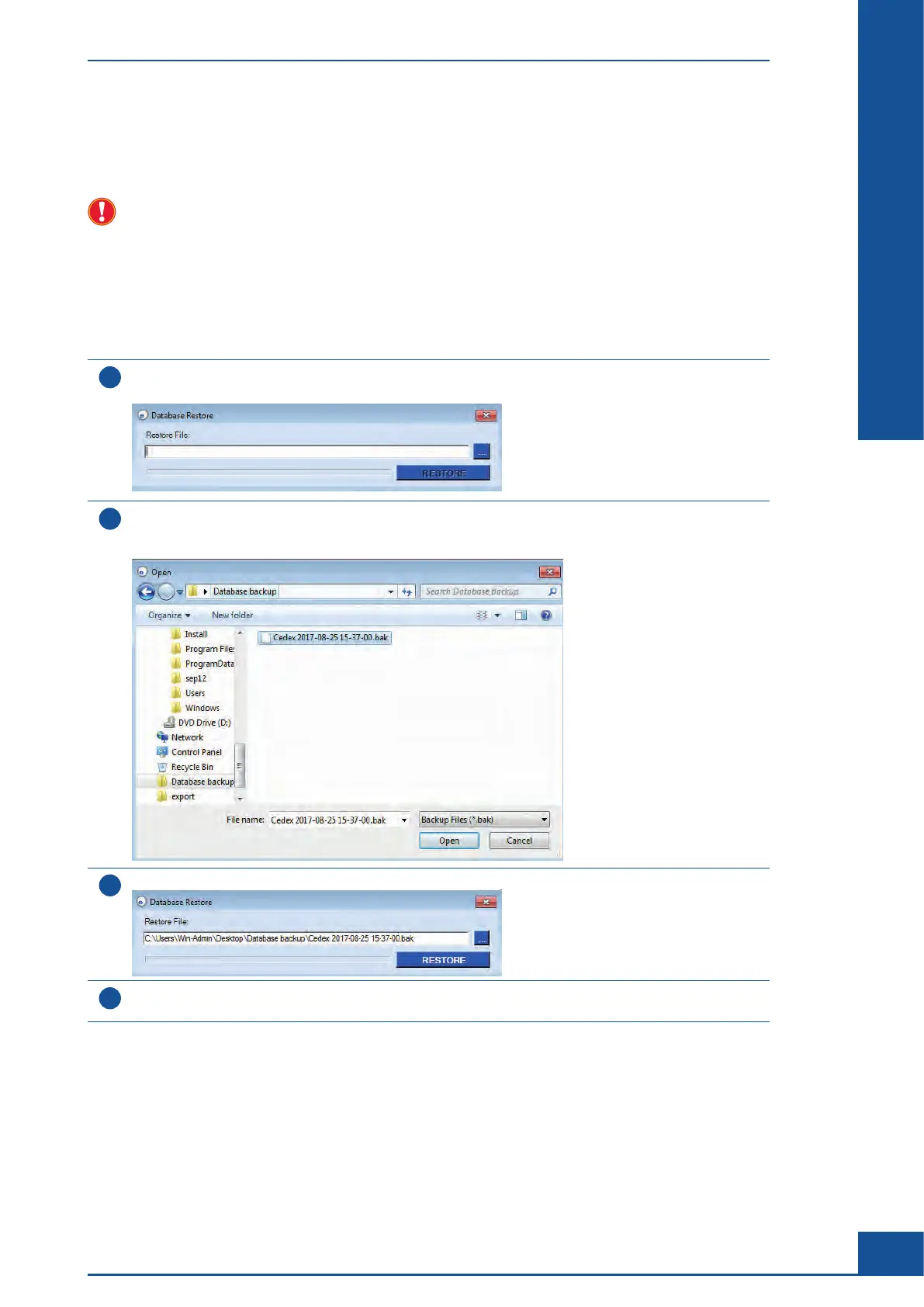
In the Cedex Control Center, choose Setup>Database Maintenance>Database Restore.
The Database Restore dialog box appears:
2
Enter the path under which the database backup file is stored in the Restore File area. Alternatively, the
button on the right of the entry field opens Windows Explorer and the location of the database backup file
can be directly selected. Select the path and click on OPEN:
3
The Database Restore dialog box reappears:
4
Click on RESTORE. When the restore is complete, confirm the successful completion in the dialog box
that appears.
■
Administrator Functions
Archiving Data



 To Next Page