24
Cedex HiRes Analyzer Software Version 2.4 - Training Guide
B
B
7.2 Define the Sample Parameters and the Measurement and Analysis
Parameters in the Multi Run Dialog Box
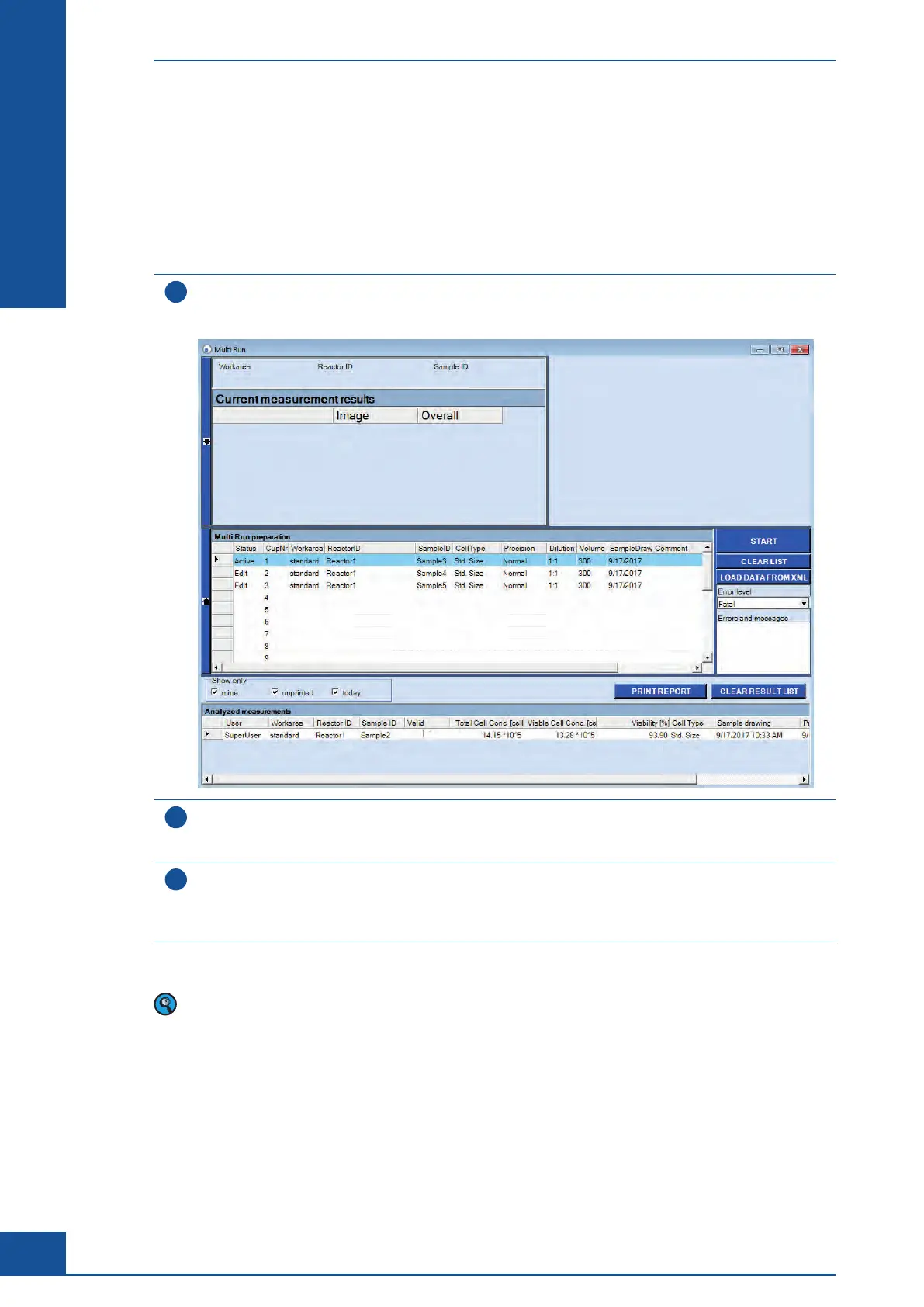
In addition to the entry columns for ReactorID, SampleID, Cell Type, Dilution, and Precision, there are also
columns for Status and CupNr. The CupNr column shows the sample cup position on the Multi Sample Tray.
The Status column displays the state of the sample before, during, and at the end of a measurement. The Multi
Run dialog box automatically displays all 20 possible sample cup positions.
1
Click anywhere in the row of the Multi Run preparation area that corresponds to the location of a Cedex
Sample Cup containing a sample.
The row converts to edit mode and the sample and process parameters for the measurement can be defined.
2
Enter the desired sample data and parameters for the sample
(see Section B, Chapter 3, Open the Measurement Dialog box and Define the Sample Parameters and
Define the Measurement and Analysis Parameters).
3
Repeat Steps 1 and 2 for the remaining samples to be measured.
The rows in which entries are in the process of being filled out remain in edit mode.
To clear the entire list of entries and start with a new list, click on the CLEAR LIST button on the right-hand
side of the Multi Run dialog box.
n
Measurement of up to 20 samples in a row leads to prolonged incubation (up to 90 minutes) of cells at room
temperature. Tests using several different cell lines (CHO-K1 and several hybridoma cell lines) showed no
significant influence of the prolonged incubation times on the measurement results. However, this result may
not apply to all cell lines. Test especially sensitive cell lines in advance to determine the number of samples
that can be measured in a row without affecting the cells.
Setting up Multiple Measurements Using the Multi Run Dialog Box
Define the Sample Parameters and the Measurement and Analysis Parameters in the Multi Run Dialog Box



 To Next Page