80
Cedex HiRes Analyzer Operator’s Guide
C
C
10.1.3. Assigning a User Role to a User
Specific access rights are assigned to user roles, which are then assigned to specific users. At least one user role
must be assigned to a user in order to grant the user access rights.
Detailed information about assigning functions for each pre-set user role, as well as editing existing functions
and creating new user roles, is located under “Creating and Editing User Roles with Specific Access Rights”.
To assign rights to a user account:
1
Click on the Setup menu in the Cedex Control Center.
2
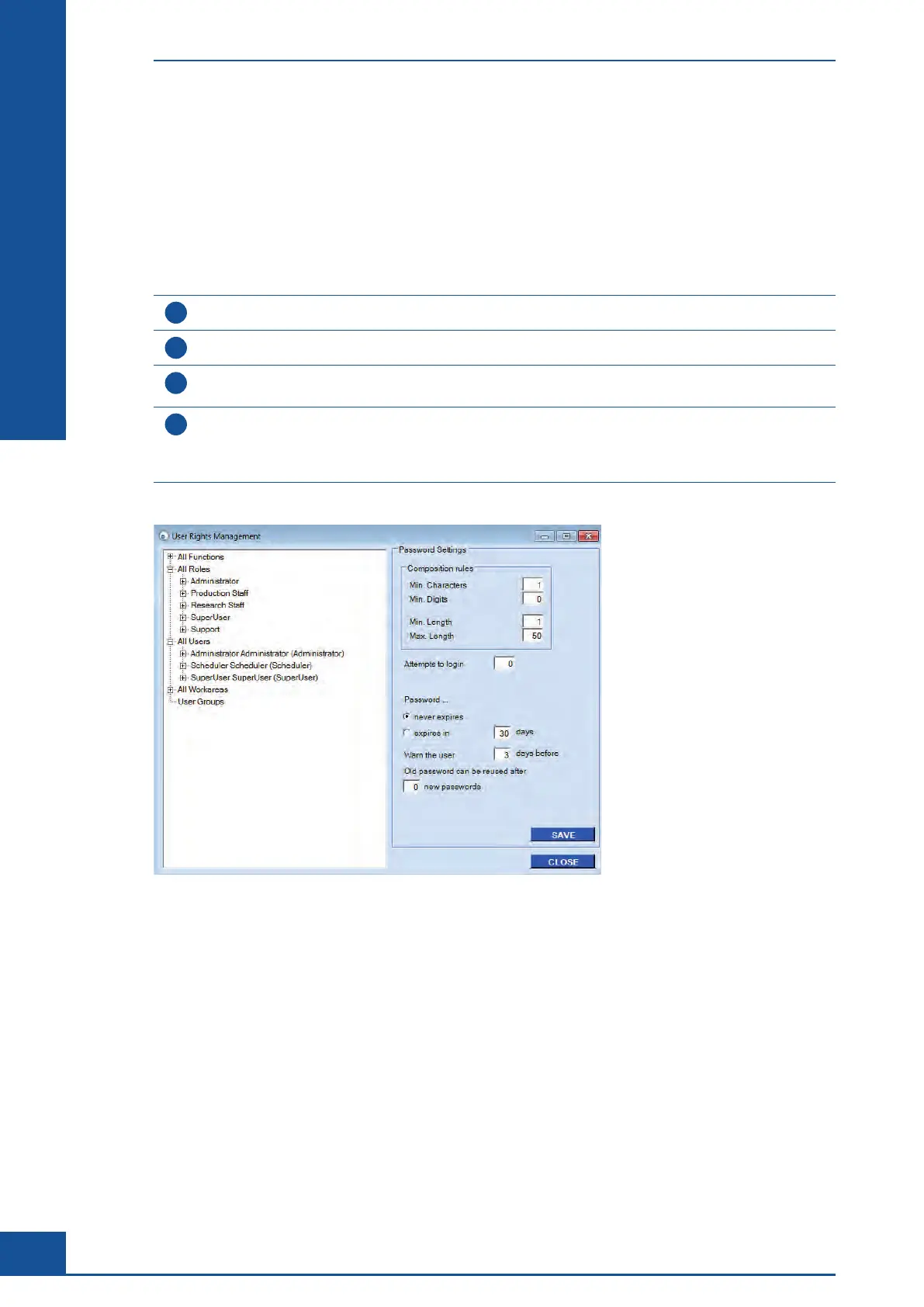
Click on User and Rights Management. The User Rights Management dialog box appears.
3
In the All Users main menu, open the user account menu that is to be modified. A User Role sub-menu will
appear.
4
Open the All Roles main menu and drag the appropriate user role from the All Roles menu into the All
Users sub-menu. The access rights available for this user role will be added to the account. To deny certain
access rights, the corresponding user role needs to be deleted from the All Users sub-menu. Right-click the
user role which is to be deleted and click on Remove the role from the user.
■
Figure 32: User Rights Management dialog box
Administrator Functions
Administration of User Accounts



 To Next Page