43
Software
C
C
4 Results Displayed in the Measurement Dialog Box
Measurement results are displayed in the Measurement dialog box. If a single measurement has been run using
the Measurement dialog box, the analysis results obtained from that measurement are automatically displayed
in the same dialog box after the analysis process has been completed. Measurement results from Multi Runs are
displayed in the Multi Run result list until the list has been cleared.
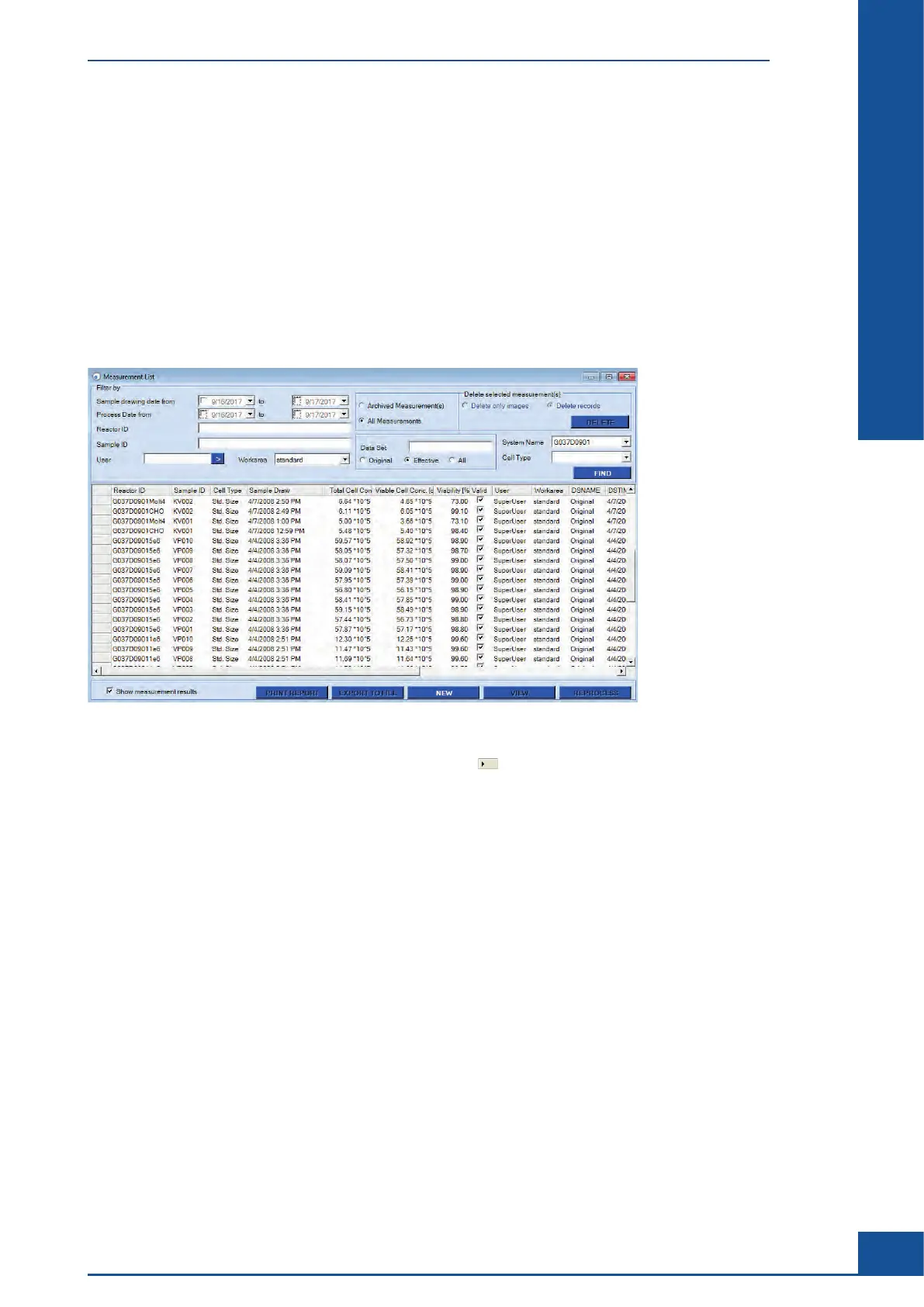
In addition, measurement results can be viewed via the Measurement List dialog box (see Figure 10). To
access this dialog box, click on the LIST button in the Shortcuts area of the Cedex Control Center or select
Measurement List in the Measurements menu. The Measurement List dialog box will open, showing all of the
measurements stored in the database. See “Using the Measurement List” for more information about working
with the Measurement List.
Figure 10: Measurement List dialog box
To see the results of a particular measurement, click on the field to the left of the appropriate line to
highlight the row containing the measurement to be viewed, then click on the VIEW button in the bottom
right-hand corner. The Measurement dialog box will open with the results of that particular measurement. The
Measurement dialog box has 4 separate sections (see Figure 11):
c
Result Data area
c Sample Parameters area
c
Processing Parameters area
c
Image area
Some of the obtained data can also be displayed as graphic diagrams by clicking on the HISTOGRAMS button
(see “Graphical Display of the Analysis Results” and “The Cultivation Time Chart Dialog Box” for more details).
It is also possible to access the Live Operator from this dialog box by clicking on the LIVE OPERATOR button
(see “Adjustment of the Image Analysis using the Live Operator”).
Results Displayed in the Measurement Dialog Box



 To Next Page