96
Cedex HiRes Analyzer Operator’s Guide
C
C
10.6.1. Archive
To archive measurement data:
1
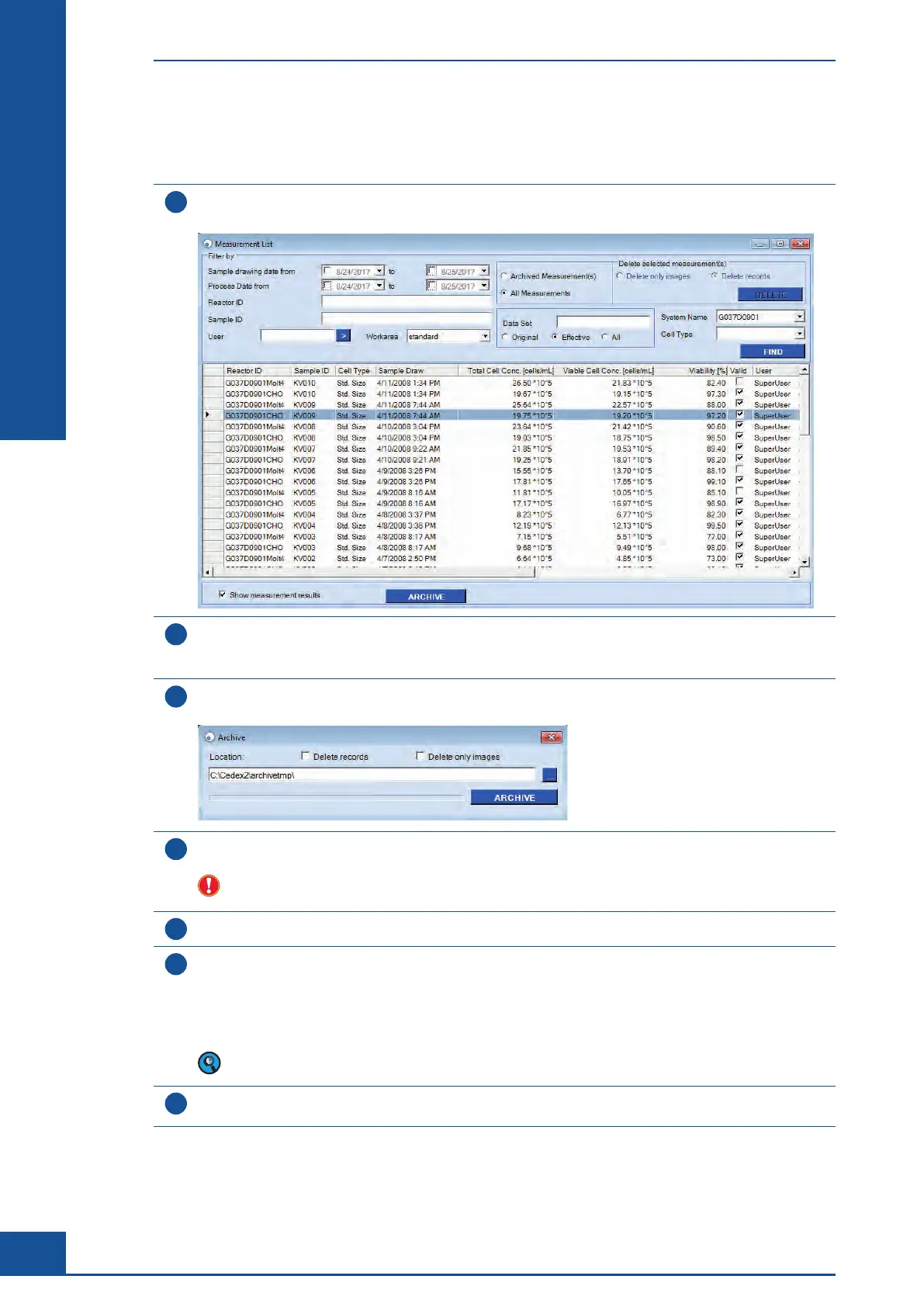
In the Cedex Control Center, choose Functions>Archiving>Archive.
A Measurement List dialog box appears with an ARCHIVE button at the bottom of the dialog box:
2
Select a single measurement from the list by clicking on the field on the left of the appropriate line, or
choose a set of measurements by holding down the <Ctrl> button and selecting the appropriate lines.
Alternatively, search for desired measurements using filter criteria.
3
After measurements have been selected, click on the ARCHIVE button.
The Archive dialog box opens:
4
Enter the path under which the archive files should be stored in the Location area. Alternatively, the button
on the right of the entry field opens Windows Explorer and the path can be selected directly.
Ensure that the target directory (location for the archived files) is empty in order to prevent possible
unintended overwriting of critical files, which may result in data loss.
5
Click on Save. The Archive dialog box reappears.
6
(Optional) Choose one of the following options in the Archive dialog box:
c
Delete records: Select this option to simultaneously archive measurements, including all images, to the
selected target location and delete them entirely from the local database.
c
Delete only images: Select this option to simultaneously archive measurements, including all images, to
the selected target location while only images are deleted from the local database.
If no checkmark is placed in either box, measurements will be archived and simultaneously retained in the
local Cedex HiRes Software database.
7
Click on the ARCHIVE button to start the archiving process. A message appears as soon as archiving of
information is completed successfully. Click on OK.
ccc
Administrator Functions
Archiving Data



 To Next Page