68
Cedex HiRes Analyzer Operator’s Guide
C
C
9.1.2. Export to File
Exporting measurement results is done via the Export to file area of the Measurement List dialog box or via the
Export to file option in the Functions menu of the Cedex Control Center. Four different formats can be chosen
including CSV, XML, XLS, and Flat file. In addition, a sub-set of parameters to be included in the file can be
selected.
To export measurement results to a file:
1
Select the Export to file option in the Functions menu of the Cedex Control Center. The Measurement List
dialog box appears with the EXPORT TO FILE button located at the bottom of the dialog box.
2
Select a single measurement from the list by clicking on the field to the left of the desired line.
To choose a set of measurements, hold down the <Ctrl> button while selecting the appropriate lines.
Alternatively, the desired measurements can be
searched for using different filter criteria
(see “Searching for measurements”).
3
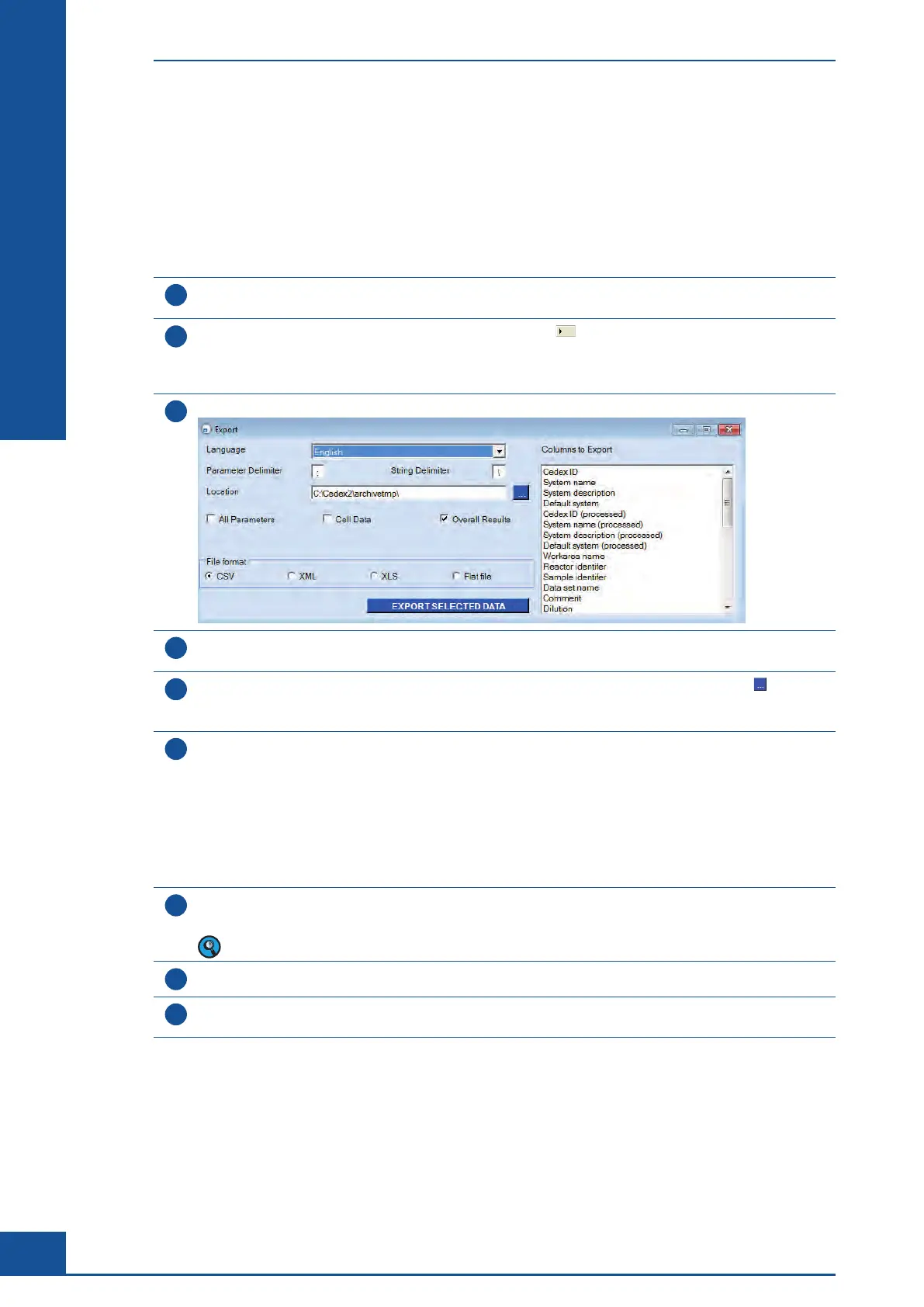
Click on the EXPORT TO FILE button. The Export dialog box opens.
4
In the Export dialog box, individual Parameter and String delimiters can be defined (this only applies to
CSV and Flat files).
5
In the Location area, enter the target path to be used for storage of the export file. The button on the
right of the entry field opens a dialog box in which the path can be directly selected. The name of the file is
automatically generated.
6
To specify a sub-set of parameters to be exported, either click the checkboxes beside the preset options
(i.e., All Parameters, Cell Data, and Overall Results) or select the desired parameters from the Columns to
Export area. To choose a set of parameters, keep the <Ctrl> button pressed while making selections. The
preset options are:
c
All Parameters: All parameters about the measurement.
c
Cell Data: Data for each and every cell and object detected in the measurement.
c
Overall Results: Results such as average cell diameter, % viability, total cell concentration, viable cell
concentration, etc.
7
In the File format area, select the file format by clicking on the appropriate checkboxes.
The files will automatically and unchangeably receive XLS, DIF, or CSV file name extensions.
The file format XLS should always be chosen if a file is to be exported into Excel.
8
Click on the EXPORT SELECTED DATA button.
9
A message dialog box will appear to confirm successful export of information.
Click on OK.
■
The measurement data can be viewed in the file created.
General Functions of the System
Data Management



 To Next Page