131
Maintenance and Care
D
D
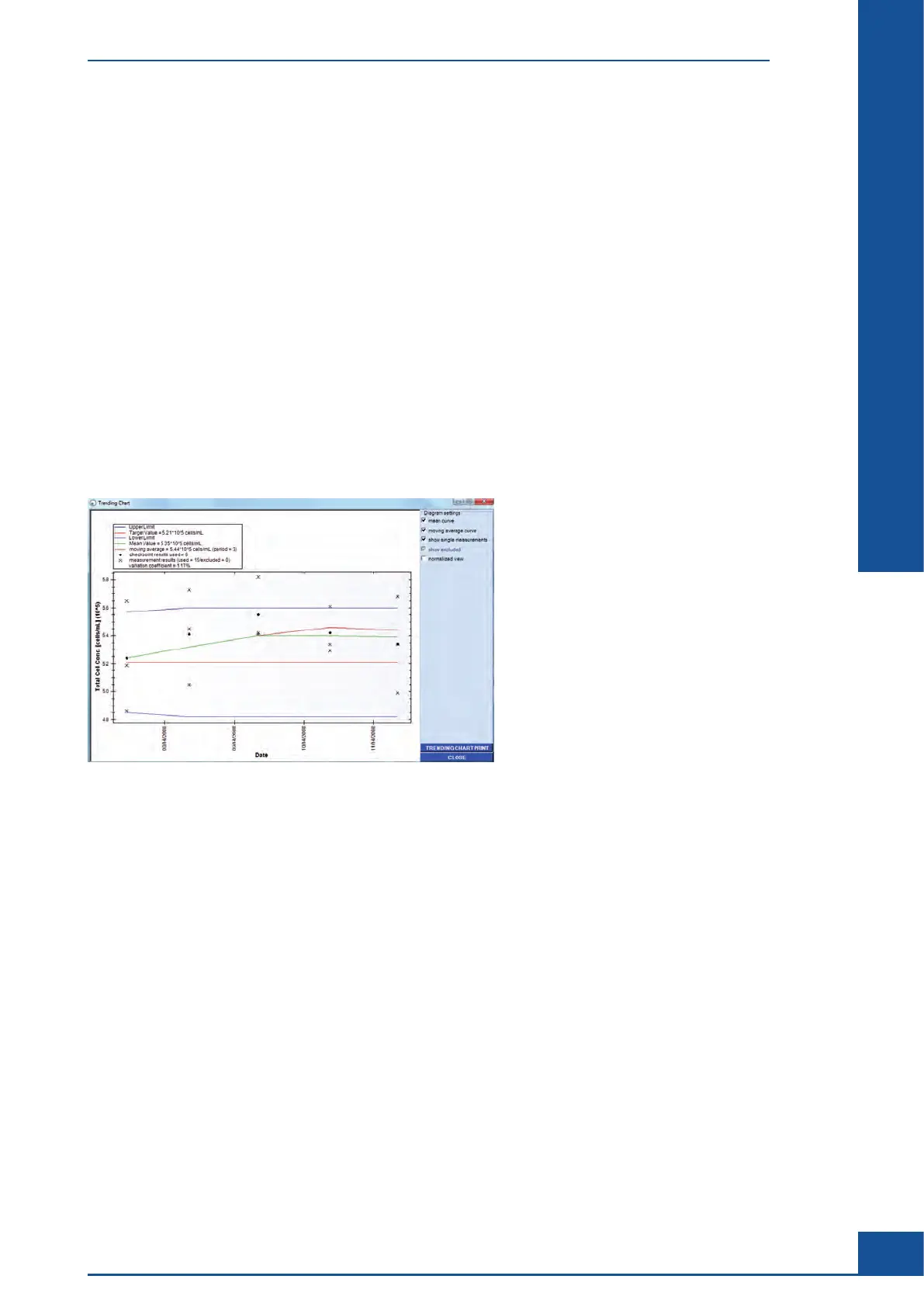
Clicking on the TRENDING CHART button will open a Trending Chart dialog box showing all of
the SST
measurements (marked u on the chart, see Figure 45). If multiple measurements are required for a particular
checkpoint, the average o
f the measurements is marked by u, while the results from the individual measurements
for that checkpoint are marked with an ×.
In addition, the following parameters are included:
c
Target value
c Upper limit
c Lower limit
c Invalid checkpoints (s)
c Mean value
c Moving average
c Variation coefficient
The Trending Chart can be enlarged or reduced (see “Enlarging the Histograms”), and can be printed out via the
TRENDING CHART PRINT button.
Figure 45: Trending Chart dialog box
There are several additional options in the Trending Chart dialog box. Excluded measurements can be removed
from the chart completely by clicking on the show excluded checkbox to remove the checkmark. For SST
checkpoints with multiple measurements, the individual measurements can be removed from the chart by
removing the checkmark in the box next to single measurements, leaving only the average of the measurements.
Clicking on the normalized view checkbox will normalize the results to the target value and display the
differences in percent. Both the mean curve and the moving average curve can be shown or hidden by selecting
or de-selecting the appropriate checkboxes.
The System Suitability Test (SST)
Tracking Trends in SST Results Over Time



 To Next Page