Model 1001 DFB Programming and operating manual
FICEP S.p.A. 99
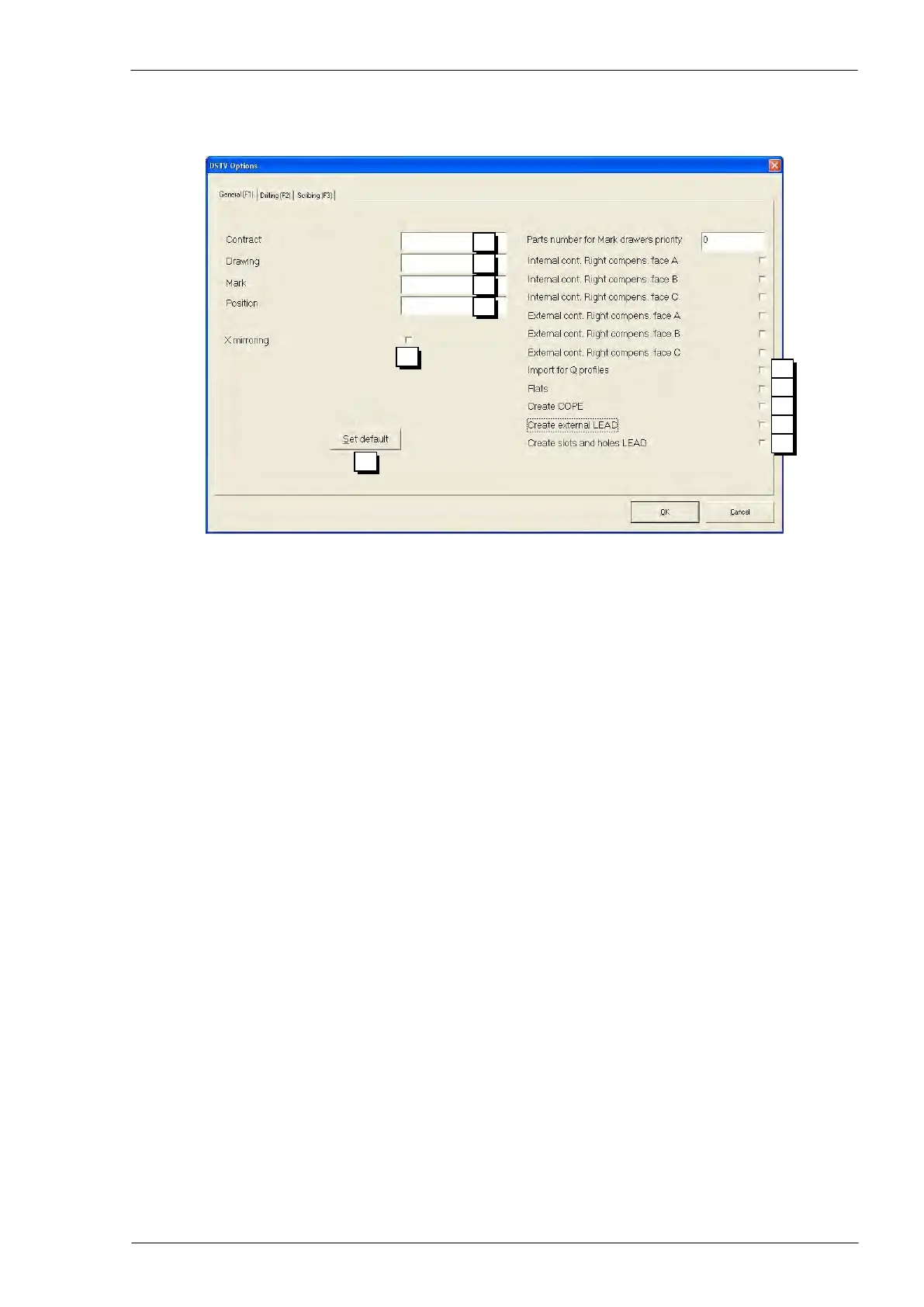
Pressing the graphic push-button “DSTV Options” a windows opens to allow to define some import pa-
rameters; this window has three tabs: “General” (f1), “Drilling” (F2) and “Scribing” (F3).
Possible new name for the field “contract”
Same for field “position”
Automatic generation of longitudinal symmetry (along the X axis)
Set of default import parameters
Enable to import Q profiles; normally enabled for 1001 DFB line
When importing program with flat profiles this check-box enables the generation of
programs with “F” (Flat) profiles instead of “P” (Plate) profiles; normally enabled for
1001 DFB line
Always not enabled for 1001 DFB line
Enable to generate milling instructions for programmed slots; if the box is not
checked each slot will be imported as a pair of holes.
All other fields without reference are not used on 1001 DFB line
The “Drilling” tab represents all post-processor values for drilling operations; the correct values can quickly
be generated by pressing the graphic push-button n. 06.
The “Scribing” tab contains some parameters already explained in the “Setup” section of this manual.
Import of single piece or bar programs generated by third applications
Import of piece programs edited with CAD software of third suppliers, needs a sequence of import-export
operations for which the user must buy a specific license from FICEP. For every information about export
operations refer to technical documentation of the application you need to export from.
In this manual only the final step of import process is shown; this is performed directly on the machine us-
ing an import package called “WinCN”.
If the operator needs to import a piece or a bars program, simply he must press the graphic push-button
“Communication CAM” in the initial screen of CNC software and, then, press the “Custom” push-button.



 To Next Page