119
Settin
Checkers
Cha
ter 6
Inspection Condition- If the “Inspection Object” is “Low Contrast”
The Low Contrast function is effective if the contrast between the object image and the background is very low or
the some parts of the image of the object may disappear, chipped or shielded, or for the noises in the uneven
background. But, the image processing time in the mode will be longer than in normal mode.
If “Inspection Object” is set to “Low Contrast”, the function used for stably detecting the low contrast object image
and the “Filter Adjustment” function are available. You can save the image from which unnecessary elements
(noises) were removed as a template.
Refer to the table shown below for the settings of Low Contrast.
Selection Guide for Inspection Method in Accordance with the Features of the Object
Features of the object Inspection method
(recommended)
Contrast Overlapped/C
hipped
Inspection
object
Filter
Main purpose Processing
speed
Good (High) No
Normal ---
Type recognition,
Quality inspection,
position detection, etc.
Good (High) Yes
Low Contrast No
Adjustment
Bad (Low) Yes /No
Low Contrast Adjustment
Position detection
Fast
Slow
To make Filter Adjustment
The Filter Adjustment function binarizes the object image and background using the following functions. The
function is used for processing the template image that has been already saved. Therefore, if no template is
saved, the Filter Adjustment function cannot be used.
No. Item Setting value Description
1 Extraction
Filter
Auto / Manual Select whether to configure the settings of the items 2 to 5 automatically or
manually.
Select “Auto” and check the template. If the template is not the one you
want, change to “Manual” and configure the settings of the items 2 to 5 in
numeric order.
2 Object
Color
White / Black If the object image is brighter than the background, select “White”. If the
object image is darker than the background, select “Black”.
3 Denoising 1 - 80 Removes unnecessary noises around the object image. As the setting
value increases, the more noises are removed.
4 Distortion 1 - 95 Extracts the part having contrast. If some parts of the extracted object are
chipped away, increase the setting value. If the object is expanded,
decrease the setting value.
5 Expansion 1 - 4 Expands the extracted object. Make up the chipped or missed parts of the
object that cannot be adjusted by using the Distortion function.
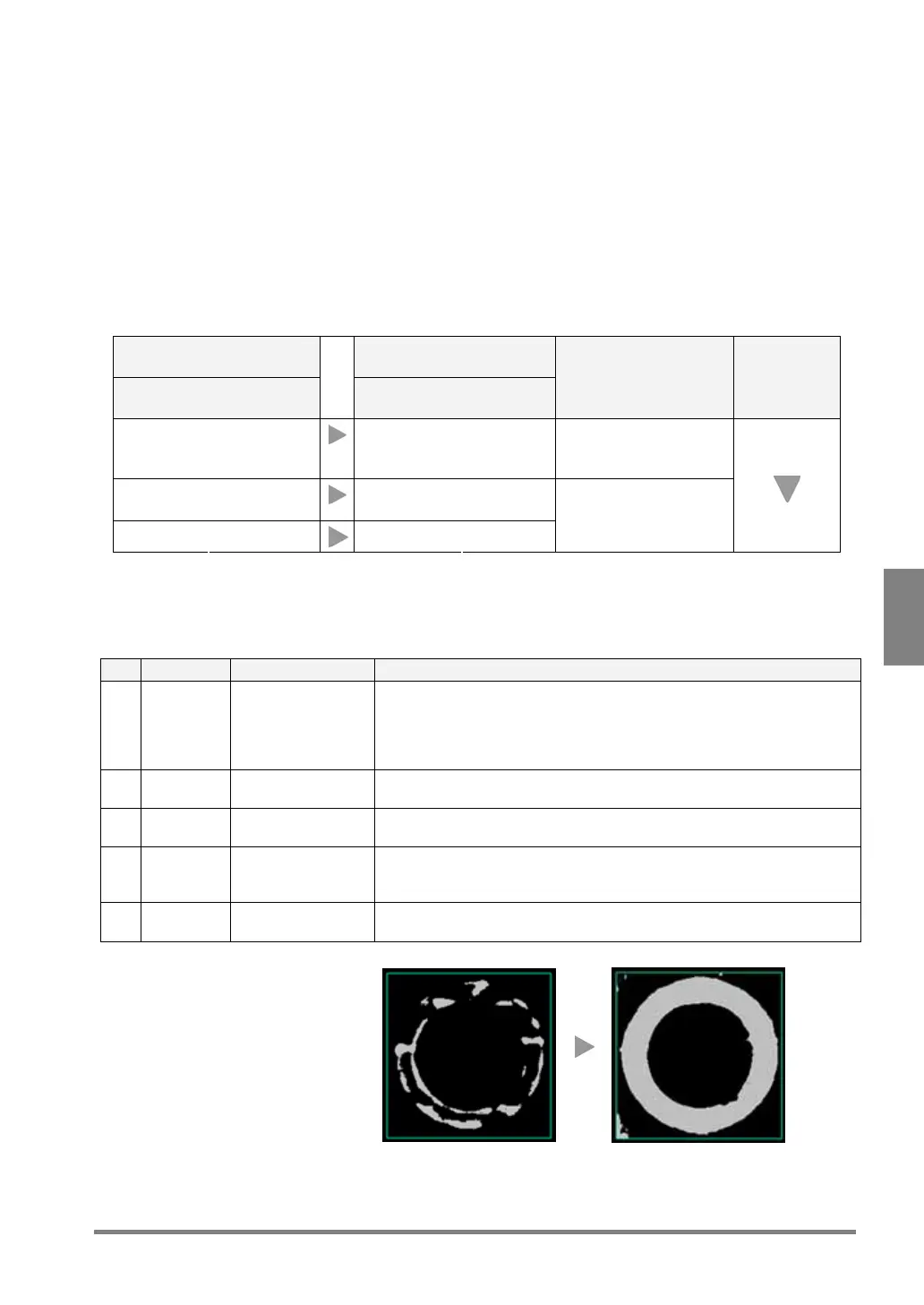
With the use of Denoising, Distortion
and Expansion functions, remove
unnecessary elements in the object
image to neatly binarize the object
image and the background.
Before filter adjustment
After filter adjustment



 To Next Page