............................................................................................................................................................................................................................................................
To restore configuration settings on the new Secondary
server
Management Actions
3-16
8AL90208USAD ed01
November 20, 2008
............................................................................................................................................................................................................................................................
........................................................................................................................................................................................................................
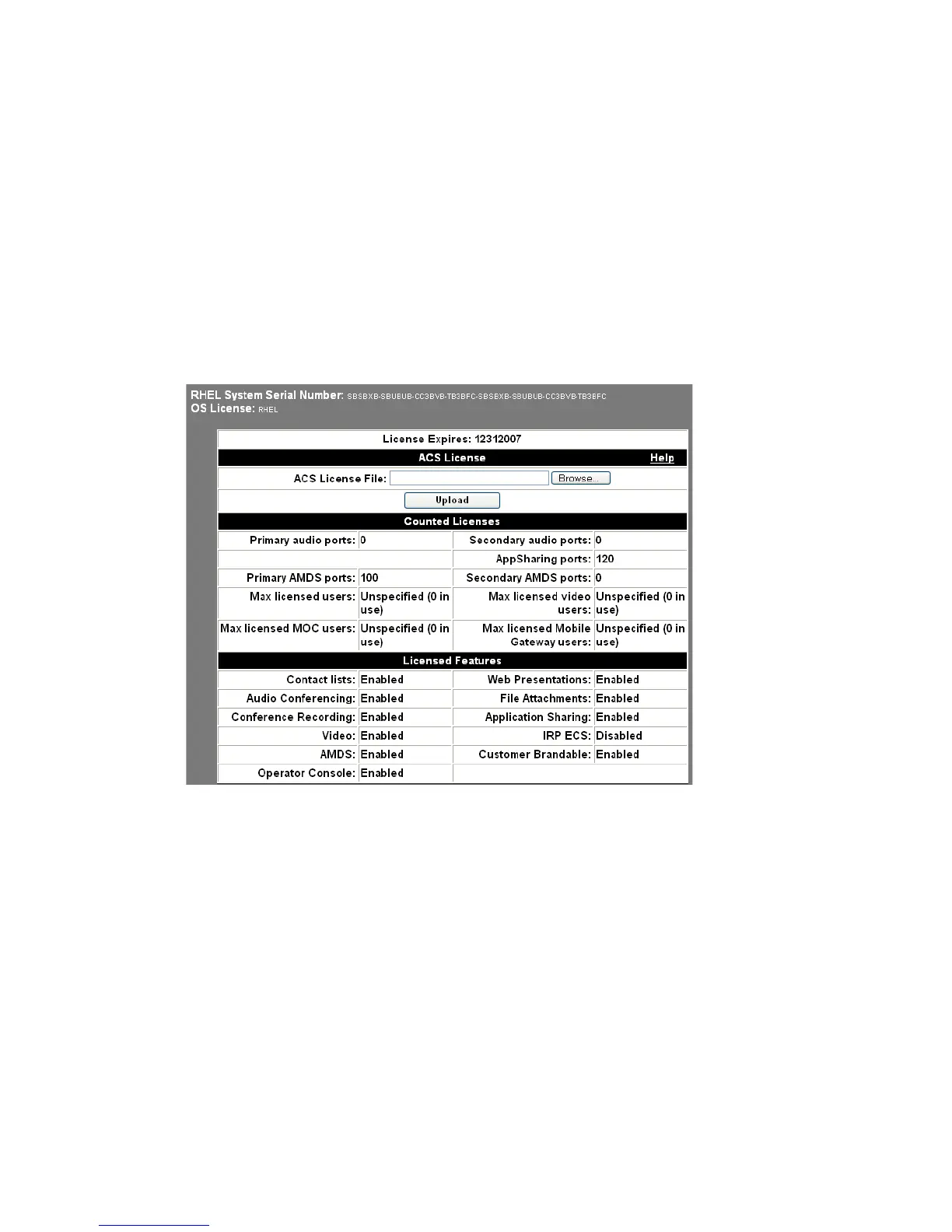
3 Log into the Web Administration page on the Secondary server and upload the license
obtained when the system was purchased.
a. Click the Configuration tab.
b. Click the Licensing item.
c. Locate the license file by using the Browse button.
d. Click the Upload button.
Figure 3-9 Upload License on Secondary
........................................................................................................................................................................................................................
4 Restore the Secondary server’s configuration.
a. Click the
Configuration tab.
b. Click the Manual Server Restore item.
c. Click the Browse button to locate the *.md5 file from the latest backup of the
Secondary.
d. Click the
Restore button.
e. Click the
OK button in the resulting message dialog box.
f. In the Files that need to be uploaded box, click the Browse button to select the
*.a* files from the latest backup of the Secondary.





 To Next Page