To add individual user accountsProvisioning and Account Management
............................................................................................................................................................................................................................................................
8AL90208USAD ed01
November 20, 2008
4-21
............................................................................................................................................................................................................................................................
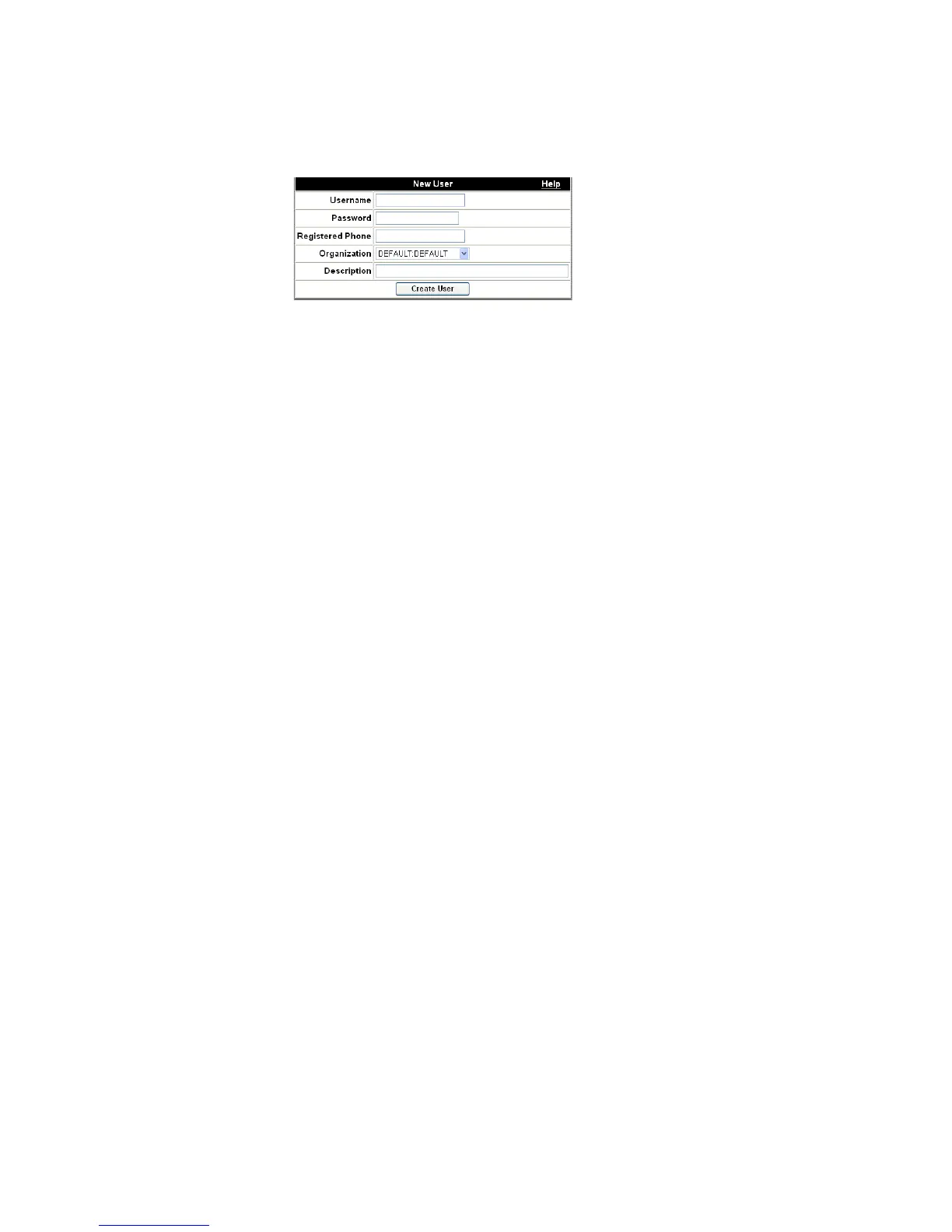
Figure 4-8 Adding User
........................................................................................................................................................................................................................
7 Enter a user name for the user you are adding (65 characters max).
The Username is used as the login ID for OmniTouch ACS. OmniTouch ACS User
names must be formatted like E-mail addresses: <name>@<domain.ext>. However,
the system does not use the User name as an E-mail address unless requested to (for
example, if an OmniTouch ACS User right-clicks on a user name and chooses E-mail).
If you will never request E-mail to be sent to a user, the specified name@domain.ext
need not even be a valid E-mail address. The domain.ext should not be all numeric;
specifically, it must not be an IP address.
The optional registered telephone number is the user’s phone number where
OmniTouch ACS can call the user to join that user into a call. The user can
subsequently change this number through the end user’s web user interface, allowing
the user to be called wherever he or she happens to be.
........................................................................................................................................................................................................................
8 Enter a password for the new user.
........................................................................................................................................................................................................................
9 Enter the new user’s telephone number.
........................................................................................................................................................................................................................
10 Select the user’s Organization from the drop-down list.
........................................................................................................................................................................................................................
11 Enter a description of this user (optional).
........................................................................................................................................................................................................................
12 Click the Create User button.
A screen will appear to confirm that the new user has been added to the system.











 To Next Page