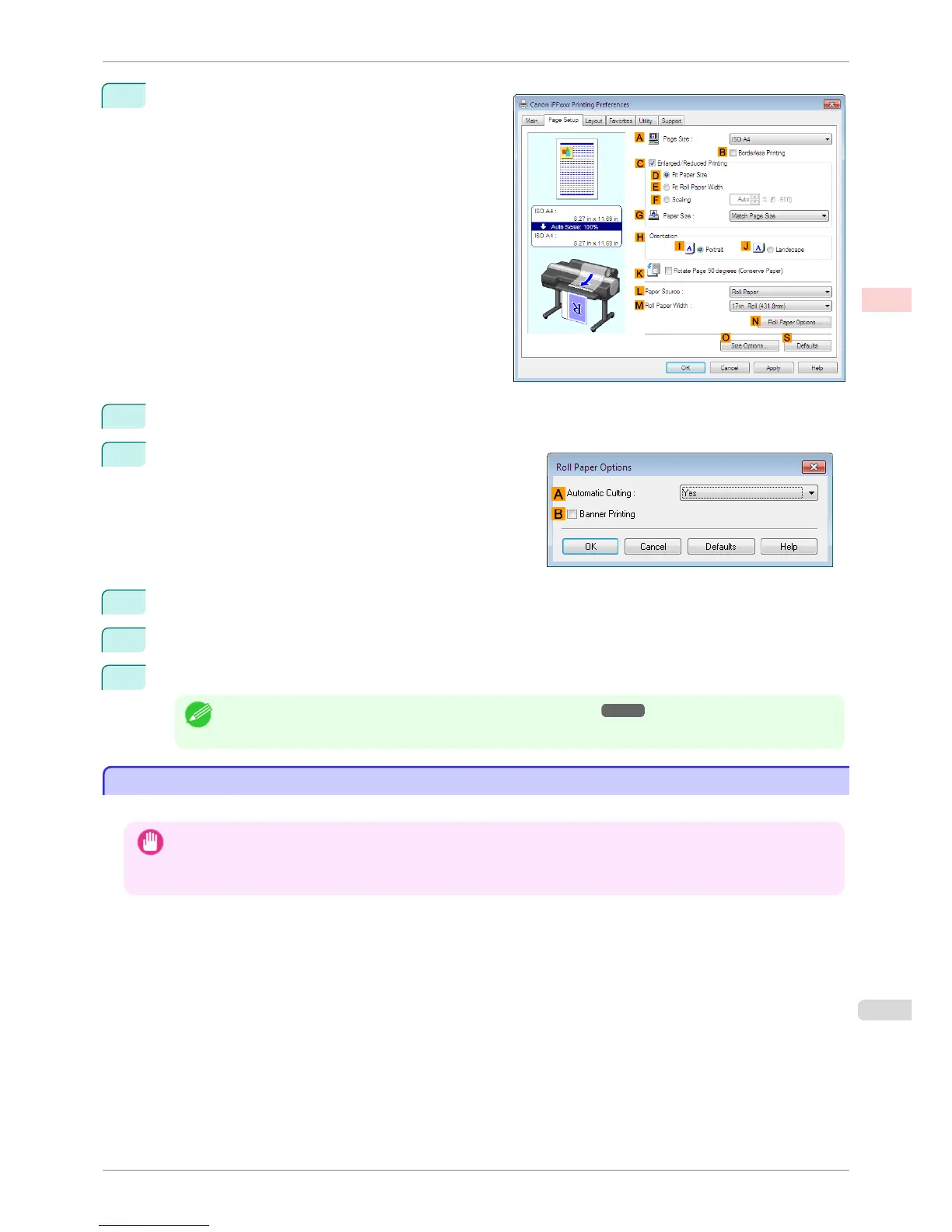
5
Click the Page Setup tab to display the Page Setup
sheet.
6
Select and click a roll paper in the L Paper Source list.
7
Click N Roll Paper Options to display the Roll Paper Op-
tions dialog box.
8
Select the B Banner Printing check box.
9
Click OK.
10
Confirm the print settings and print as desired.
Note
• For tips on confirming print settings, see "Confirming Print Settings ." ➔ P.153
Printing Multiple Pages Continuously (Mac OS)
Printing Multiple Pages Continuously (Mac OS)
This topic describes how to print multiple pages as a single continuous image, without margins between pages.
Important
• This feature is only available with rolls. It cannot be used when printing on sheets.
• When using Banner Printing, some of the settings are disabled, including Borderless Printing, Enlarge/Reduce Printing,
and Layout.
iPF6400S
Printing Multiple Pages Continuously (Mac OS)
User's Guide
Enhanced Printing Options Tiling and multiple pages per sheet
111













 To Next Page