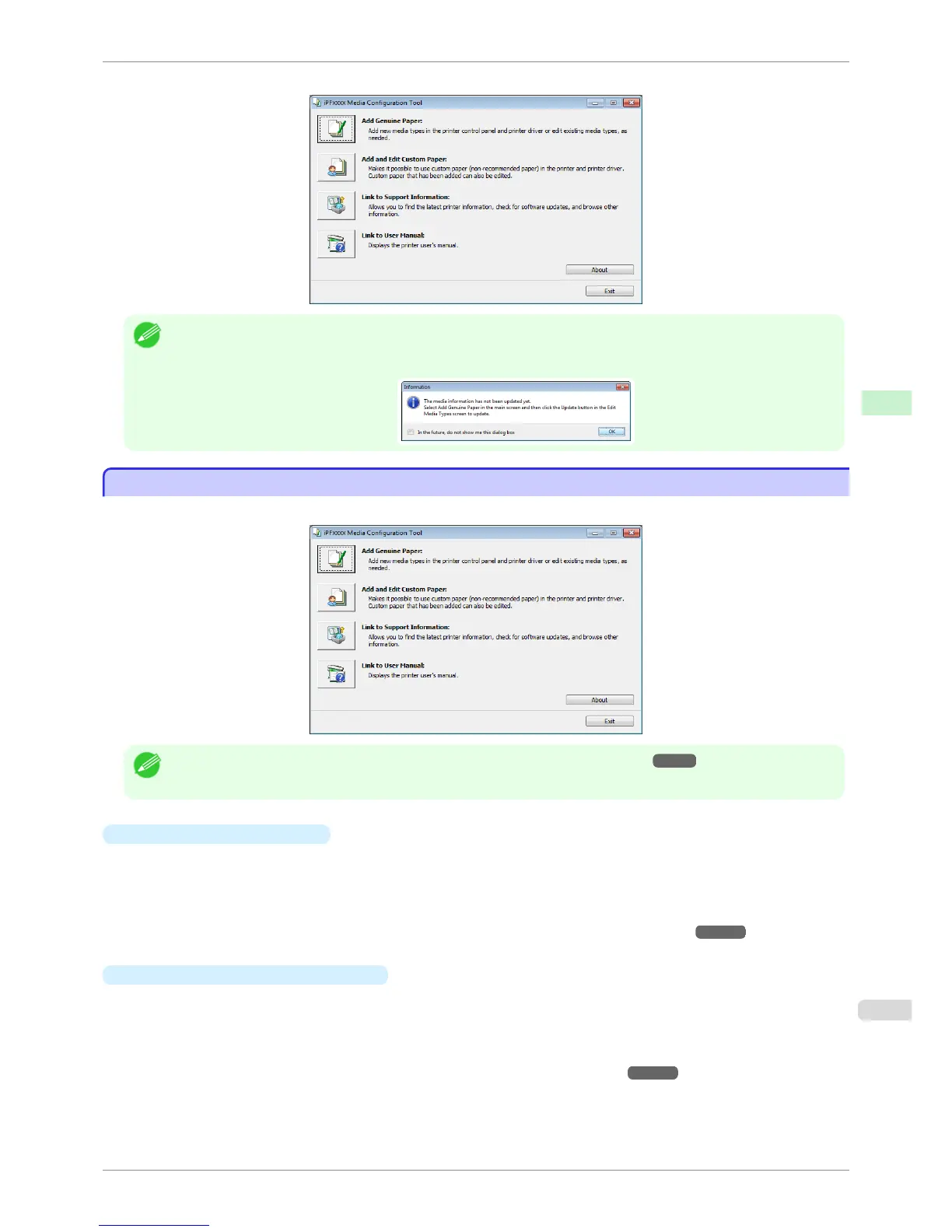
Media Configuration Tool main window is displayed.
Note
• If you only start the Media Configuration Tool, the media information on the printer control panel and in the printer driver
is not updated. If this screen is displayed, select Add Genuine Paper in the main window, and click the Update button in
the Edit Media Types screen to update the media information.
Media Configuration Tool Main Window
Media Configuration Tool Main Window
The explanation below is on the Media Configuration Tool main window.
Note
• For the step to open the Media Configuration Tool main window, see "Starting Method." ➔ P.512
•
Add Genuine Paper button
When this button is clicked, the Edit Media Types dialog box is displayed, which allows you to add media
information files released by Canon to the printer control panel and printer driver. You can also change names,
toggle between displaying and hiding, and delete added media types.
You can also change the display order of Canon genuine paper and custom paper.
Refer to "Editing Media Type Information for Genuine Paper and Feed Confirmed Paper" ➔ P.514 for details on
Add Genuine Paper.
•
Add and Edit Custom Paper
button
When this button is clicked, the Add and Edit Custom Paper dialog box is displayed, which allows you to
added custom paper to the printer control panel and printer driver.
You can also create a calibration target for performing color calibration on added custom paper from the Add
and Edit Custom Paper dialog box that opens when you click this button.
Refer to "Using Paper Other than Genuine Paper and Feed Confirmed Paper" ➔ P.523 for details on Add and
Edit Custom Paper.
iPF6400S
Media Configuration Tool Main Window
User's Guide
Handling and Use of Paper Media Configuration Tool (Windows)
513













 To Next Page