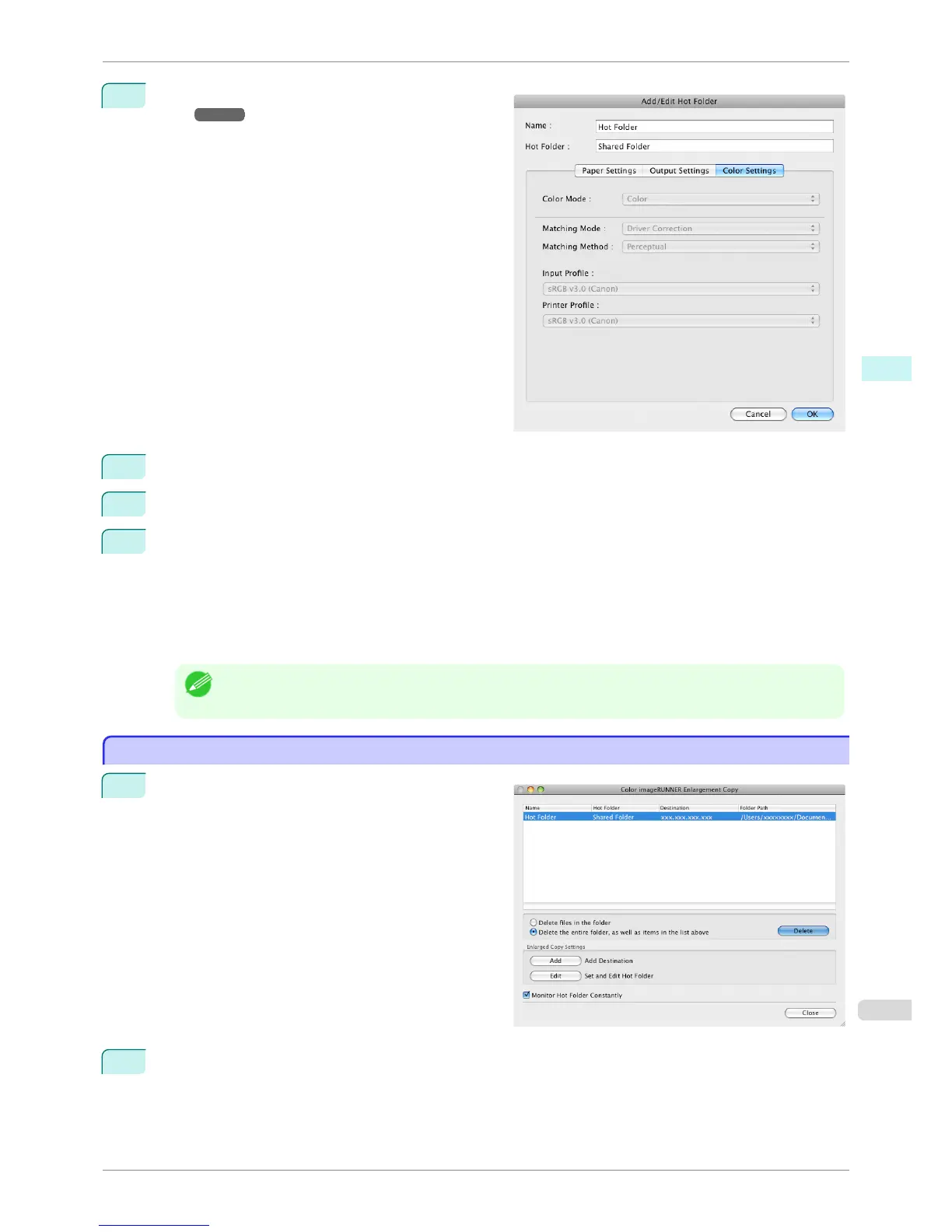
6
Make the necessary settings in the Color Settings
Panel
➔P.396 .
7
Click the OK button to close the Add/Edit Hot Folder dialog box.
8
From the Apple Menu, open the Sharing dialog box for System Preferences.
9
For OS X v10.6:
Check the File Sharing checkbox and click the Options button.
Check the Share files and folders using FTP and Share files and folders using SMB checkboxes to
configure the sharing.
For OS X v10.7 and later:
Check the File Sharing checkbox and click the Options button.
Check the Share files and folders using SMB checkbox to configure the sharing.
Note
• If you've made shared settings when you created a new Hot Folder, you do not need to execute steps 8 to 9.
Deleting a Hot Folder
Deleting a Hot Folder
1
Open the Color imageRUNNER Enlargement Copy
dialog box.
2
Select the Hot Folder you want to delete from the Hot Folder list.
iPF6400S
Deleting a Hot Folder
User's Guide
Mac OS Software Color imageRUNNER Enlargement Copy
389













 To Next Page